OpenClaw Logs Command: Monitor Your Agent in Real Time
OpenClaw was previously known as Clawdbot and Moltbot. This guide applies to all versions.
openclaw logs flags, file location, config options, and real log patterns explained. Follow live output, configure log levels, and debug silent failures
Key takeaways
openclaw logs --followtails your gateway's file logs over RPC and works whether the gateway runs locally or on a remote VPS.openclaw channels logs --channel <name>filters to a single channel.- Two log surfaces exist: console output (controlled by
logging.consoleLevelandlogging.consoleStyle) and the log file (controlled bylogging.level, default path/tmp/openclaw/). They're independent. --verboseincreases console verbosity but doesn't affect file logs. Setlogging.level: debugif you need verbose detail written to disk. Or override per-run withOPENCLAW_LOG_LEVEL=debugor--log-level debug.logging.redactSensitivemasks tokens in console output only (default:tools, meaning it's on out of the box). The log file always contains unredacted data.- Common patterns like
drop guild message (mention required)andpairing requesteach signal a specific condition with a known fix.
OpenClaw (formerly Clawdbot and Moltbot) has two ways to show you what's happening inside the gateway: the live console stream and the file log. docs.openclaw.ai Most guides stop at listing the flags. This one explains what you're actually looking at when you run them.
Always review commands your agent suggests before approving them. Don't paste prompts from sources you don't trust.
Fixes when it breaks. Workflows when it doesn't.
OpenClaw guides, configs, and troubleshooting notes. Every two weeks.
openclaw logs --follow: real-time log tailing
openclaw logs --follow is the fastest way to see what your agent is doing. Run it and you get a live stream of your gateway's log file, tailed over RPC.
openclaw logs --followThe stream keeps running until you press Ctrl-C. Every line the gateway writes to disk shows up here in near real-time. It works whether your gateway is running locally or on a VPS. The CLI connects over the same authenticated RPC channel it uses for everything else. docs.openclaw.ai/gateway/logging
Each line you see has a timestamp, a log level (info, debug, warn, error), and a subsystem prefix that tells you which part of the gateway produced it. More on that in Reading openclaw log output below.
Start here when something stops working. You'll usually see the problem within a few seconds of reproducing it.
openclaw logs flags: every option from --follow to --max-bytes
Eight flags control how openclaw logs behaves. Here's the full list from openclaw logs --help:
| Flag | Default | What it does |
|---|---|---|
--follow | off | Tails the log file live. Press Ctrl-C to stop. |
--json | off | Outputs structured JSON lines instead of formatted text. Pipe to jq for filtering. |
--plain | off | Forces plain text output with no ANSI styling, even in a TTY. |
--no-color | off | Disables ANSI colors while keeping other formatting. |
--limit <n> | 200 | How many recent lines to fetch before tailing (or before exiting without --follow). |
--max-bytes <n> | 250000 | Maximum bytes to read from the log file per fetch. Increase this if your output is getting truncated on large log files. |
--interval <ms> | 1000 | Polling interval in milliseconds when using --follow. |
--timeout <ms> | 10000 | Connection timeout in milliseconds. |
Source: openclaw logs --help (v2026.1.30). See also docs.openclaw.ai/logging.
--json is useful when you want to filter the stream. In JSON mode, each line is a typed object: meta (stream metadata like file and cursor), log (a parsed log entry), notice (truncation or rotation hints), or raw (an unparsed line). Pipe it to jq to isolate errors:
openclaw logs --follow --json | jq 'select(.level == "error")'If your log output is getting truncated, two flags control that. --limit sets how many lines to fetch (default 200). --max-bytes caps how many bytes are read per fetch (default 250,000). Bump either one for large log files:
openclaw logs --limit 2000 --max-bytes 500000Two additional flags are available for connecting to remote gateways: --url <url> overrides the gateway WebSocket URL, and --token <token> provides the auth token. These are useful when your CLI isn't configured with a default remote gateway.
openclaw log file location: where logs are written
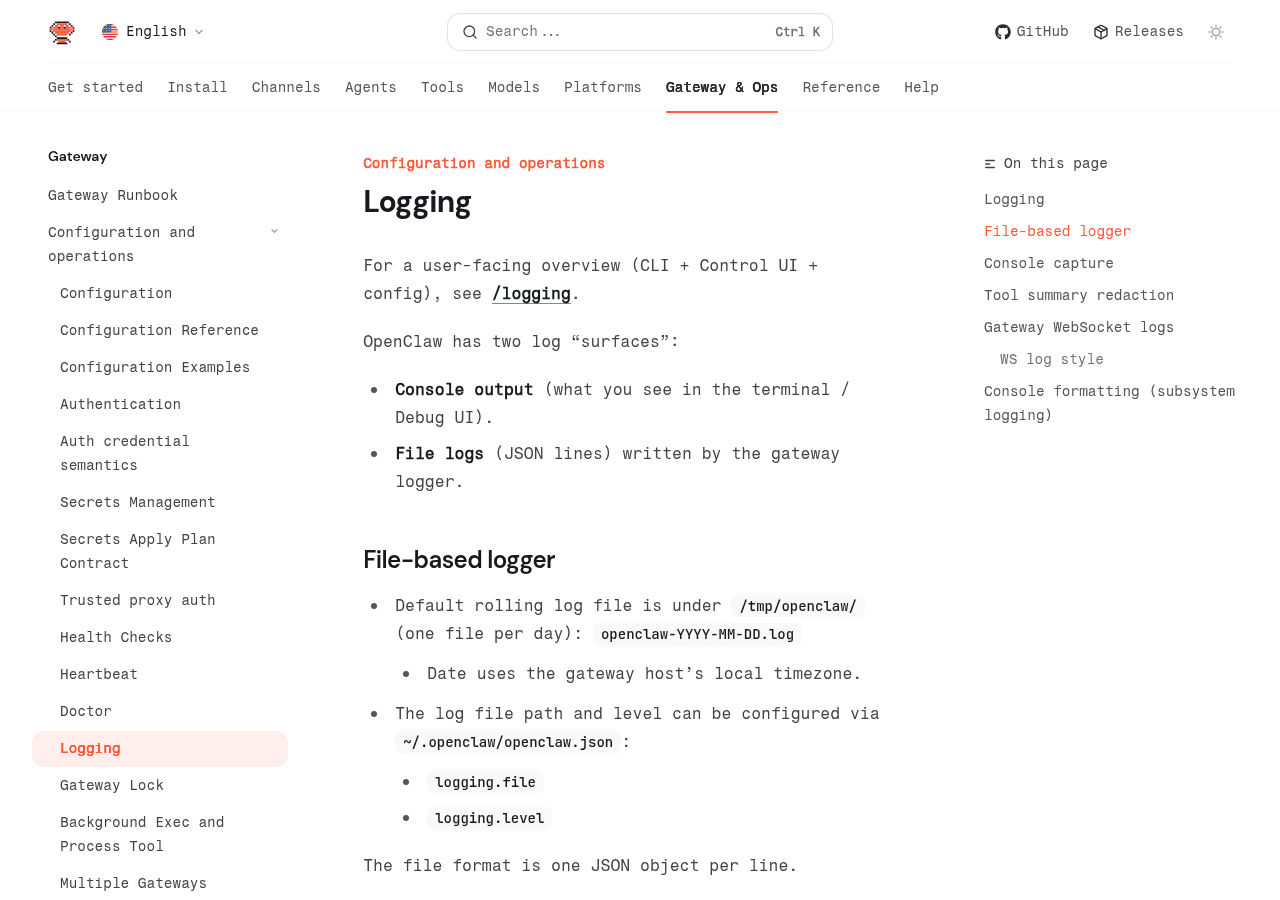
The gateway writes logs to /tmp/openclaw/ by default. One file per day, named by date in your local timezone:
/tmp/openclaw/openclaw-2026-03-09.logEach line in the file is a complete JSON object. The format is JSON lines: one entry per line, no commas between them, no wrapping array. docs.openclaw.ai/gateway/logging
You can change the log path by setting logging.file in your openclaw.json:
{
  "logging": {
    "file": "/home/youruser/logs/openclaw.log"
  }
}
The Control UI's Logs tab is another way to view the same file. It tails the log via the logs.tail RPC call, so it shows identical content to what openclaw logs shows. docs.openclaw.ai/gateway/logging
Worth noting: /tmp/ is not persistent on most Linux systems across reboots. If you run OpenClaw on a VPS and care about keeping log history, change logging.file to a path outside /tmp/.
openclaw logging config: level, consoleLevel, and consoleStyle
Three config keys control what gets logged and how it looks. They're independent of each other.
| Config key | Values | Controls | Default |
|---|---|---|---|
logging.level | error, warn, info, debug, trace | What gets written to the log file | info |
logging.consoleLevel | Same as above | What appears in console output | info |
logging.consoleStyle | pretty, compact, json | How console output is formatted | pretty |
Source: docs.openclaw.ai/gateway/logging
The most common mistake: setting --verbose at gateway startup and expecting the log file to also get verbose output. It doesn't. --verbose controls console verbosity. To get debug-level entries in the file, set logging.level: debug in your config:
{
  "logging": {
    "level": "debug",
    "consoleLevel": "info"
  }
}
This gives you verbose file logs while keeping the console output readable.
logging.consoleStyle: compact is useful on resource-constrained servers where you want shorter output. json is useful when you're piping console output to another tool.
Override log level without editing config
Two shortcuts let you raise verbosity for a single run without touching openclaw.json. The OPENCLAW_LOG_LEVEL environment variable overrides the config file value:
OPENCLAW_LOG_LEVEL=debug openclaw gateway runThe --log-level global CLI option overrides even the environment variable:
openclaw --log-level debug gateway runBoth affect file logs and console output for that run only. Source: docs.openclaw.ai/logging.
openclaw channels logs: filter by channel
If you only care about one platform's traffic, openclaw channels logs filters the stream to a single channel:
openclaw channels logs --channel whatsappThis is faster than tailing the full log and grepping for a channel name. It works for any configured channel (Telegram, Discord, WhatsApp, Signal, etc.). Source: docs.openclaw.ai/logging.
openclaw logging.redactSensitive: how token masking works
logging.redactSensitive masks sensitive strings in console output. docs.openclaw.ai/gateway/logging
{
  "logging": {
    "redactSensitive": "tools"
  }
}
Two values are available: off (no redaction) and tools (mask tokens appearing in tool inputs/outputs). The default is tools, so redaction is on out of the box. The masking rule: strings 18 characters or longer get first-6 plus last-4 characters shown, with *** in the middle. Shorter strings become *** entirely. docs.openclaw.ai/gateway/logging
The file log is never redacted. Redaction only applies to console output. Your /tmp/openclaw/ log file always contains the full, unmasked data. docs.openclaw.ai/gateway/logging
This matters for security. If you're running OpenClaw on a shared server, make sure the log directory has appropriate permissions. See the OpenClaw security hardening playbook for the full checklist. Default patterns cover bearer headers, PEM blocks, key assignments, and common token prefixes. You can extend them with logging.redactPatterns.
openclaw gateway --verbose: what it does and what it misses
--verbose is a gateway startup flag, not a logs flag. Pass it when starting the gateway:
openclaw gateway start --verboseIn normal mode (without --verbose), the gateway only logs errors, slow calls (50ms or more), and parse errors to the console. Verbose mode logs everything. docs.openclaw.ai/gateway/logging
Turn on verbose logging for the OpenClaw gateway. Set logging level to debug in the config so both the console and the log file capture detailed output. Then restart the gateway and tail the logs.
Always review commands your agent suggests before approving them. Don't paste prompts from sources you don't trust.
The thing --verbose doesn't do: write more to the log file. That's logging.level. These two settings are independent. Running --verbose without also setting logging.level: debug means you get verbose console output but the same old file logs.
openclaw --ws-log: WebSocket log modes
--ws-log controls how WebSocket traffic is logged at gateway startup. It works in combination with --verbose. Without --verbose, the gateway only prints errors, slow calls, and parse errors regardless of the --ws-log setting. docs.openclaw.ai/gateway/logging
openclaw gateway start --verbose --ws-log fullThree modes:
| Mode | Without --verbose | With --verbose |
|---|---|---|
auto (default) | Errors and slow frames only | Compact output (paired request/response) |
compact | Errors and slow frames only | All frames, paired request/response format |
full | Errors and slow frames only | Complete per-frame output with full payloads |
There's also a --compact shorthand that's equivalent to --ws-log compact.
Use --verbose --ws-log full when debugging plugin communication issues or unexpected disconnects. It's noisy, so only enable it when you need it. Leave auto in production.
Reading openclaw log output: subsystem prefixes and what they mean
Subsystem prefixes tell you which part of the gateway produced a log line. The gateway shortens them: it drops leading gateway/ and channels/ segments and keeps the last two path segments. So gateway/channels/telegram/inbound becomes telegram/inbound in your console output. docs.openclaw.ai/gateway/logging
Console output is TTY-aware. When writing to a terminal, you get colors and formatted subsystem prefixes. Pipe it to a file and you get plain text. Set NO_COLOR=1 to disable colors while keeping the terminal stream.
Explain what the subsystem prefix on a specific log line means. Paste the log line and I'll decode which part of the gateway produced it.
Always review commands your agent suggests before approving them. Don't paste prompts from sources you don't trust.
The log level appears before the subsystem prefix in most console styles. [info] is normal operation. [warn] is something worth checking. [error] is something that failed.
openclaw log patterns: common messages decoded
These are the log lines OpenClaw users actually encounter. Each one has a specific cause.
drop guild message (mention required)
Your bot received a Discord or group message but didn't process it because requireMention: true is set. The bot only responds when directly mentioned. Either mention it in your message, or set requireMention: false to process all messages. open-claw.bot/docs/gateway/troubleshooting/
pairing request
A sender is trying to connect to your agent and is waiting for approval. Go to the Control UI or run openclaw status to see pending pairing requests. open-claw.bot/docs/gateway/troubleshooting/
EADDRINUSE
The port your gateway needs is already in use. Usually means another gateway instance is running, or a stale process is holding the port. Check with lsof -i :18789 (or whichever port you're using), kill the conflict, and start again. open-claw.bot/docs/gateway/troubleshooting/
WebSocket 1006
A plugin crashed on startup. The 1006 error is an abnormal close. Look in the lines before it for the specific plugin and error message. open-claw.bot/docs/gateway/troubleshooting/
Stale PID file If the gateway can't start after a crash, a leftover PID file may be blocking it. Delete it from the gateway data directory and try again. open-claw.bot/docs/gateway/troubleshooting/
WhatsApp message bodies not appearing
WhatsApp logs message metadata at info level but only writes message bodies at debug level. Set logging.level: debug to see them. docs.openclaw.ai/gateway/logging
empty-heartbeat-file
A cron job ran but produced no output or failed silently. This appears in cron runner logs and is usually caused by the agent returning no content. Check the specific cron job config and the skills it invokes. Community source: reddit.com/r/AI_Agents
Plugin CLI register conflicts
If two skills register the same CLI command name, the second one logs a conflict warning at startup. Look for duplicate skill or register conflict in debug-level startup logs. answeroverflow.com
openclaw logs not showing anything: troubleshooting blank output
If openclaw logs returns nothing or the stream is empty, check these three things:
- Gateway is running.
openclaw gateway status. If it's stopped, there's nothing to tail. - Log level is filtering out your events.
logging.level: infowon't capture debug events. Setlogging.level: debugif you need to see them. - Log file path mismatch. If you changed
logging.file, make sure the path exists and the gateway has write permission.
Check whether my OpenClaw gateway is running and show me the last 50 lines from the logs. If the gateway isn't running, tell me why it might have stopped.
Always review commands your agent suggests before approving them. Don't paste prompts from sources you don't trust.
If none of that works, run openclaw doctor for a full connectivity check. See OpenClaw Doctor Command for what each warning means.
When openclaw logs aren't enough: next steps
Logs tell you what happened. They don't always tell you why. For deeper diagnostics, the five-command ladder from the OpenClaw troubleshooting community covers most cases: open-claw.bot/docs/gateway/troubleshooting/
openclaw status
openclaw gateway status
openclaw logs --follow
openclaw doctor
openclaw channels status --probe
Run them in that order. Each one narrows down where the failure is.
For bug reports, include: your OS, Node.js version (node --version), OpenClaw version (openclaw --version), reproduction steps, your config with secrets redacted, and a log snippet at debug level. open-claw.bot/docs/gateway/troubleshooting/
One step between basic logs and full observability: diagnostics flags. These turn on targeted debug logging for specific subsystems without raising logging.level globally. Set them in your config:
{
  "diagnostics": {
    "flags": ["telegram.http"]
  }
}
Or override per-run with the OPENCLAW_DIAGNOSTICS environment variable: OPENCLAW_DIAGNOSTICS=telegram.http,telegram.payload. Flags support wildcards (e.g., telegram.* or *). Source: docs.openclaw.ai/logging.
For long-term monitoring beyond what log files provide, OpenClaw has an OTLP export option via the diagnostics-otel plugin. That routes metrics, traces, and logs to Grafana, Honeycomb, or any OpenTelemetry-compatible backend. That's outside the scope of this article. See docs.openclaw.ai/logging for the plugin setup.
For broader troubleshooting beyond logs, see OpenClaw Troubleshooting Guide and OpenClaw CLI Commands Reference.
Key Terms
openclaw logs: CLI command that tails the gateway's log file over RPC. Works with local and remote gateways.
logging.level: Config key in openclaw.json that controls which events are written to the log file. Separate from console verbosity.
logging.consoleLevel: Config key controlling which events appear in the live console output. Independent of logging.level.
--follow: CLI flag that keeps the log stream open for real-time monitoring. Without it, the command fetches recent lines and exits.
--verbose: Gateway startup flag that increases console log verbosity. Does not affect the log file.
logging.redactSensitive: Config key that masks tokens and sensitive strings in console output only (default: tools). File logs are never redacted.
OPENCLAW_LOG_LEVEL: Environment variable that overrides logging.level and logging.consoleLevel for a single gateway run without editing config.
diagnostics.flags: Config key for targeted debug logs on specific subsystems (e.g., telegram.http) without raising the global log level.
JSON lines: The log file format. Each line is a standalone, parseable JSON object. Useful for piping to jq.
FAQ
Does openclaw logs --follow work when my gateway is on a remote VPS?
Yes. openclaw logs --follow tails gateway logs over RPC, so it works whether your gateway runs locally or on a remote server. You need an authenticated CLI session that can reach the gateway's address.
Source: docs.openclaw.ai/gateway/logging
Why does openclaw logging.redactSensitive not redact tokens in my log files?
logging.redactSensitive only affects console output. The log files in /tmp/openclaw/ always contain unredacted data. If you need to protect sensitive tokens in log files, restrict access to the log directory or change logging.file to a secured path.
Source: docs.openclaw.ai/gateway/logging
How do I see WhatsApp message content in openclaw logs?
WhatsApp message bodies are only logged at debug level. Set logging.level: debug in your openclaw.json and restart the gateway. To also see them in console output, add logging.consoleLevel: debug or start the gateway with --verbose.
Source: docs.openclaw.ai/gateway/logging
What does "drop guild message (mention required)" mean in openclaw logs?
Your OpenClaw bot received a Discord or group message and ignored it because requireMention: true is set in your config. Either mention the bot directly in group messages, or set requireMention: false to process all messages.
Source: open-claw.bot/docs/gateway/troubleshooting/
How do I increase openclaw log verbosity without restarting the gateway?
You can update logging.consoleLevel and logging.level in openclaw.json and reload the config. For a single run, use the OPENCLAW_LOG_LEVEL=debug environment variable or openclaw --log-level debug gateway run. For gateway startup flags like --verbose and --ws-log, a full gateway restart is required.
Source: docs.openclaw.ai/logging
Evidence & Methodology
Research conducted March 2026. Primary sources: OpenClaw official documentation, Gateway Logging for internal architecture and config keys, OpenClaw official documentation, Logging for user-facing CLI behavior, environment overrides, channel-specific logs, and diagnostics flags. CLI flag defaults verified against openclaw logs --help (v2026.1.30).
Secondary sources: open-claw.bot community guides (third-party, not official OpenClaw documentation) and open-claw.bot troubleshooting runbook for log pattern descriptions. Community reports from Reddit r/AI_Agents and AnswerOverflow archived Discord for real-world error patterns.
All config keys and flag behaviors verified against official documentation or CLI help output. Claims from community sources (WebSocket 1006, stale PID file, empty-heartbeat-file, plugin register conflicts) are labeled with their community source. These patterns are commonly reported but not documented in the official docs.
Related Resources
- OpenClaw CLI Commands Reference
- OpenClaw Doctor Command
- OpenClaw Troubleshooting Guide
- OpenClaw Cron Jobs Automation Guide
- OpenClaw Security Hardening Playbook
Changelog
| Date | Change |
|---|---|
| 2026-03-09 | Article created |
Fixes when it breaks. Workflows when it doesn't.
OpenClaw guides, configs, and troubleshooting notes. Every two weeks.