OpenClaw Troubleshooting: Fix Gateway, Pairing, and Channel Errors
OpenClaw was previously known as Clawdbot and Moltbot. This guide applies to all versions.
Fix OpenClaw errors fast: pairing required, gateway connect failed, ECONNREFUSED, channel drops, and allowFrom blocks. Diagnostic commands and step-by-step fixes.
Key takeaways
Run these five commands in order before you do anything else:
openclaw status
openclaw gateway status
openclaw logs --follow
openclaw doctor
openclaw channels status --probe
Healthy output shows Runtime: running, your channel connected, and no pending pairing codes you forgot about. Four causes explain nearly all OpenClaw channel failures: gateway not started, pairing code not approved, channel not in the allowlist, or the group policy blocking messages. This guide covers all four.
Always review commands your agent suggests before approving them. Don't paste prompts from sources you don't trust.
Fixes when it breaks. Workflows when it doesn't.
OpenClaw guides, configs, and troubleshooting notes. Every two weeks.
Introduction
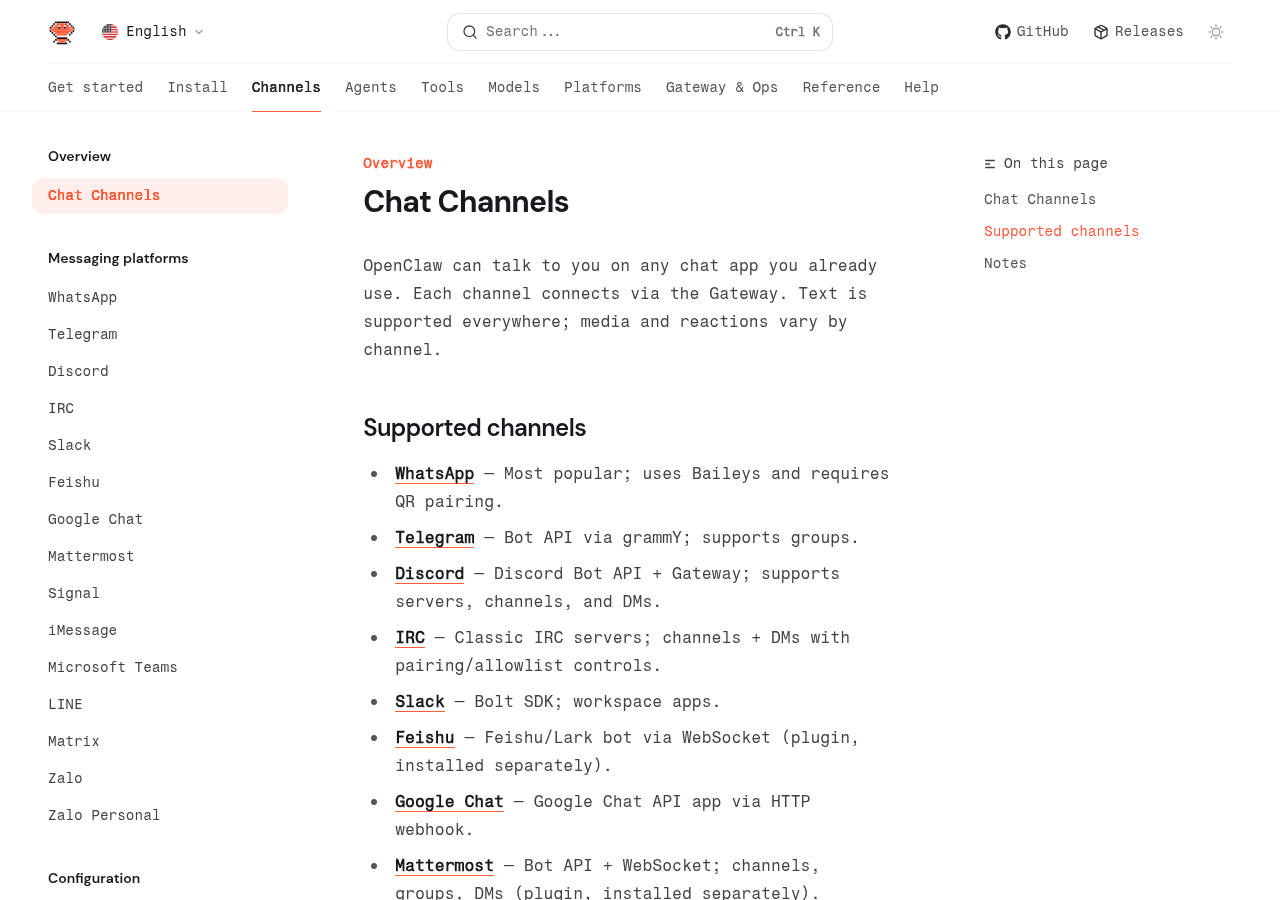
OpenClaw (previously known as Clawdbot and Moltbot) supports over 20 messaging platforms, and the symptoms of failure look different on each one. Telegram silently ignores DMs. Discord shows the bot online but never replies in servers. Slack responds to some people but not others. Each one feels like a different problem.
It's rarely a channel-specific bug. That's the pattern worth knowing.
Under the hood, every OpenClaw channel runs on the same access control system: DM pairing, allowlists, group policies, and the gateway runtime. The channels overview lists all 20+ platforms, and every single one passes through those same four gates. Fix the gates, fix the channel.
This guide is the catch-all diagnostic layer. It's where every channel-specific troubleshooting guide points when the channel-specific fixes don't work. For building AI-powered workflows once things are running, building a second brain with AI shows what OpenClaw looks like when it's working correctly.
The Diagnostic Ladder (Run These First, Every Time)
Run these commands in this order. Don't skip ahead. Each one narrows the problem space before the next.
openclaw status
openclaw gateway status
openclaw logs --follow
openclaw doctor
openclaw channels status --probe
openclaw status gives you the gateway runtime state. If this shows anything other than Runtime: running, the gateway itself is the problem. Stop here and see the gateway crash section below.
openclaw gateway status gives you more detail: uptime, memory, active connections. Useful for confirming the gateway has been running long enough to process your test message.
openclaw logs --follow opens the live log stream. Send a test message in your channel while this is running. You'll see exactly what happened: whether the message arrived, why it was dropped, or what error occurred. This one command resolves more issues than anything else on this list. Key log patterns to look for:
drop dm (pairing required)- sender not yet paireddrop dm (not in allowlist)- sender not inallowFromdrop group (not in allowlist)- group/guild not configureddrop group message (missing-mention)- mention gating blocked itchannel connect error- authentication or network issue
openclaw doctor runs the built-in config validator. It checks for common misconfigurations like usernames where numeric IDs are required, missing required fields, and deprecated config patterns. Run openclaw doctor --fix to automatically resolve the issues it finds.
openclaw channels status --probe makes a live API call to each configured channel. It tells you whether the connection is healthy right now, not just whether the config exists. This catches authentication failures, expired tokens, and network issues that status alone won't show.
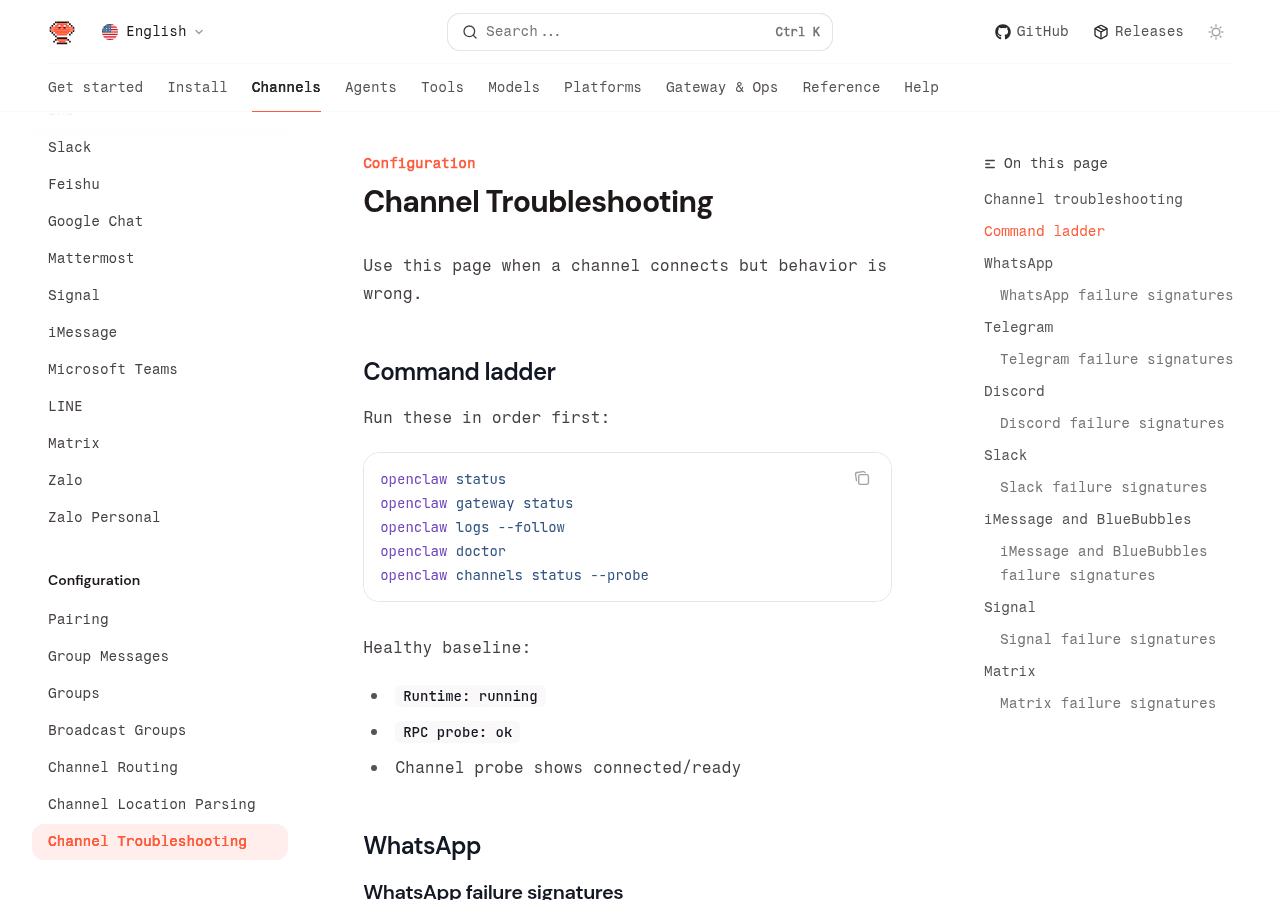
What healthy baseline looks like:
Runtime: running
RPC probe: ok
Channel: telegram [connected]
Channel: discord [connected]
If any channel shows [error] or [disconnected], that's your starting point. If the channel shows [connected] and messages still aren't working, keep reading. Connection and response are two different things.
Gateway Crashes and Startup Failures
If openclaw status shows the gateway is not running, nothing else matters. The gateway must be running for any channel to function.
Port conflict: The gateway defaults to port 18789. If something else is using that port:
ss -tlnp | grep 18789Running that shows what process owns the port. Then:
openclaw config set gateway.port 18790
openclaw gateway restart
Missing or corrupted config: If openclaw doctor reports config errors:
openclaw doctor --fixThat auto-fixes what it can. For errors it can't fix, the output tells you exactly which field needs attention.
Permission errors: OpenClaw stores session data in ~/.openclaw/. Check that the process user has read/write access to that directory.
OOM kills on low-resource VPS: If you are running OpenClaw on a small VPS alongside other services, the gateway may be killed by the OOM killer. Check with dmesg | grep -i oom. If this is happening, reduce historyLimit in your channel configs or upgrade your server.
For installation-level issues that prevent the gateway from starting at all, see the fix OpenClaw installation errors guide. For VPS-level configuration including firewall rules and process management, the DigitalOcean VPS setup guide covers persistent gateway setup with systemd.
After fixing any startup issue, always restart cleanly:
openclaw gateway stop
openclaw gateway start
openclaw channels status --probe
Pairing Failures: The Most Silent Failure
This is the one that burns people. Everything looks healthy. Gateway running, channel connected, no errors anywhere. But a new user messages your bot and gets absolute silence.
Here's what actually happened: the default DM policy is pairing. OpenClaw saw that new sender, generated a one-time approval code, and is sitting there waiting for you to authorize it. Until you do, the sender gets nothing. Not even an error.
The pairing code is printed in the gateway logs. If you were not watching logs when someone first messaged, you missed it. Pairing codes expire after one hour.
Check for pending pairing codes:
openclaw pairing list telegram
openclaw pairing list discord
openclaw pairing list slack
Use whichever channel you are debugging.
Approve a pending code:
openclaw pairing approve telegram <CODE>If the code has expired: Have the sender message the bot again. A new code generates automatically.
To skip pairing for users you trust, add them to allowFrom:
{
  "channels": {
    "telegram": {
      "allowFrom": ["123456789"]
    }
  }
}
To disable pairing entirely and allow all DMs (use with caution):
{
  "channels": {
    "telegram": {
      "dmPolicy": "open",
      "allowFrom": ["*"]
    }
  }
}
The pairing system exists because your agent can access your files, tools, and potentially sensitive data. Your agent handles all routing internally, so whoever gets past the pairing gate can trigger anything your agent is allowed to do (OpenClaw gateway security docs). Before relaxing the DM policy, read the OpenClaw security guide on access control.
Allowlist and DM Policy Issues
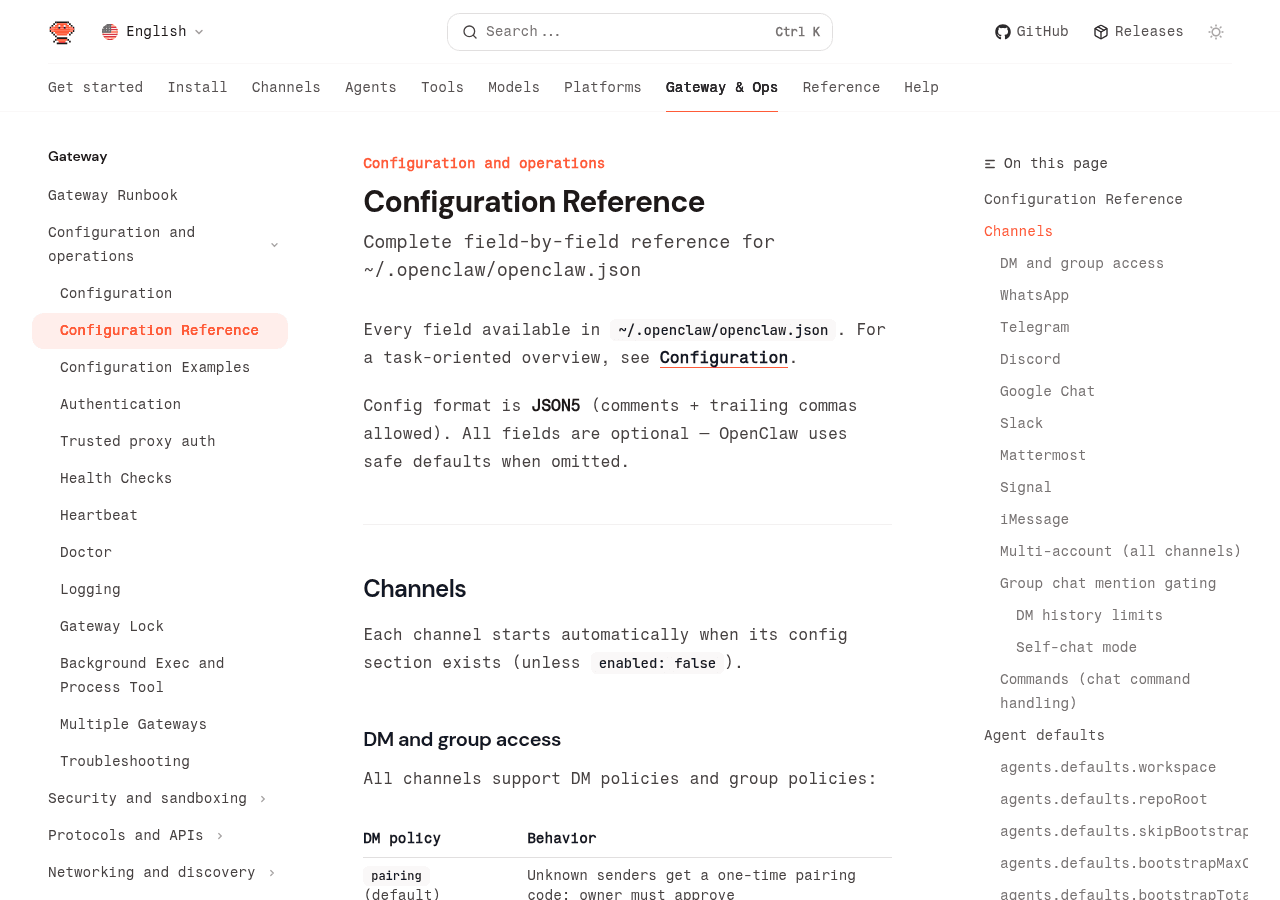
OpenClaw's access control has two separate layers, and confusing them is behind most "works for me but not for anyone else" reports. Here's the full picture.
DM policies:
| Policy | Behavior |
|---|---|
pairing (default) | New senders get a one-time code. You must approve before they can interact. |
allowlist | Only senders in allowFrom array can DM the bot |
open | Any sender can DM (requires allowFrom: ["*"]) |
disabled | All DMs ignored |
Group policies:
| Policy | Behavior |
|---|---|
allowlist (default) | Only explicitly listed groups/channels are active |
open | All groups allowed (mention-gating still applies) |
disabled | All group messages blocked |
The allowlist trap: You set up the bot and added your user ID to allowFrom. It works for you. Someone else tries to message the bot and gets nothing. Their ID is not in allowFrom. Add them, use pairing mode so they can request access, or switch to open.
The Telegram username trap: If you added @yourusername to allowFrom and then upgraded OpenClaw, run openclaw doctor --fix to migrate those to numeric IDs automatically. If you're still seeing allowlist blocks after that, run openclaw logs --follow while sending a message to see exactly what sender ID is being checked.
Checking current DM config:
openclaw config get channels.telegram.dmPolicy
openclaw config get channels.telegram.allowFrom
Group and Channel Access Issues
Group messages failing is a completely separate problem from DM failures. This trips up nearly everyone on first setup. Two gates must open for a group message to get a response, and they're configured in different places.
Layer 1: Group allowlist. The channel itself must be in your config's group allowlist. For Discord, that means the guild ID. For Slack, the channel name or ID. For Telegram, the group ID. Until the group is explicitly listed, all messages from it are dropped.
Find the group ID in logs while a message is sent:
openclaw logs --followThen add it to config. Discord example:
openclaw config set channels.discord.guilds.YOUR_GUILD_ID.allow trueLayer 2: Mention gating. Even when a group is allowlisted, the default behavior is to only respond when the bot is @mentioned. This prevents the bot from responding to every message in a busy group.
If you see log entries like drop group message (missing-mention), the group is allowed but mention gating is blocking the response.
Disable mention requirement for a specific group:
{
  "channels": {
    "discord": {
      "guilds": {
        "YOUR_GUILD_ID": {
          "requireMention": false
        }
      }
    }
  }
}
Channel-specific group setup for Discord is covered in the OpenClaw Discord setup guide. For Slack, see the OpenClaw Slack setup guide.
Memory and Context Problems
If the bot responds but gives answers that ignore what you just told it, or seems to have forgotten the last ten minutes of conversation, the channel is fine. This is a context and memory issue.
Session isolation: Each channel, group, and DM thread gets its own isolated context. Messages sent in a Telegram group do not affect the context in a Discord DM. The agent will maintain separate histories per session, so tell your agent which channel it's supposed to be responding to if you're testing across multiple at once. This isolation is by design.
History limit: By default, OpenClaw keeps a limited number of messages in context per session. If conversations get very long, earlier messages get dropped.
Check the current limit:
openclaw config get channels.telegram.historyLimitIncrease it (source) to keep more context per session:
{
  "channels": {
    "telegram": {
      "historyLimit": 50
    }
  }
}
To reset context for a session: Use the /clear command in the channel if enabled, or restart the gateway. Restarting clears all in-memory context.
Context overflow errors appear in logs as API errors with "context too long" or similar messages. Reduce historyLimit or enable context summarization if available in your OpenClaw version.
Node Connection Problems
If you have paired nodes (remote devices connected to your OpenClaw instance), node connection failures show up as specific error patterns in the logs.
Symptoms of node issues: Commands that should use a node return "no node available." Node shows as paired but actions time out. Tools that depend on a node (camera, screen capture) fail consistently.
Check node status:
openclaw nodes statusReconnect a node: Nodes connect outbound from the remote device to your gateway. If the node disconnects, restart the node host process on the device. The node re-registers automatically on reconnect.
Node address mismatch: If you changed your gateway port or host address, existing node configs point to the old address. Update the connection command on the device:
openclaw node run --host YOUR_GATEWAY_IP --port 18789For server-level networking that affects node connectivity, the DigitalOcean VPS setup guide covers firewall configuration and port management.
HTTP 401: Invalid Authentication
You see this in the gateway logs or in API responses:
HTTP 401: invalid authenticationOr the full log line:
[gateway] auth error: 401 invalid authentication (token mismatch)What this means: The client sent an authentication token, but it does not match what the gateway expects. The token exists but is wrong.
Common causes:
- You regenerated the gateway token but did not update the client. Run
openclaw config get gateway.auth.tokenon the server and compare it to the token your client is using. - Copy-paste error. Extra whitespace, missing characters, or trailing newline in the token.
- Environment variable not loaded. If you set
OPENCLAW_GATEWAY_TOKENin a shell profile, it may not be available in the current shell session. Runecho $OPENCLAW_GATEWAY_TOKENto verify.
Fix:
# Get the current gateway token
openclaw config get gateway.auth.token

# Set it on the client side
export OPENCLAW_GATEWAY_TOKEN="<paste exact token>"

# Or regenerate and restart
openclaw auth regenerate
openclaw gateway restart
After fixing the token, verify with openclaw gateway status. You should see RPC probe: ok.
HTTP 401: User Not Found
HTTP 401: user not foundOr in logs:
[gateway] auth reject: user not found for token <partial-token>What this means: The token is structurally valid but does not map to any known device in ~/.openclaw/devices/paired.json. The gateway looked up the token and found no matching entry.
Common causes:
- The
paired.jsonfile was deleted or corrupted (often after a reinstall or migration). - You're connecting from a new device that was never paired.
- The device entry was manually removed from
paired.json.
Fix:
# Check if any devices are paired
cat ~/.openclaw/devices/paired.json

# If empty or missing, re-pair the device
openclaw doctor --generate-gateway-token
openclaw gateway restart
If you migrated from another server, copy ~/.openclaw/devices/paired.json from the old server or generate new credentials.
401 Missing Authentication Header
401 missing authentication headerOr:
[gateway] auth error: missing authorization headerWhat this means: The client connected to the gateway without sending any authentication token at all. The gateway requires auth but the request had no Authorization header and no token parameter.
Common causes:
- The
OPENCLAW_GATEWAY_TOKENenvironment variable is not set. - The gateway has
auth.modeset totokenbut the client does not know about it (fresh install, new terminal session). - Accessing the web dashboard URL without the
?token=parameter.
Fix:
# Check if auth mode is configured
openclaw config get gateway.auth.mode

# If it shows "token", you need to set the token
export OPENCLAW_GATEWAY_TOKEN="$(openclaw config get gateway.auth.token)"

# For web dashboard access, add the token to the URL
# http://127.0.0.1:18789/?token=YOUR_TOKEN_HERE
If you're on a fresh install and don't want auth yet (localhost only), you can disable it:
openclaw config set gateway.auth.mode none
openclaw gateway restart
Only do this if the gateway binds to 127.0.0.1. If it binds to a LAN or public IP, auth is required. See the gateway pairing guide for details.
Quick Reference: Error to Fix
| Symptom | Likely Cause | First Fix |
|---|---|---|
| Gateway not running | Startup failure | openclaw gateway start then check logs |
| Bot online but silent for new sender | Pairing not approved | openclaw pairing list <channel> |
| Bot works for you, not others | Allowlist blocks others | Add to allowFrom or use pairing mode |
| DMs work, groups don't | Group not in allowlist | Add group ID to config |
| Group allowed but no response | Mention gating | @mention the bot or set requireMention: false |
| Responds to some messages, not all | Sender not in group allowlist | Add to groupAllowFrom |
| Blank responses or no context | History cleared or context overflow | Increase historyLimit |
| Node commands time out | Node disconnected | Restart node host process |
| Auth errors on Google Chat or Teams | Token expired or misconfig | Re-run openclaw channels status --probe |
| Signal daemon unreachable | signal-cli not running | Check with pgrep -af signal-cli |
FAQ
Where are the OpenClaw logs stored?
Live logs stream via openclaw logs --follow. For persistent log files, check ~/.openclaw/logs/ (location may vary by install). Log level can be increased with openclaw config set logging.level debug for more verbose output.
Do config changes require a gateway restart?
Some config changes may hot-reload without a restart. Exceptions include token changes, plugin loading changes, and some networking changes. When in doubt, run openclaw gateway restart and check openclaw channels status --probe after.
How do I completely reset pairing for a channel?
openclaw pairing clear telegramTo clear a single user:
openclaw pairing revoke telegram <USER_ID>After clearing, the next message from any sender triggers a fresh pairing flow.
Can I run multiple channels simultaneously?
Yes. OpenClaw runs all configured channels at the same time through a single gateway. Each channel has its own config section, its own pairing state, and its own session contexts. Your agent can respond on Telegram, Discord, and Slack simultaneously without any extra configuration. Having one channel fail does not affect others.
Why does openclaw doctor say my config is valid but messages still fail?
openclaw doctor validates config syntax and structure. It does not make live API calls. For runtime failures that pass config validation, openclaw channels status --probe is the right tool. It actually calls each channel's API to verify live connectivity.
Conclusion
Five commands. That's the whole diagnostic framework.
- Run
openclaw statusand confirm the gateway is running - Run
openclaw logs --followand watch what happens when you send a test message - Run
openclaw doctorto catch config problems automatically - Check pairing with
openclaw pairing list <channel> - Verify your channel is in the group allowlist and that mention gating matches your expectations
If those five steps don't resolve your issue, the problem is channel-specific. See the dedicated setup guides for Telegram and Discord for channel-specific configuration help. For setting up new channels from scratch, the Telegram setup guide is the simplest entry point, while the Discord setup guide covers the most feature-rich option.
Changelog
- 2026-02-17: Initial publication
- 2026-02-25: Added changelog, structural improvements
- 2026-03-01: Added sections for HTTP 401 errors: "HTTP 401: Invalid Authentication", "HTTP 401: User Not Found", "401 Missing Authentication Header" with exact error text, causes, and fixes.
Fixes when it breaks. Workflows when it doesn't.
OpenClaw guides, configs, and troubleshooting notes. Every two weeks.