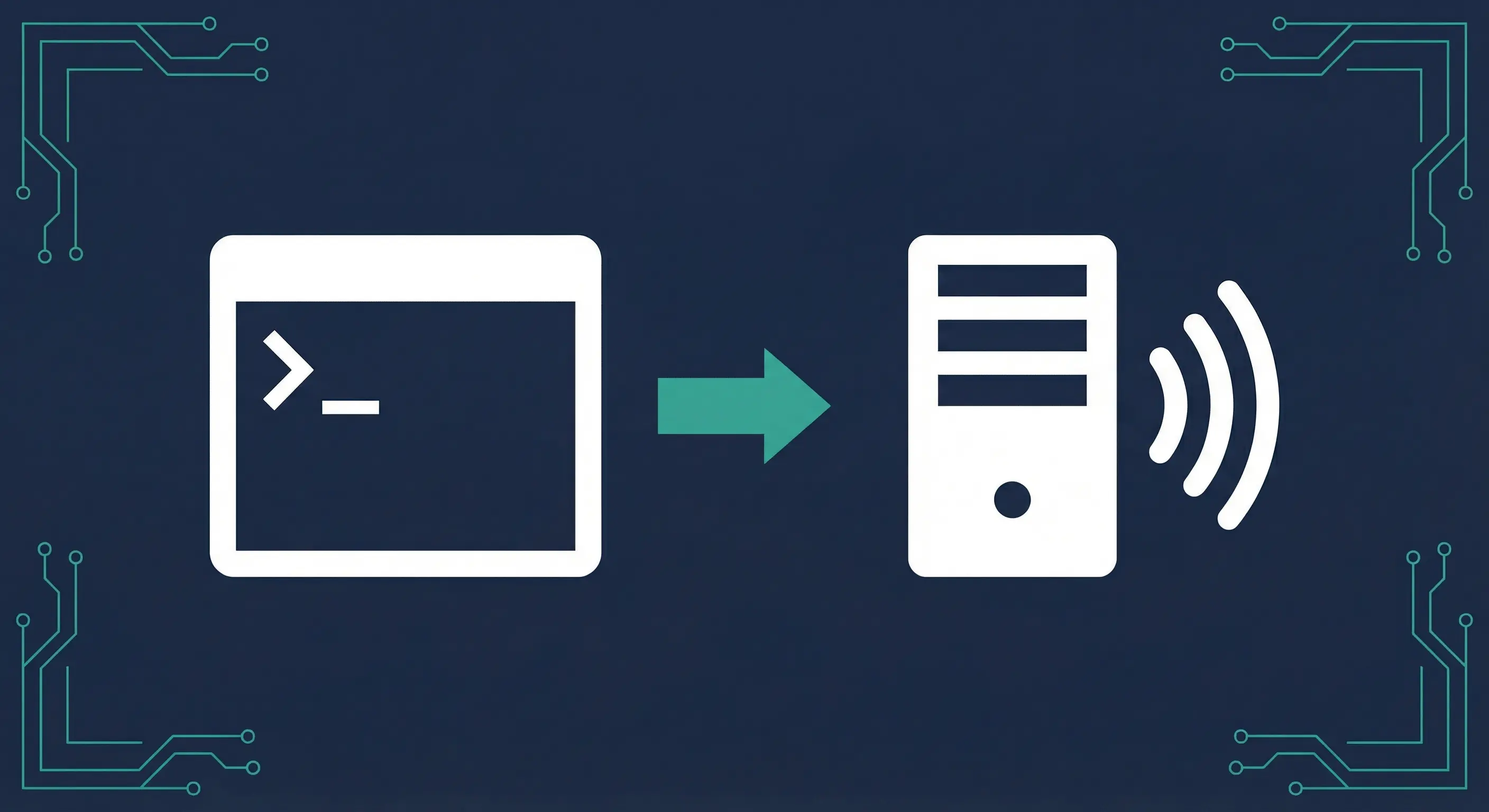
OpenClaw on Windows: WSL2 and Native Install Guide
OpenClaw was previously known as Clawdbot and Moltbot. This guide applies to all versions.
OpenClaw Windows setup covers both WSL2 and native install.ps1 paths, ECONNREFUSED fixes, Windows Firewall rules, and gateway auto-start on reboot.

Key takeaways
- WSL2 is the recommended Windows path: full systemd support, full feature parity with Linux, and a smoother onboarding experience than native Windows
- Native Windows works via
install.ps1for CLI and Gateway use; the daemon runs as a Scheduled Task or Startup-folder item instead of a systemd service (OpenClaw Windows docs) - ECONNREFUSED is the most common Windows error and almost always means the gateway is not running or is bound to the loopback only: run
openclaw gateway startfirst - Windows Firewall needs an explicit allow rule for port 18789 if you want any other device on your LAN to reach the gateway
- OpenClaw's built-in cron scheduler is cross-platform and runs identically on Windows; only the gateway service auto-start mechanism differs from Linux
Always review commands your agent suggests before approving them. Don't paste prompts from sources you don't trust.
Fixes when it breaks. Workflows when it doesn't.
OpenClaw guides, configs, and troubleshooting notes. Every two weeks.
Which OpenClaw Windows path should you use: WSL2 or native?
WSL2 gives you a complete Linux environment inside Windows and is the path OpenClaw recommends for the full experience. Systemd works, openclaw gateway install creates a proper user service, and every feature the docs describe works exactly as written. If you are setting up OpenClaw for the first time on Windows, use WSL2.
Native Windows works for core CLI and Gateway use without installing WSL at all. It is a lighter path, and useful when WSL2 is unavailable (some enterprise machines have Hyper-V disabled) or when you want OpenClaw running purely on the Windows side. The tradeoff: daemon management uses Scheduled Tasks instead of systemd, a few CLI options behave differently, and there is no Windows companion app yet.
| Feature | WSL2 (recommended) | Native Windows |
|---|---|---|
| Full feature parity | Yes | Partial |
| systemd service | Yes | No (Scheduled Task) |
openclaw onboard --install-daemon | Works fully | Works with caveats |
| Auto-start before login | Yes (loginctl + schtasks) | Scheduled Task only |
| portproxy needed for LAN | Yes (WSL network is isolated) | No |
| Windows companion app | N/A | Not yet released |
How to install OpenClaw on Windows via WSL2
Step 1: Install WSL2 and Ubuntu
Open PowerShell as Administrator and run:
wsl --installThis installs WSL2 and Ubuntu in one command. If you want a specific distro, pick one first:
wsl --list --online
wsl --install -d Ubuntu-24.04
Reboot if Windows asks. After rebooting, open your Ubuntu terminal and create a Linux user account when prompted.
Step 2: Enable systemd inside WSL
The OpenClaw gateway installer uses systemd to register a user service. WSL2 does not enable systemd by default. Inside your Ubuntu terminal, run:
sudo tee /etc/wsl.conf >/dev/null <<'EOF'
[boot]
systemd=true
EOF
Then shut down WSL from PowerShell:
wsl --shutdownReopen Ubuntu. Verify systemd is running:
systemctl --user statusYou should see output showing the user session manager. If the command errors with "Failed to connect to bus", systemd is not active yet. Try another wsl --shutdown and reopen.
Step 3: Install Node 24 inside WSL
OpenClaw requires Node 24 (Node 22.16+ also works). Node 24 is the current LTS release. Inside your Ubuntu terminal:
curl -fsSL https://deb.nodesource.com/setup_24.x | sudo -E bash -
sudo apt-get install -y nodejs
node --version
Step 4: Install and onboard OpenClaw inside WSL
curl -fsSL https://openclaw.ai/install.sh | bash
openclaw onboard --install-daemon
The onboarding wizard prompts for a model provider and API key, then installs the gateway as a systemd user service. The whole process takes about 2 minutes, per the OpenClaw getting started guide.
Step 5: Verify the gateway is running
openclaw gateway statusYou should see the gateway listening on port 18789. Open the dashboard in your browser with:
openclaw dashboardIf the browser opens and loads the Control UI, the WSL2 install is complete.
How to install OpenClaw on Windows natively with install.ps1
For a native Windows install without WSL, open PowerShell (no administrator required) and run:
iwr -useb https://openclaw.ai/install.ps1 | iexThis installs Node and the OpenClaw CLI directly on Windows. After it finishes, verify the install:
openclaw --versionRun onboarding on native Windows
openclaw onboard --install-daemonIf the command fails with a gateway health error (common when the gateway hasn't started yet), add --skip-health:
openclaw onboard --non-interactive --skip-healthInstall the gateway service on native Windows
openclaw gateway install
openclaw gateway status --json
openclaw gateway install tries to create a Windows Scheduled Task first. If Scheduled Task creation is denied (common in restricted corporate environments), OpenClaw falls back to a Startup-folder login item and starts the gateway immediately. Either way, the gateway runs after your next login.
To start the gateway now without waiting for a reboot:
openclaw gateway runHow to fix ECONNREFUSED when the OpenClaw gateway won't respond on Windows
ECONNREFUSED means the client tried to reach the gateway and found nothing listening. This is the most common Windows error and almost always has one of three causes.
Cause 1: The gateway is not running. Fix this first before anything else:
openclaw gateway startOr in a persistent terminal:
openclaw gateway runThen check:
openclaw gateway statusCause 2: Pairing required error (WSL). If you see gateway closed (1008): pairing required after starting the gateway, the CLI is trying to connect to a gateway that requires device pairing. This is a separate issue from ECONNREFUSED. See Fix OpenClaw Gateway Connect Failed: Pairing Required (1008) for the full resolution.
Cause 3: WSL network isolation. When running OpenClaw inside WSL, the gateway binds to the WSL virtual network. The Windows host and other LAN devices cannot reach it directly. For loopback access (same machine), WSL networking usually bridges automatically on Windows 11. For LAN access, you need portproxy (covered in the next section).
Run openclaw doctor to get a diagnostic summary:
openclaw doctorIt reports gateway health, config issues, and common misconfigurations in one command.
How to configure Windows Firewall for the OpenClaw gateway
When OpenClaw starts the gateway for the first time on Windows, the Windows Firewall dialog may appear asking whether to allow Node.js network access. Select "Allow access" for Private networks at minimum.
If the dialog didn't appear or you accidentally denied it, add the rule manually in PowerShell as Administrator:
New-NetFirewallRule -DisplayName "OpenClaw Gateway" -Direction Inbound -Protocol TCP -LocalPort 18789 -Action AllowOpening the gateway to your LAN from WSL
Because WSL runs in its own virtual network, you need a portproxy rule to forward the Windows host port to the WSL IP. The WSL IP changes after restarts, so create a refresh script:
$Distro = "Ubuntu-24.04"
$ListenPort = 18789
$TargetPort = 18789

$WslIp = (wsl -d $Distro -- hostname -I).Trim().Split(" ")[0]
if (-not $WslIp) { throw "WSL IP not found." }

netsh interface portproxy delete v4tov4 listenport=$ListenPort listenaddress=0.0.0.0 | Out-Null
netsh interface portproxy add v4tov4 listenaddress=0.0.0.0 listenport=$ListenPort `
  connectaddress=$WslIp connectport=$TargetPort
Run this script as Administrator after each WSL restart. To automate it, register it as a Scheduled Task that triggers on login. The firewall rule from above also applies: the Windows-side port (18789) needs to be open for inbound traffic.
Windows Defender slowing down npm install
Windows Defender real-time scanning can make npm install significantly slower due to scanning each package file as it is written. If npm install is hanging during OpenClaw setup, add a folder exclusion for your npm cache directory (%AppData%\npm) in Windows Security settings. You can also exclude the node.exe process. Broad exclusions (like an entire drive) carry security risks and should be avoided.
How to make OpenClaw auto-start on Windows without logging in
For a headless Windows machine where you want OpenClaw running even when no one is logged in, the startup chain has three steps.
Step 1: Keep WSL user services alive without login
Inside WSL:
sudo loginctl enable-linger "$(whoami)"This tells systemd to keep your user session running even after you log out. Without this, the OpenClaw gateway systemd unit stops when you disconnect.
Step 2: Install the OpenClaw gateway service
Inside WSL (if not already done):
openclaw gateway installVerify it is enabled:
systemctl --user is-enabled openclaw-gateway
systemctl --user status openclaw-gateway --no-pager
Step 3: Start WSL automatically at Windows boot
In PowerShell as Administrator, create a SYSTEM-level Scheduled Task that starts WSL at boot:
schtasks /create /tn "WSL Boot" /tr "wsl.exe -d Ubuntu-24.04 --exec /bin/true" /sc onstart /ru SYSTEMReplace Ubuntu-24.04 with your distro name from wsl --list --verbose.
After a reboot, WSL starts under the SYSTEM account. Your user's loginctl linger keeps the systemd session alive. The OpenClaw gateway unit starts automatically. This three-step chain is the official headless setup pattern.
How cron jobs work differently on Windows vs Linux with OpenClaw
OpenClaw's built-in cron scheduler runs the same on all platforms. This is worth clarifying because "cron on Windows" suggests a problem that does not exist for OpenClaw users.
The cron commands you see in the docs work on Windows too:
openclaw cron add \
  --name "Morning brief" \
  --cron "0 7 * * *" \
  --tz "America/Los_Angeles" \
  --session isolated \
  --message "Summarize overnight updates." \
  --announce
Cron jobs persist in the Gateway at ~/.openclaw/cron/jobs.json and run inside the Gateway process. They are not OS-level cron jobs. You do not need /etc/crontab, Windows Task Scheduler, or any OS-level scheduler for OpenClaw automation.
What differs on Windows is how the gateway SERVICE itself starts. On Linux, openclaw gateway install registers a systemd user service. On native Windows, it registers a Scheduled Task. On Windows via WSL, it registers a systemd unit inside WSL (and you add the WSL Boot task separately for headless startup).
Always use the --tz flag with cron schedules. The Gateway runs in UTC by default, and "7am daily" without a timezone means 7am UTC, which is the middle of the night for Pacific users.
How to access your OpenClaw config from Windows Explorer
When OpenClaw is installed inside WSL, all config and data files live inside the WSL filesystem. You can browse and edit them from Windows Explorer using the WSL network path:
\\wsl$\Ubuntu-24.04\home\yourusername\.openclaw\
Replace Ubuntu-24.04 with your distro name and yourusername with your WSL Linux username.
The main config file is openclaw.json. You can open it in VS Code, Notepad, or any Windows editor. One warning: if you add paths inside this config (for example, OPENCLAW_HOME or workspace paths), use Linux-style forward slashes, not Windows backslashes. The config is read by the process running inside WSL, so it expects Linux paths.
Devices pending approval live at:
\\wsl$\Ubuntu-24.04\home\yourusername\.openclaw\devices\pending.json
Key terms
WSL2: Windows Subsystem for Linux 2. A Microsoft-provided virtualization layer that runs a full Linux kernel inside Windows. Required for the recommended OpenClaw install path on Windows. Requires virtualization enabled in BIOS and Hyper-V or Windows Virtualization Platform.
Gateway: The OpenClaw server process that handles all agent sessions, channel connections, and routing. Runs on port 18789 by default. All CLI commands connect to a running gateway.
Scheduled Task: The Windows equivalent of a systemd service for process auto-start. Used by native Windows OpenClaw installs when openclaw gateway install cannot use systemd. Managed via schtasks or Task Scheduler.
portproxy: A Windows netsh command that forwards a port on the Windows host to a port inside the WSL virtual network. Required when other devices on your LAN need to reach services running inside WSL.
systemd: Linux init system and service manager. Required for openclaw gateway install to register the gateway as a persistent user service inside WSL. Must be explicitly enabled in /etc/wsl.conf before it is available in WSL2.
FAQ
Does OpenClaw work on Windows 10, or is WSL2 only available on Windows 11?
OpenClaw works on Windows 10 via both WSL2 and native install. WSL2 with systemd requires Windows 10 version 22H2 with UBR 2311 or later, per the Microsoft WSL systemd docs. The native install via install.ps1 works on Windows 10 1903 or later. Check your Windows version with winver in Run (Win+R) before installing.
Why does OpenClaw show ECONNREFUSED on Windows even after the install completes?
ECONNREFUSED on Windows after install usually means the gateway process is not running yet. The install puts the CLI in place but the gateway service needs to start separately. Run openclaw gateway start or openclaw gateway run to start it. If it starts but immediately exits, check logs with openclaw logs and run openclaw doctor for a full diagnostic. A firewall rule blocking port 18789 can also cause this if the gateway starts but refuses connections.
How do OpenClaw cron jobs work on Windows without a Linux cron daemon installed?
OpenClaw cron runs inside the Gateway process, not inside the operating system. It does not use /etc/crontab, Windows Task Scheduler, or any OS-level scheduler. Jobs are stored in ~/.openclaw/cron/jobs.json and fired by the Gateway at the scheduled time. As long as the Gateway is running, cron works identically on Windows (native or WSL), macOS, and Linux. See the OpenClaw cron jobs guide for full schedule syntax and examples.
Can you run the OpenClaw gateway as a Windows Service instead of a Scheduled Task?
Not directly through the official CLI. openclaw gateway install on native Windows uses Scheduled Tasks first, with a Startup-folder fallback. There is no built-in Windows Service option. If you need a proper Windows Service for enterprise deployment, the pattern is to wrap the gateway in a tool like NSSM (Non-Sucking Service Manager), but this is unsupported and requires manual configuration outside of the OpenClaw CLI.
What is the difference between running OpenClaw in WSL2 versus Docker on Windows?
WSL2 gives OpenClaw direct access to the filesystem, network, and clipboard, making it easier to use the CLI interactively and connect channels. Docker gives you a more isolated environment with explicit volume mounts. For most Windows users who want to run OpenClaw as a personal agent, WSL2 is simpler. Docker is worth considering if you want strict process isolation or are running OpenClaw on a shared machine. See the OpenClaw Docker guide for the Docker path.
Related resources
- Fix OpenClaw Gateway Connect Failed: Pairing Required (1008)
- OpenClaw Cron Jobs: 8 Automation Templates, Schedules, and Debug Steps
- OpenClaw Troubleshooting: Fix Gateway, Pairing, and Channel Errors
- OpenClaw Doctor --fix: Every Flag, Warning Explained
- Docker OpenClaw Done Right: Compose Template, Persistent Volumes, and Pairing
Changelog
| Date | Change |
|---|---|
| 2026-03-23 | Initial publication |
Fixes when it breaks. Workflows when it doesn't.
OpenClaw guides, configs, and troubleshooting notes. Every two weeks.