OpenClaw First-Run Wizard: What Every Option Does
OpenClaw was previously known as Clawdbot and Moltbot. This guide applies to all versions.
openclaw setup wizard options explained step by step, with opinionated picks for solo users, teams, and budget setups. Covers every prompt in the first-run flow
Key takeaways
- The OpenClaw (previously known as Clawdbot and Moltbot) wizard launches automatically on first install; re-run it anytime with
openclaw onboard - Pick Advanced mode over QuickStart . QuickStart locks in defaults that are annoying to change later
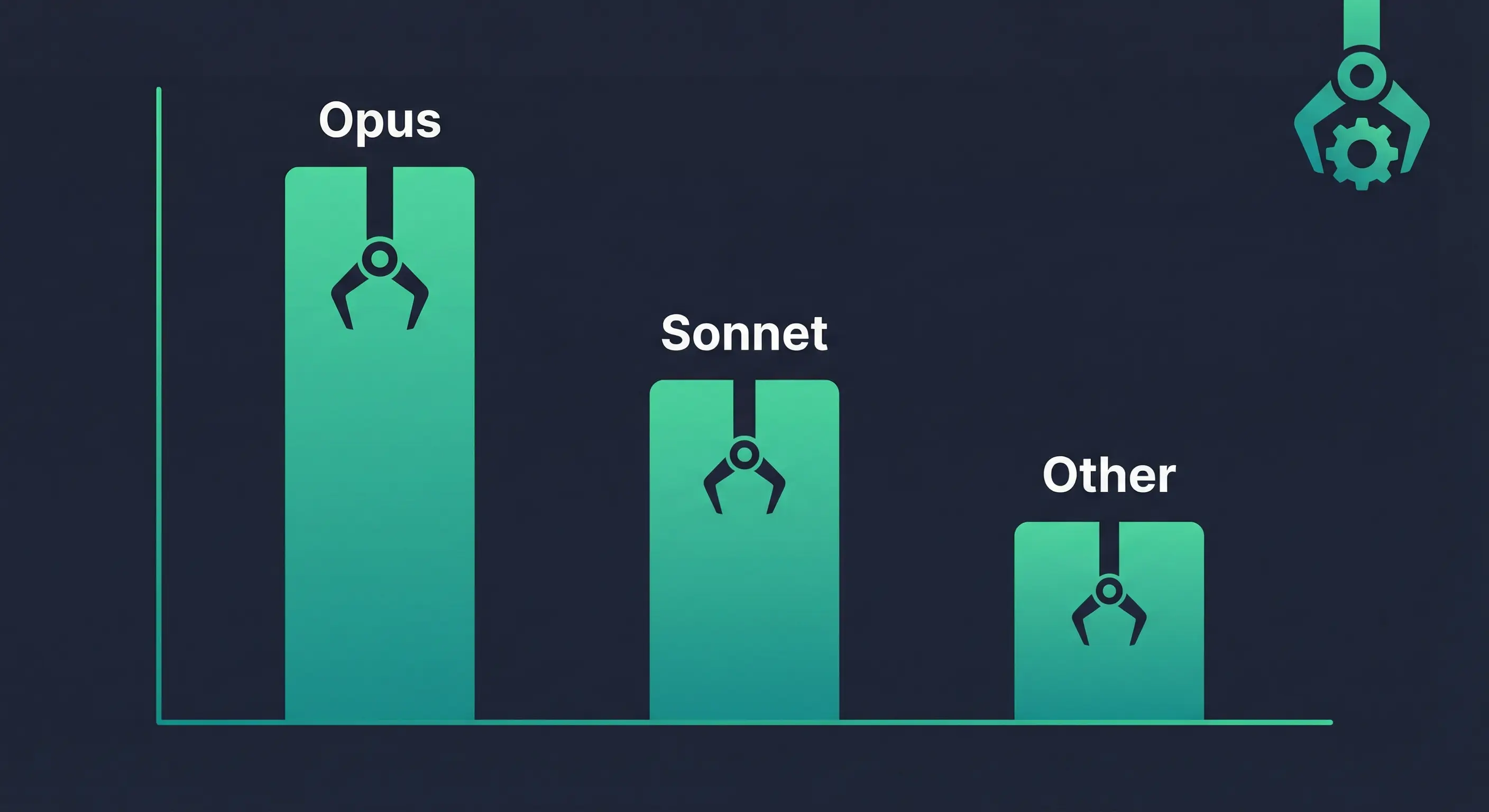
- Use Anthropic API key auth with Claude Sonnet as the default model; stronger models resist prompt injection better when your agent runs tools
- Enable token auth on the gateway even on loopback . It takes 10 seconds and prevents unauthed local connections
- Always install the daemon (LaunchAgent on macOS, systemd on Linux); without it the agent stops when you close the terminal
Always review commands your agent suggests before approving them. Don't paste prompts from sources you don't trust.
Fixes when it breaks. Workflows when it doesn't.
OpenClaw guides, configs, and troubleshooting notes. Every two weeks.
When does the OpenClaw setup wizard run?
The wizard runs automatically the first time you install OpenClaw and the configuration file doesn't exist yet. It walks through model provider setup, channel connections, gateway auth, and daemon installation in one pass. Most of the defaults are fine, but a few choices have consequences that aren't obvious until later. This guide covers every prompt so you can make informed picks instead of accepting defaults you'll change in a week. You can trigger the wizard again at any time with:
openclaw onboardIf your openclaw.json already exists but has invalid or legacy keys, the wizard will stop and direct you to run openclaw doctor first before proceeding. This is intentional. The wizard won't overwrite a broken config silently. Run the doctor command, fix what it flags, then re-run openclaw onboard.
You can also re-run just a specific section without going through the full wizard:
openclaw configure --section webThat command opens only the web search provider step. Other valid sections include gateway, channels, and model.
Re-running does not wipe your existing config unless you explicitly choose the Reset option inside the wizard.
QuickStart vs Advanced wizard mode: which to pick
Pick Advanced. QuickStart gets you running in under two minutes but skips every decision worth making. It defaults to port 18789, loopback bind, token auth, and per-channel-peer DM scope. That's fine for basic use, but it doesn't ask about channel settings, daemon install, or Tailscale exposure.
Here's why that matters.
QuickStart's DM policy defaults to pairing, which is correct, but it doesn't ask you about channel-specific settings, daemon install, or Tailscale exposure. You end up running openclaw configure three more times to fix what QuickStart glossed over.
Advanced mode walks through every step: model and auth, workspace location, gateway settings, channel setup, daemon install, health check, and skills. It takes maybe five extra minutes. Those five minutes prevent a lot of post-install friction.
Give this to your agent: "Run
openclaw onboardin Advanced mode and walk me through each step. Ask me about my gateway port, bind address, token auth, and which channel to connect first."
How to choose your model provider in OpenClaw's wizard
Choose your model provider in Step 1. The wizard supports Anthropic API key, OAuth, setup-token, OpenAI OAuth/API key, xAI, OpenCode, Vercel AI Gateway, Cloudflare AI Gateway, and custom providers.
For most people: Anthropic API key. Get one from console.anthropic.com, paste it in, set claude-sonnet-4-5 as the default model.
If you're on a budget, you can use a cheaper model, but there's a real tradeoff. The official docs note that weaker or older models are more susceptible to prompt injection when the agent runs tools or processes webhooks. If your agent is going to process external input or run tools automatically, use the strongest model you can afford.
You can configure a web search provider here too. Options include Perplexity, Brave, Gemini, Grok, and Kimi. Brave is a solid default if you already have a Brave Search API key. If you don't have one yet, skip it and come back with openclaw configure --section web.
Where OpenClaw stores your workspace files
Step 2 asks where to put the workspace directory. The default is ~/.openclaw/workspace. That's a reasonable choice for almost everyone.
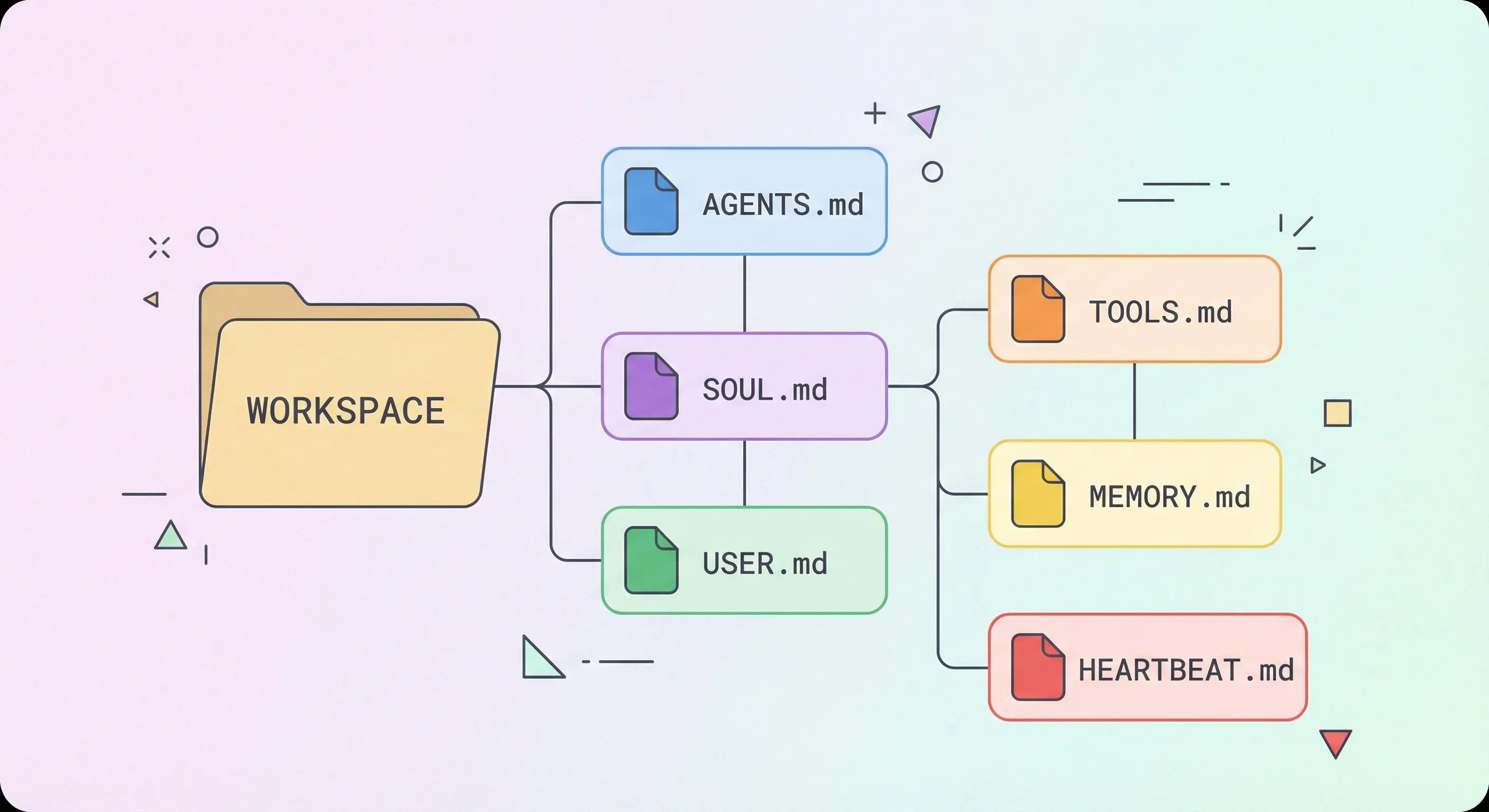
When the wizard creates the workspace, it seeds a set of bootstrap files: AGENTS.md, SOUL.md, USER.md, TOOLS.md, and MEMORY.md. These define how your agent behaves. See the OpenClaw workspace files guide for what to put in each one.
Change the workspace path if: you're on a machine where the home directory is on a slow or small drive, you want the workspace on a network share, or you're running multiple OpenClaw instances and need them separated.
Otherwise, take the default.
OpenClaw gateway port, bind address, and auth settings
Step 3 configures the gateway: port, bind address, and auth mode. The defaults are port 18789, loopback bind (127.0.0.1), and token auth.
Keep all three defaults. Here's the reasoning for each.
Port 18789: change this only if something else is already using it. Check with ss -tlnp | grep 18789 before deciding.
Loopback bind: binding to 0.0.0.0 exposes the gateway on every network interface. Unless you're intentionally making the gateway reachable from other machines on the network, keep it on loopback.
Token auth: the official docs recommend token auth even on loopback so local WebSocket clients have to authenticate. Enable it. Copy the generated token and put it somewhere safe. You'll need it when pairing nodes or connecting browser relay clients.
If you want to expose the gateway over Tailscale for remote access, the wizard has a Tailscale option in Advanced mode. It configures the bind address to your Tailscale IP. This is safe because Tailscale connections are authenticated at the network level before they reach the gateway.
Which messaging channel to connect first in OpenClaw
Pick Telegram first. It's the fastest to set up, works on all platforms without special hardware, and most OpenClaw documentation uses Telegram as the primary example. Available options: Telegram, Discord, WhatsApp, Signal, Google Chat, Mattermost, and BlueBubbles (iMessage). See the OpenClaw Telegram setup guide for the full walk-through.
The wizard will also ask about DM policy. This controls who can send your agent messages. Four options:
- pairing (default): unknown senders get a code; you approve them via
openclaw pairing approve <channel> <code>. Recommended for personal and small team setups. - allowlist: only pre-approved IDs can message. Good for team bots where you know all users in advance.
- open: anyone can message. Requires explicit
allowFrom: ["*"]as friction to prevent accidental exposure. - disabled: agent accepts no DMs. Only useful for cron-only agents.
Keep pairing unless you have a specific reason to change it. See OpenClaw DM Policy: How All Four Modes Actually Work for the detailed breakdown.
The wizard also sets dmScope. The default per-channel-peer keeps each conversation isolated to its sender. Leave this alone.
OpenClaw daemon install on Linux and macOS
Step 5 asks whether to install the daemon. Say yes.
On macOS, the wizard installs a LaunchAgent. It starts the OpenClaw gateway when you log in and keeps it running in the background. If you're on a headless macOS server, note that LaunchAgents require an active user session. For truly headless macOS you'd need a LaunchDaemon instead, which the wizard doesn't set up automatically.
On Linux and WSL2, the wizard installs a systemd user unit. It also attempts loginctl enable-linger <user> to keep the user session active after logout, so the gateway stays up on headless servers. This may prompt for your sudo password.
One note if you're using WhatsApp or Telegram adapters: the wizard will flag if you're running Bun instead of Node. Those adapters require Node. If you get this warning, install Node (version 20 or later) before proceeding.
New to OpenClaw? The OpenClaw Starter Kit includes pre-written AGENTS.md, SOUL.md, and MEMORY.md templates that slot into the workspace directory the wizard just created. Saves a few hours of "what do I put in these files" frustration.
OpenClaw health check and skills step
Step 6 runs two things: a health check and a skills installer.
The health check runs openclaw health after the gateway starts. It verifies the gateway is up, the model connection works, and any configured channels are reachable. If anything fails here, fix it before moving on. The health check output tells you exactly what's wrong.
The skills step reads what's installed and asks which package manager to use: npm or pnpm. Pick whichever you already have on your system. If you're not sure, which npm will tell you. The wizard will use that to install skill dependencies.
You don't have to install any skills during the wizard. You can install them later with:
openclaw skills install <skill-name>How to verify your OpenClaw setup after the wizard
Send your bot a test message through the channel you configured. If it responds, the setup worked. That's the fastest check.
If it doesn't respond:
openclaw doctorThe doctor command runs a full diagnostic on your config, checks the gateway status, and flags anything wrong. See OpenClaw Doctor --fix: Every Flag, Warning Explained for what to do with the output.
Also verify the workspace files exist and are not empty:
ls ~/.openclaw/workspace/You should see AGENTS.md, SOUL.md, USER.md, TOOLS.md, and MEMORY.md. If any are missing, the wizard didn't complete correctly. Re-run openclaw onboard.
How to change OpenClaw wizard settings after setup
You don't need to re-run the full wizard to change settings. Use openclaw configure to update any individual section:
openclaw configure --section gateway
openclaw configure --section channels
openclaw configure --section model
openclaw configure --section web
After changing gateway or channel settings, restart the gateway:
openclaw gateway restartIf you want to completely reset and start over:
openclaw onboard --resetThe --reset option clears config, credentials, and sessions by default. To also wipe the workspace files, add --reset-scope full. Use that flag with caution. It deletes your AGENTS.md, SOUL.md, and MEMORY.md.
See OpenClaw CLI Commands (2026): Operator Defaults, Flags, and Debug Notes for the full list of openclaw configure flags.
Key terms
dmPolicy: Controls who can send your OpenClaw agent direct messages. Options are pairing (approve each new sender), allowlist (pre-approved IDs only), open (anyone), and disabled. Configured in openclaw.json under the gateway section.
dmScope: Controls session isolation between senders. The default per-channel-peer gives each user their own isolated conversation history. Configured separately from dmPolicy.
LaunchAgent: The macOS mechanism that starts and manages the OpenClaw gateway process at login. Created at ~/Library/LaunchAgents/ during the daemon install step.
loginctl enable-linger: Linux command that keeps the systemd user session active after logout. The wizard runs this automatically on Linux so the OpenClaw gateway stays up on headless servers.
FAQ
Can I skip the OpenClaw setup wizard on first install?
You can't skip it entirely. OpenClaw won't start without a valid openclaw.json. If you're doing a scripted install, you can bypass the interactive wizard by writing openclaw.json directly before running the gateway. The official wizard CLI reference documents every config key. For a first install on a live machine, running the wizard is faster than writing the config by hand.
What if I chose the wrong model in the OpenClaw wizard?
Run openclaw configure --section model to switch models without going through the full wizard. You can change the default model, the auth method, or both. The change takes effect immediately for new conversations; existing sessions keep using the model they started with until they're restarted. No gateway restart needed for model-only changes.
How do I reset the OpenClaw wizard and start fresh?
Run openclaw onboard --reset to reset config, credentials, and sessions. If you also want to clear workspace files (AGENTS.md, SOUL.md, MEMORY.md), add --reset-scope full. The full reset is destructive. Anything you've written to your workspace files will be gone. Back up the workspace directory first: cp -r ~/.openclaw/workspace ~/.openclaw/workspace-backup-$(date +%Y%m%d).
Does the OpenClaw wizard run again after updates?
No. The wizard only runs automatically when openclaw.json doesn't exist. Updates don't trigger it. If a new version adds config keys that your existing config doesn't have, openclaw doctor will flag the missing fields. Run openclaw doctor --fix to apply safe defaults for any new required keys.
Why does the OpenClaw wizard freeze on headless VPS setups?
The wizard's interactive TUI can hang on servers that don't have a proper TTY attached. If you're running the wizard over SSH and it freezes, try running it in a tmux or screen session first: tmux new -s wizard && openclaw onboard. If the TUI still hangs, write the config manually using the wizard CLI reference as your guide, then start the gateway directly.
Evidence & Methodology
This guide draws from the official OpenClaw onboarding docs, the OpenClaw CLI setup reference, the gateway configuration reference, the openclaw/openclaw GitHub README, and direct testing on a fresh Linux VPS install. DM policy detail draws from our own published OpenClaw DM Policy article which is based on primary source testing. Node version requirement for WhatsApp/Telegram adapters noted as Node 20+, consistent with official docs; community sources citing Node 22+ as required were not confirmed by official documentation and are not cited.
Related resources
- OpenClaw Telegram Setup: BotFather, Token, and allowFrom Config
- OpenClaw DM Policy: How All Four Modes Actually Work
- OpenClaw Doctor --fix: Every Flag, Warning Explained
- OpenClaw Workspace Files: AGENTS.md, SOUL.md, USER.md, TOOLS.md, etc. Explained
- OpenClaw Persistent Memory Guide: Complete Setup in 5 Steps
Changelog
| Date | Change |
|---|---|
| 2026-03-23 | Initial publication |
Fixes when it breaks. Workflows when it doesn't.
OpenClaw guides, configs, and troubleshooting notes. Every two weeks.