Run OpenClaw on DigitalOcean: $6/Month VPS Setup
OpenClaw was previously known as Clawdbot and Moltbot. This guide applies to all versions.
Deploy OpenClaw on a DigitalOcean droplet so your AI agent runs 24/7. Covers droplet creation, Node.js, systemd, firewall, and verification.
Key takeaways
- The $6/month DigitalOcean plan (1 vCPU, 1 GB RAM, Ubuntu 24.04) is the minimum viable host for a single OpenClaw gateway, and you can resize upward without rebuilding.
- Create a dedicated non-root user for OpenClaw and use SSH key authentication instead of passwords. These two steps handle the most common server security mistakes.
- Run OpenClaw as a systemd service so it restarts automatically on crashes and survives server reboots without manual intervention.
- Lock down UFW to allow only SSH (port 22) and the OpenClaw gateway port (18789) by default. Everything else should be denied inbound.
This guide walks through setting up OpenClaw (previously called Clawdbot and Moltbot) on a DigitalOcean droplet from scratch. By the end, your AI agent will be running 24/7, surviving reboots, and locked behind a firewall. Every command is listed in order.
If you already have a VPS from another provider, skip to First SSH Connection and User Setup. Everything from that point forward works on any Ubuntu 24.04 server.
Looking to compare providers before committing? See Best VPS for OpenClaw in 2026: 5 Providers Compared for an honest breakdown of pricing, specs, and datacenter coverage across DigitalOcean, Hostinger, Hetzner, Vultr, and Linode.
OpenClaw Starter Kit: If you are just getting started, the OpenClaw Starter Kit bundles config templates, workspace file examples, and skills we actively use. It covers the setup steps in this guide.
Always review commands your agent suggests before approving them. Don't paste prompts from sources you don't trust.
Fixes when it breaks. Workflows when it doesn't.
OpenClaw guides, configs, and troubleshooting notes. Every two weeks.
Referral Link Disclosure
I use a DigitalOcean referral link in this guide. This is DigitalOcean's standard referral program, not a sponsorship. They didn't pay me or review this content. If you sign up through my link, you get $200 in credit valid for 60 days. I get $25 in credit, but only if you end up spending $25 of your own money. That's the whole deal. The same program is available to anyone with a DigitalOcean account.

Create Your DigitalOcean Account
Sign up at DigitalOcean and add a payment method. The $200 credit applies automatically to new accounts, but it can take up to an hour to show in your billing dashboard. Don't panic if you don't see it right away. I signed up and spent my own money on a droplet because I thought the credit hadn't applied. It had. It just took a while.
Create Your Droplet
These steps follow DigitalOcean's droplet creation documentation.
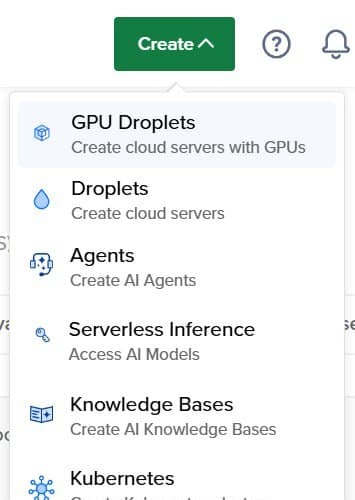
- Click Create, then Droplets.
Log into the DigitalOcean control panel. Click the green "Create" button at the top right, then select "Droplets".
- Choose a region.
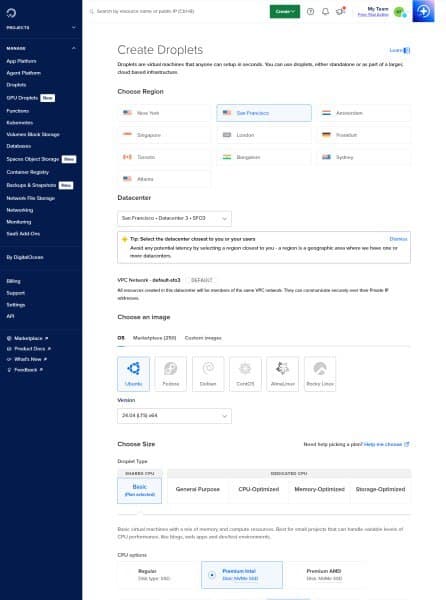
Pick the datacenter closest to you. I run OpenClaw out of SFO2 in San Francisco. For most use cases the exact region doesn't matter much since you're connecting over SSH, not serving low-latency web pages.
- Choose Ubuntu 24.04 LTS.
Under "Choose an image", select the OS tab and pick Ubuntu 24.04 LTS. This is the most current long-term support release and what this guide was tested on.
- Pick a plan.
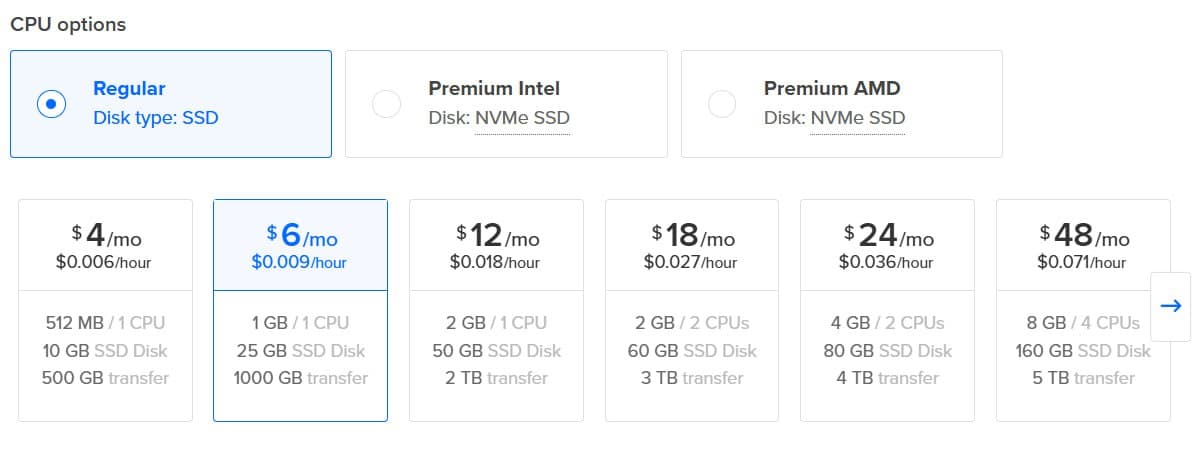
Under "Choose Size", select Basic, then Regular (not Premium). The $6/month tier (1 vCPU, 1 GB RAM, 25 GB SSD, 1 TB transfer) is enough for a single OpenClaw gateway. If you know you'll be running additional services alongside OpenClaw, start with a larger plan. I'm currently on the $48/month tier (8 GB RAM, 4 vCPUs, 160 GB SSD) because I run a dashboard, headless browser, and several background services on the same server. DigitalOcean lets you resize upward without rebuilding, so starting small is fine.
- Add your SSH key.
Scroll down to "Authentication". Select "SSH Key" rather than password.
If you've never generated an SSH key, run this on your local machine. Replace your-email@example.com with your actual email address:
ssh-keygen -t ed25519 -C "your-email@example.com"Your public key is at ~/.ssh/id_ed25519.pub. Paste that into the DigitalOcean field. Key-based auth is more secure than password login and you'll appreciate it every time you SSH in without typing a password.
- Click Create Droplet.
The droplet takes about 60 seconds to provision. You'll get an IP address in the dashboard. Write it down.
First SSH Connection and User Setup
These steps follow DigitalOcean's initial server setup tutorial.
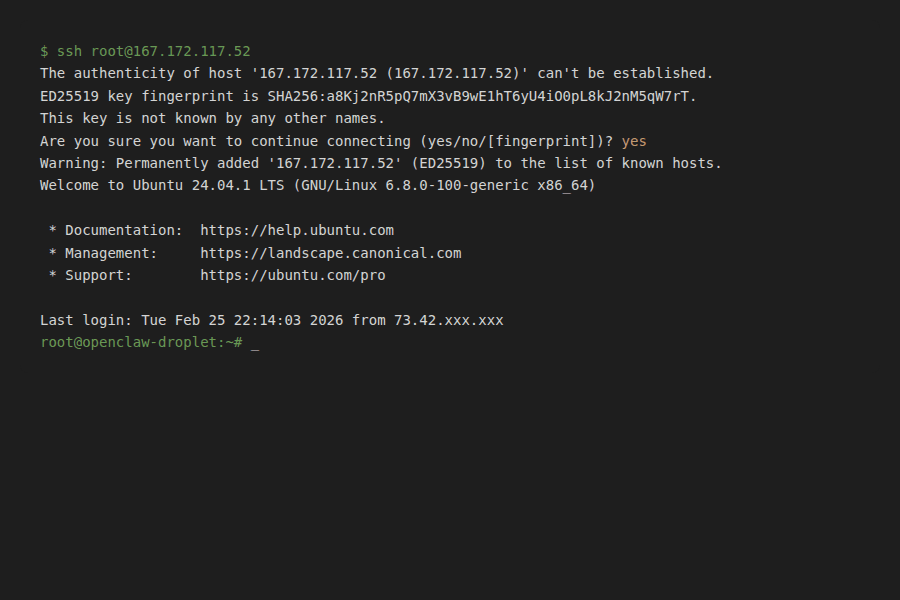
Connect as root. Replace YOUR_DROPLET_IP with the IP from your dashboard:
ssh root@YOUR_DROPLET_IPOn first connection you'll see a fingerprint confirmation prompt. Type yes.
Create a dedicated user for OpenClaw. Running everything as root is a bad habit. Create a separate user:
adduser openclawFollow the prompts. Set a strong password. The other fields (full name, etc.) can be left blank.
Add the user to the sudo group:
usermod -aG sudo openclawCopy your SSH key to the new user. Still in the root session:
rsync --archive --chown=openclaw:openclaw ~/.ssh /home/openclawTest the new user before closing root. Open a second terminal window:
ssh openclaw@YOUR_DROPLET_IPConfirm this works before you close the root session. If you close root without testing the new user, you risk locking yourself out.
Lock Down the Firewall
Do this before installing anything else. A fresh droplet with all ports open and root SSH enabled is a target. This follows DigitalOcean's UFW setup guide.
The order matters. Allow SSH before you enable the firewall. Get it wrong and you lock yourself out.
sudo ufw default deny incoming
sudo ufw default allow outgoing
sudo ufw allow OpenSSH
sudo ufw enable
sudo ufw status verbose
The output should show SSH allowed and everything else denied.
While you're hardening, disable root SSH login. Open the SSH config:
sudo nano /etc/ssh/sshd_configFind PermitRootLogin and change it to no. Save and restart SSH:
sudo systemctl restart sshdThat's the minimum. For a production setup covering fail2ban, key rotation, and other hardening steps, read the OpenClaw security hardening playbook. That guide was written for exactly this scenario.
Install Node.js
OpenClaw requires Node.js 22 or newer. Ubuntu 24.04's default apt repository ships an older version, so we pull from NodeSource as described in DigitalOcean's Node.js install guide.
Check the OpenClaw docs for the current minimum version if you're reading this after 2026. The commands below install Node 22, which was current when this guide was written.
Run these as your openclaw user:
sudo apt install curl -y
curl -sL https://deb.nodesource.com/setup_22.x -o nodesource_setup.sh
sudo bash nodesource_setup.sh
sudo apt install nodejs -y
node -v
You should see v22.x.x or higher.
Install OpenClaw
The official docs recommend the installer script for VPS deployments:
curl -fsSL https://openclaw.ai/install.sh | bashIf you prefer installing via npm directly (since we already set up Node):
npm install -g openclaw@latestEither way, run the onboarding wizard next:
openclaw onboard --install-daemonThe wizard walks through auth configuration, gateway settings, channel setup (Telegram, Discord, WhatsApp, etc.), and daemon installation. For a visual walkthrough, see the OpenClaw Getting Started guide.
When the wizard finishes:
openclaw gateway statusYou should see a status line confirming the gateway is active. If you get an error, check the OpenClaw install error guide before continuing.
Set Up systemd So OpenClaw Runs on Boot
The --install-daemon flag in the onboarding wizard handles this automatically. But you should know how to check and fix it. The full systemctl reference is in DigitalOcean's systemd management tutorial.
Check the service status:
sudo systemctl status openclaw.serviceYou want to see active (running) and enabled. If it shows disabled, enable it:
sudo systemctl enable openclaw.serviceenable makes it start on every reboot. start starts it right now. You need both. If the wizard already set this up, you'll see both are already in place.
If you need to create the service file manually, it lives at /etc/systemd/system/openclaw.service:
[Unit]
Description=OpenClaw Gateway
After=network.target

[Service]
Type=simple
User=openclaw
WorkingDirectory=/home/openclaw
ExecStart=/usr/bin/openclaw gateway start
Restart=on-failure
RestartSec=5

[Install]
WantedBy=multi-user.target
After creating or editing the file:
sudo systemctl daemon-reload
sudo systemctl enable openclaw.service
sudo systemctl start openclaw.service
sudo systemctl status openclaw.service
If the status shows failed, check the logs:
journalctl -u openclaw.service -f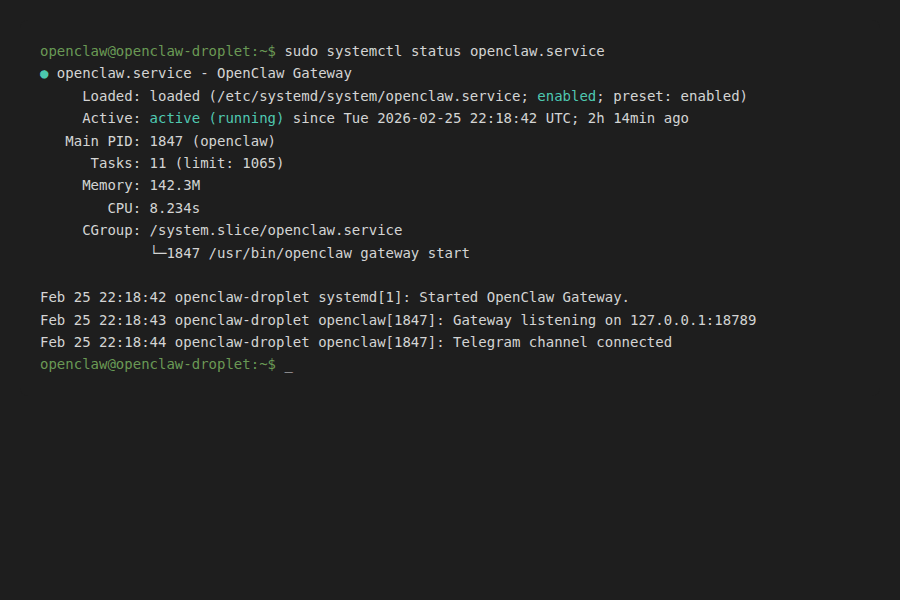
Configure Your Channel
With the gateway running, connect a messaging channel. If you set one up during the onboard wizard, test it now by sending a message to your bot.
If you skipped channel setup during onboarding, the easiest starting point is Telegram. Follow the OpenClaw Telegram setup guide to create a bot token and configure the channel. For other platforms: Discord, Slack, WhatsApp.
Verify Everything Works
Three checks.
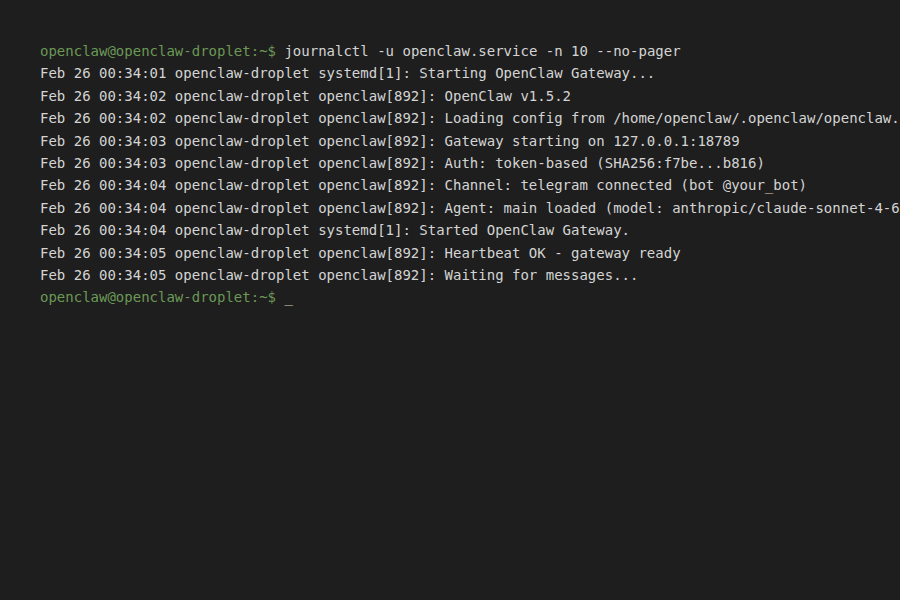
1. Send a message to your bot. Open your messaging app and send something. You should get a response. If you don't, check the logs:
journalctl -u openclaw.service -fMost first-run problems are token configuration issues.
2. Reboot the server. This is the real test.
sudo rebootWait about 30 seconds, SSH back in, then check:
sudo systemctl status openclaw.serviceSend another message. If your bot responds, you're done.
3. Let OpenClaw verify its own setup. Once your agent is responding, you can ask it to check the server configuration. Try sending it something like: "Run openclaw security audit and tell me if anything needs fixing." This requires your agent to have exec tool access, which depends on your config. If the agent can't run commands yet, you can run openclaw security audit yourself over SSH. For a full walkthrough of what the audit checks, see the security audit guide.
What Specs Do You Actually Need?
The $6/month droplet (1 GB RAM, 1 vCPU, 25 GB SSD) handles a single OpenClaw gateway with one or two channels without issues. That's the right starting point if OpenClaw is the only thing on the server.
I upgraded to the $48/month plan (8 GB RAM, 4 vCPUs, 160 GB SSD) after about two weeks because I added an OpenClaw dashboard, a headless browser for screenshots, and several background services. RAM was the bottleneck. If you plan to run more than just the gateway, budget for 4 GB minimum.
DigitalOcean lets you resize without rebuilding. Start with the plan that matches what you're running today and move up when you need to. Disk resizes go up but not down, so keep that in mind.
For a detailed comparison of what each provider charges at different spec levels, see the VPS comparison article. If you're planning to build a second brain or memory system on top of OpenClaw, that's one of the use cases that pushes you toward more RAM. See how to build a second brain with OpenClaw for what that looks like in practice.
Key Terms
Droplet is DigitalOcean's name for a virtual private server. It's a Linux VM running on their infrastructure.
systemd is the init system that manages Linux services. It controls what starts on boot, what restarts on failure, and what logs go where.
UFW (Uncomplicated Firewall) is Ubuntu's default firewall management tool. It wraps iptables with simpler commands.
NodeSource PPA is a third-party apt repository that provides current Node.js releases for Debian-based Linux distributions. Ubuntu's default repo often ships older versions.
FAQ
Can I use the $4/month droplet?
No. The $4/month plan has 512 MB RAM, which isn't enough for a Node.js application plus the OS. Start with the $6/month plan (1 GB RAM) at minimum.
How do I update OpenClaw on the VPS?
npm update -g openclaw@latest
sudo systemctl restart openclaw.service
openclaw gateway status
What if I already have a VPS from another provider?
Every step from First SSH Connection onward works on any Ubuntu VPS. Skip the DigitalOcean-specific steps and start there.
Does OpenClaw support Docker?
Yes. Docker deployment has different tradeoffs around updates, volume mounts, and networking. Check the official docs for the Docker path if you prefer containers.
Related Resources
- Best VPS for OpenClaw in 2026: 5 Providers Compared: DigitalOcean vs Hostinger, Hetzner, Vultr, and Linode
- The Proven OpenClaw Security Hardening Playbook: UFW, fail2ban, SSH hardening for production
- How to Use openclaw security audit (And Actually Fix What It Finds): Run the built-in audit tool
- OpenClaw Telegram Setup in 5 Minutes: Get your Telegram bot configured
- Fix OpenClaw Install Errors: If the install didn't go smoothly
- How I Built a 24/7 Memory Dashboard for My AI Agent: What I added after the basic setup
Sources
- DigitalOcean. "Pricing." https://www.digitalocean.com/pricing
- DigitalOcean. "Referral Program." https://www.digitalocean.com/referral-program
- OpenClaw. "Getting Started." https://docs.openclaw.ai/start/getting-started
- OpenClaw. "Install." https://docs.openclaw.ai/install
- DigitalOcean Docs. "How to Create a Droplet." Updated December 10, 2025. https://docs.digitalocean.com/products/droplets/how-to/create/
- DigitalOcean Community. "Initial Server Setup with Ubuntu." https://www.digitalocean.com/community/tutorials/initial-server-setup-with-ubuntu
- DigitalOcean Community. "How to Install Node.js on Ubuntu." https://www.digitalocean.com/community/tutorials/how-to-install-node-js-on-ubuntu-22-04
- DigitalOcean Community. "How to Use systemctl to Manage systemd Services and Units." https://www.digitalocean.com/community/tutorials/how-to-use-systemctl-to-manage-systemd-services-and-units
- DigitalOcean Community. "How to Set Up a Firewall with UFW on Ubuntu." https://www.digitalocean.com/community/tutorials/how-to-set-up-a-firewall-with-ufw-on-ubuntu
Changelog
| Date | Change |
|---|---|
| 2026-02-26 | Rewrote. Moved VPS comparison to separate article. Inlined firewall and SSH hardening before install. Fixed first-person claims. Added channel configuration section. |
| 2026-02-25 | Initial draft. |
Fixes when it breaks. Workflows when it doesn't.
OpenClaw guides, configs, and troubleshooting notes. Every two weeks.