ClawHub Skills: How to Install Without Getting Compromised
OpenClaw was previously known as Clawdbot and Moltbot. This guide applies to all versions.
341 malicious skills were discovered on ClawHub in February 2026 distributing macOS infostealing malware. Here's exactly how to review any skill before you install it.

Before installing any ClawHub skill, open its SKILL.md and read the whole thing. Pay attention to the Prerequisites section in particular, any script references, and any curl or wget commands. In February 2026, researchers found 341 malicious skills on ClawHub distributing macOS infostealing malware. Here's the exact process for checking before you install.
Key takeaways
- What ClawHavoc was and how the attack worked under the hood
- The 5-point checklist to review any skill before installing
- How to run a safe install workflow, including version pinning
- How to restrict a skill's permissions after it's installed
- What to do if you already installed something suspicious
Always review commands your agent suggests before approving them. Don't paste prompts from sources you don't trust.
Fixes when it breaks. Workflows when it doesn't.
OpenClaw guides, configs, and troubleshooting notes. Every two weeks.
What happened with ClawHavoc?
In February 2026, security researchers at Koi Security audited every skill on ClawHub. All 2,857 of them. They found 341 malicious skills, and 335 of those came from a single coordinated campaign they named ClawHavoc. That's 12% of the entire registry at the time. The number has grown since then. By February 16, Koi updated their report: the count had more than doubled to 824 malicious skills as ClawHub expanded to over 10,700 skills total.
The malware being distributed was AMOS — Atomic macOS Stealer. It's a malware-as-a-service product sold on Telegram. What it does is straightforward and damaging: it copies your keychain passwords, grabs browser credentials from Chrome, Safari, Firefox, Brave, Edge, and others, harvests cryptocurrency wallet data, steals Telegram sessions, takes your SSH keys, and exfiltrates files from your Desktop, Documents, and Downloads folders. Snyk discovered the first malicious skill on February 2, a skill named "clawhub" with 7,743 downloads. Within a day it was removed. The same day, the attacker returned with a renamed version.
How the attack worked
The attack pattern was consistent across all 335 ClawHavoc skills. Every malicious skill looked professional. Clean description, reasonable use case, well-formatted documentation. But each one had a "Prerequisites" section that said something like:
IMPORTANT: This skill requires the openclaw-agent utility to function. Windows: Download from [this link]. macOS: Visit this page, copy the installation script and paste it into Terminal.
Trend Micro's technical analysis traced the full macOS chain. The "installation page" (hosted on glot.io) contained an obfuscated shell command. It printed a fake "Setup-Wizard" URL to make the output look official, then piped a base64-encoded string into bash. That decoded command fetched a second-stage shell script from IP address 91.92.242.30. That script downloaded the actual AMOS binary, stripped the macOS quarantine attribute so Gatekeeper wouldn't flag it, and executed it. The binary was a universal Mach-O — it ran on both Intel and Apple Silicon. The whole chain from clicking "paste into Terminal" to credential theft took seconds.
The 1Password security team confirmed: the top downloaded skill on ClawHub at one point was a malware delivery vehicle. They submitted the final binary to VirusTotal. It was flagged as macOS infostealing malware. There was nothing subtle about it. The subtlety was in the delivery — everything malicious was kept external to the SKILL.md file itself, so ClawHub's static analysis couldn't catch it.
OpenClaw (formerly known as Clawdbot and Moltbot) added a reporting feature in response. Today, any signed-in user can report a skill, and skills with more than 3 unique reports are auto-hidden by default. That's the current state of moderation. The malicious skills that existed have largely been removed, but the registry remains open to anyone with a week-old GitHub account.
Should you review every skill before installing?
Yes. That's what OpenClaw's own documentation says: "Treat third-party skills as untrusted code. Read them before enabling."
The reason is architectural. A skill is a folder with a SKILL.md file. That markdown file contains instructions the agent reads and follows. As the 1Password team put it: "Markdown isn't 'content' in an agent ecosystem. Markdown is an installer." When your agent has permission to run shell commands, browse the web, and read your files, a SKILL.md that says "run this command" is not a document. It's an execution trigger.
Most skills are fine. Most are plain markdown that teach the agent how to format a report or call an API. But you can't tell the difference from the name alone.
The 5-point checklist before you install any skill
Run through this every time. It takes under five minutes.
1. Read the entire SKILL.md yourself
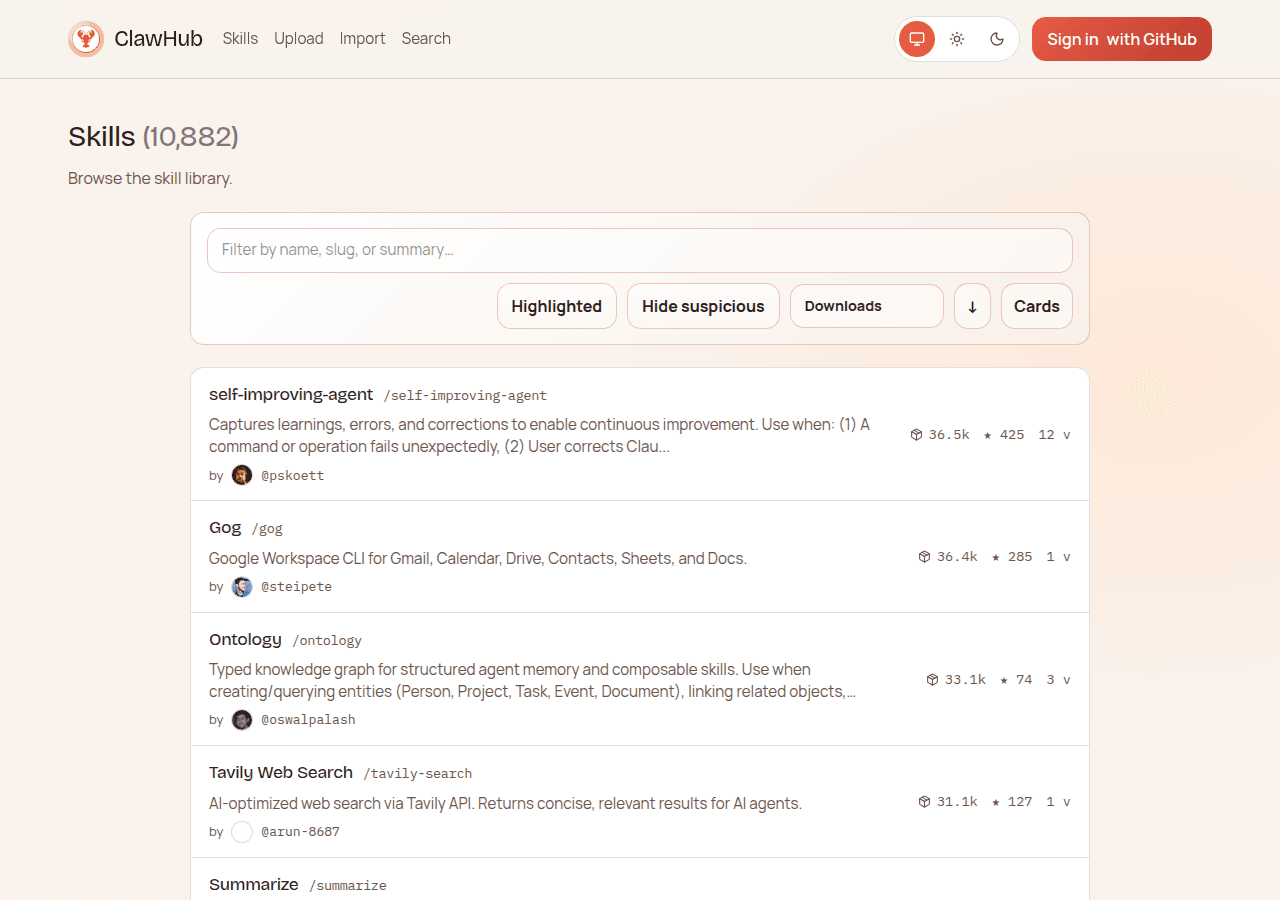
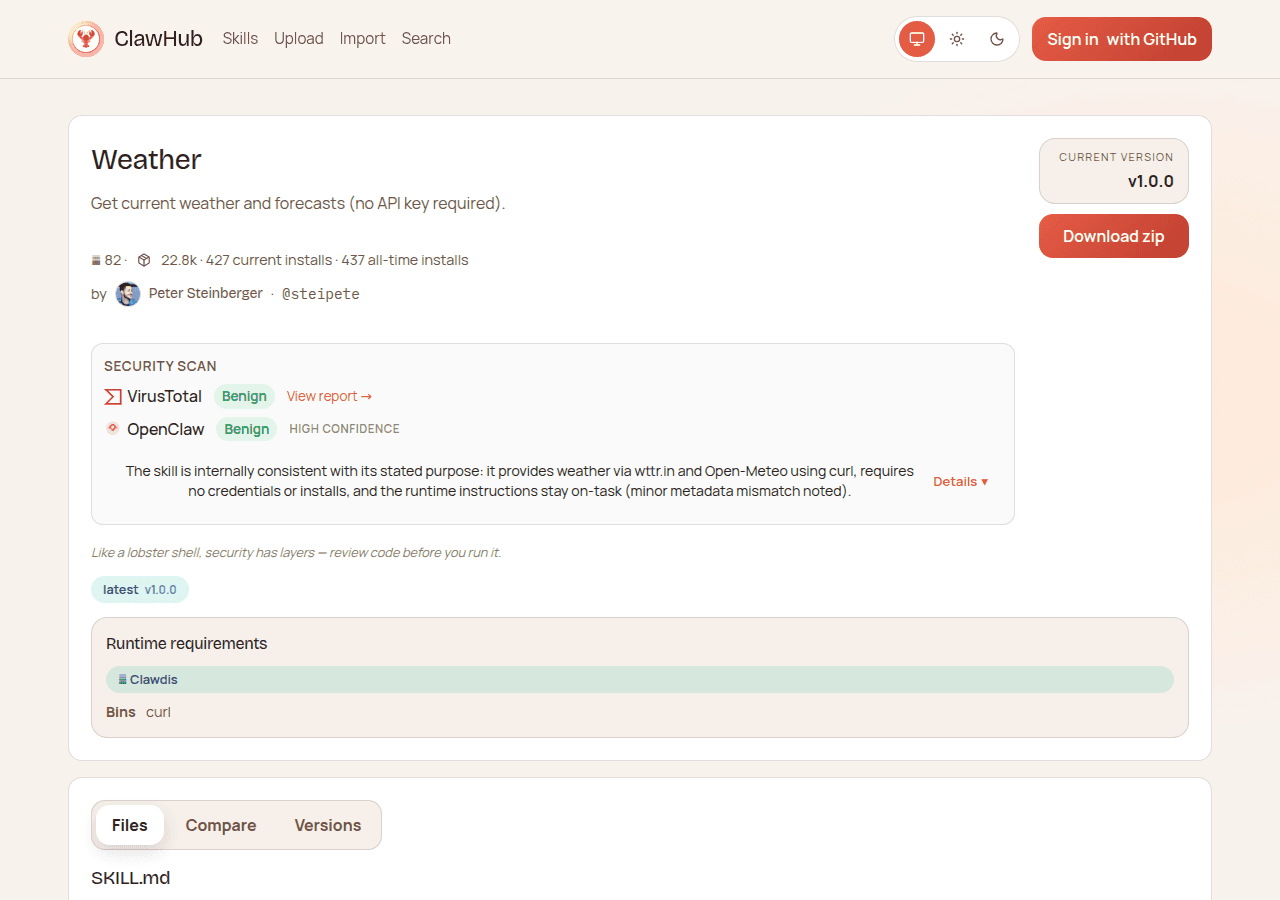
Don't install blind. Open the skill on clawhub.ai and read the SKILL.md tab before touching the CLI.
A healthy SKILL.md has:
- YAML frontmatter with a
name,description, and optionalmetadata - Instructions for the agent explaining how to use a tool or perform a task
- Optional
{baseDir}references pointing to files within the skill folder - API key requirements listed under
metadata.openclaw.requires.env - Binary requirements listed under
metadata.openclaw.requires.bins
Red flags in a SKILL.md:
- A "Prerequisites" section that asks you to download something from an external URL
- Any instruction to run
curl,wget, orbase64 -d | bashin Terminal - Any instruction to "paste this command into Terminal" or "run this script first"
- Links to glot.io, pastebin, random raw GitHub URLs, or IP addresses
- Instructions formatted to look official but pointing to unknown infrastructure
The ClawHavoc skills looked professional. That's the point. You're not looking for bad grammar. You're looking for unexpected external script execution.
2. Check every external link in the SKILL.md
If the SKILL.md includes any URL, click it before installing. Ask: is this a domain I'd expect for this skill? Does the page look like what the skill description claims?
Any script hosted on a code-sharing site (glot.io, pastebin, similar) that you're expected to copy and run should be treated as hostile until proven otherwise. Read the source. Can you understand it? If it uses base64 encoding, decode it and read what's underneath.
Password-protected ZIP files are a real red flag. Koi Security noted that attackers used password-protected archives to evade automated antivirus scanning on purpose. If a skill asks you to download a ZIP that requires a password to extract, don't do it.
3. Look at the publisher's GitHub profile
ClawHub skills are published by GitHub users. The minimum requirement to publish is a GitHub account at least one week old. That's a low bar.
Go to the publisher's GitHub profile. Look for:
- Account age (visible on the profile)
- Other repositories or published work
- Any community activity — issues, pull requests, contributions
The attacker behind the first ClawHavoc skills used an account named "zaycv." No history. No other repos. Created just for the campaign. Snyk flagged this pattern explicitly — a new account publishing a "critical system tool" with zero community history is a warning sign.
Publishers with real track records aren't a guarantee of safety, but a brand-new account with a single "must-have" skill should make you stop.
4. Look at install count and publication date together
High download counts feel like social proof. They're not. A Reddit security researcher built a backdoored (but harmless) skill, inflated the download count to 4,000+ via bots, and watched it become the #1 most downloaded skill on ClawHub. Real developers from 7 different countries executed it.
The first ClawHavoc skill Snyk found had 7,743 downloads. That looks like a well-established, widely-used tool. It was malware.
A healthy signal is a combination of factors: the skill has been around for several months, the version history shows steady updates, and the download count growth looks organic relative to the skill's age. A skill that appeared two weeks ago with 5,000 downloads is suspicious. A skill from eight months ago with the same count probably isn't.
5. Search for the skill before installing
Before installing anything from ClawHub, run two searches:
[skill name] malware site:reddit.com OR site:github.com
[skill name] clawhub security
After ClawHavoc, Koi Security published their IOC database (Clawdex) listing all identified malicious skills. A quick search for the skill name plus "clawhavoc" or "malware" will surface coverage if the skill has been flagged anywhere.
This takes 60 seconds. Do it every time.
What does a safe install workflow look like?
Preview before committing anything
Start with search:
clawhub search [name]This shows the skill metadata without installing anything. From there, open the clawhub.ai page directly and read the full SKILL.md in your browser. Check the version history tab to see how often it's been updated and when the first version appeared.
Only after reading the SKILL.md yourself should you proceed.
Pin to a specific version
Don't install the latest tag if you can avoid it. Pin to a specific version:
clawhub install skill-name@1.2.3Pinning matters because an attacker who gains access to a legitimate publisher's account can push a malicious update to an otherwise clean skill. If you're pinned to version 1.2.3 and version 1.2.4 is pushed, you won't get the update automatically. That's protection against a different class of attack than ClawHavoc, but it's worth doing.
When you do want to update, run clawhub update --all deliberately rather than on a schedule. Review the changelog on clawhub.ai before updating pinned skills.
Test in an isolated session first
After installing a skill, don't use it immediately in your main workspace. Set up a separate workspace with minimal permissions and run one test command. Watch what the agent actually does. If the skill is loading an external page or triggering unexpected tool calls, you want to catch that in an isolated environment before it touches your real data.
The OpenClaw security audit command is useful here. The security audit walkthrough covers the full process, but the short version:
openclaw security audit
openclaw security audit --deep
Run it after installing any new skill to check for configuration issues and unexpected permission states.
Can you restrict what a skill can do after installing?
Yes, and you should.
Per-channel tool restrictions
OpenClaw lets you configure which tools are available per channel. If a skill is only used in one specific channel, limit the tools it can access in others. This is done through openclaw.json config under your gateway settings.
The official security model assumes one trusted operator per gateway. If you have a shared instance, the official recommendation is to run separate gateways per trust boundary. The security hardening playbook covers this in the Tier 3 section. Don't share a single OpenClaw instance with untrusted users, because any allowed sender can drive tool calls within the agent's permission set.
Per-sender restrictions
If you do run a shared instance, you can limit which senders can trigger specific high-risk tools. This is a meaningful mitigation for a skill that requires broad access but shouldn't be triggered by every person who can message your bot.
Disabling a skill without uninstalling
If you want to temporarily disable a skill without removing it:
- Rename
SKILL.mdtoSKILL.md.disabledinside the skill folder — OpenClaw won't load files without the exactSKILL.mdname - Or move the skill directory out of
~/.openclaw/skillsto a temporary holding folder
Neither approach deletes anything. You can re-enable by renaming back or moving the folder back.
What if you already installed something suspicious?
If you installed a skill from ClawHub in February 2026 and didn't review it carefully, here's what to check.
Check for unexpected processes
On macOS:
ps aux | grep -E "claw|skill|update"AMOS staged its payloads in $TMPDIR. Check:
ls -la $TMPDIR | grep -v "^d"Look for unexpected binary files, especially anything that's recently modified and has execute permissions.
Review outbound network connections
lsof -i -n -P | grep ESTABLISHEDWatch for connections to raw IP addresses (not domain names). The known ClawHavoc C2 was 91.92.242.30, though attackers rotate infrastructure. Any connection to an IP address you don't recognize is worth investigating.
Understand what AMOS took
The AMOS variant in ClawHavoc lacked system persistence. It doesn't survive a reboot. If you've rebooted your machine since the potential infection, the malware process is gone. But the data exfiltration happens before that, and it's immediate. If AMOS ran on your machine, assume the following were taken:
- Keychain passwords (login, certificates, secure notes)
- Browser saved credentials and session cookies
- Crypto wallet seeds, private keys, and exchange API keys
- SSH private keys
- Telegram session data
- Files from Desktop, Documents, and Downloads
Absence of a running process doesn't mean the data wasn't taken.
Rotate credentials immediately
In order of priority:
- Crypto wallet seed phrases. Move funds to fresh wallets before doing anything else.
- API keys used with OpenClaw. Rotate them in the provider's settings.
- SSH keys. Revoke and generate new pairs.
- OAuth tokens for services connected to OpenClaw. Revoke at the provider.
- Keychain passwords for any high-value accounts.
The nuclear option
If this happened on a work machine, 1Password's security team recommends treating it as a security incident and engaging your security team immediately. Don't wait for symptoms.
For a personal machine with confirmed or suspected infection: pull it off the network, do a fresh macOS install from a known-good backup that predates the skill install date, and restore only the data you need (not application data, not keychains). Then rotate all credentials anyway, because the backup might include stored credentials that were exfiltrated before you backed up.
FAQ
Is ClawHub safe now?
Safer than it was in early February 2026, but not vetted in the way an app store is vetted. ClawHub added a reporting system where any signed-in user can flag a skill, and skills with more than 3 unique reports are auto-hidden by default. Moderators can then review, unhide, or delete flagged skills. The known ClawHavoc skills have been removed.
What hasn't changed: anyone with a week-old GitHub account can still publish a skill. The registry is open by design. Treat it the way you'd treat npm or PyPI — open marketplaces where useful packages far outnumber malicious ones, but where you still read before you install.
Should you stop installing skills entirely?
No. Most skills are markdown files that teach your agent how to call an API or format output. The specific risk is skills that include external script execution in their setup instructions. If a skill's SKILL.md doesn't ask you or your agent to run any external scripts or install any external binaries, the attack surface is much smaller.
Read the SKILL.md. If there's no Prerequisites section asking for outside dependencies, you've already eliminated the main ClawHavoc attack pattern.
Are Windows users at risk too?
Yes. The Windows vector used a password-protected ZIP archive containing a Trojanized executable. It's a different payload from AMOS (which targets macOS), but the threat model is the same. If you followed the Windows installation instructions in a malicious skill, assume your machine needs the same treatment: check for unexpected processes, rotate credentials, and consider a fresh install.
How do you report a suspicious skill?
Log in to clawhub.ai, open the skill's page, and click the report button. Fill in the reason with as much detail as you have. Each user account gets up to 20 active reports. The more specific your report, the easier it is for moderators to act quickly.
Does this affect other skill registries too?
Yes. Trend Micro confirmed malicious skills on SkillsMP.com, skills.sh, and the official openclaw/skills GitHub repository. The same checklist applies regardless of where you found a skill. The SKILL.md format is a cross-platform standard, and attackers are targeting the format itself, not just ClawHub.
Key Terms
AMOS (Atomic macOS Stealer) is an infostealing malware-as-a-service tool sold on Telegram that harvests credentials, browser data, and cryptocurrency wallet data from macOS machines.
ClawHavoc is the name given by Koi Security to the February 2026 campaign that distributed AMOS through 341+ malicious skills on ClawHub. By mid-February 2026 the count exceeded 824 skills.
SKILL.md is the instruction file at the root of every OpenClaw skill. It contains the directions the agent reads and follows to perform a task. In a malicious skill, it's the delivery mechanism for attack instructions.
Evidence & Methodology
This article is based on primary research reports from Koi Security, Snyk, 1Password, and Trend Micro, supplemented by OpenClaw's official documentation and community reporting. All claims link to source material inline. No original malware analysis was conducted for this article.
Sources
- ClawHavoc: 341 Malicious Skills Found by the Bot They Were Targeting — Koi Security
- Researchers Find 341 Malicious ClawHub Skills Stealing Data from OpenClaw Users — The Hacker News
- Malicious OpenClaw Skills Used to Distribute Atomic MacOS Stealer — Trend Micro
- Inside the 'clawdhub' Malicious Campaign — Snyk
- From Magic to Malware: How OpenClaw's Agent Skills Become an Attack Surface — 1Password
- ClawHub Security and Moderation — OpenClaw Docs
- Skills Security Notes — OpenClaw Docs
- The OpenClaw Security Crisis — Conscia
- OpenClaw is terrifying and the ClawHub ecosystem is already full of malware — Reddit r/cybersecurity
Related resources
- OpenClaw security hardening playbook — the full hardening guide for your instance
- How to use openclaw security audit — run the audit after installing any skill
- 7 proven OpenClaw security fixes — quick security wins
- OpenClaw skills and ClawHub guide — the basics of finding and installing skills
- OpenClaw troubleshooting: 5-command diagnostic ladder
- Fix OpenClaw installation errors
- 16 OpenClaw workflows that boost productivity
Newsletter
Want to get notified when new skill security issues are discovered? Join the Stack Junkie security alerts list and we'll flag anything worth paying attention to before it hits the news.
Changelog
- 2026-02-25: First published
Fixes when it breaks. Workflows when it doesn't.
OpenClaw guides, configs, and troubleshooting notes. Every two weeks.