16 OpenClaw Workflows That Turn Your Agent Into Infrastructure
OpenClaw was previously known as Clawdbot and Moltbot. This guide applies to all versions.
16 OpenClaw workflows covering a personal CRM, vector knowledge base, AI business council, and more. Each workflow documented with setup instructions.
Key takeaways
- 16 interconnected workflows running on OpenClaw (previously known as Clawdbot and Moltbot) from a single always-on machine
- The setup includes a personal CRM, vector knowledge base, AI business council, tiered X/Twitter search, automated meeting prep, and 11 more workflows
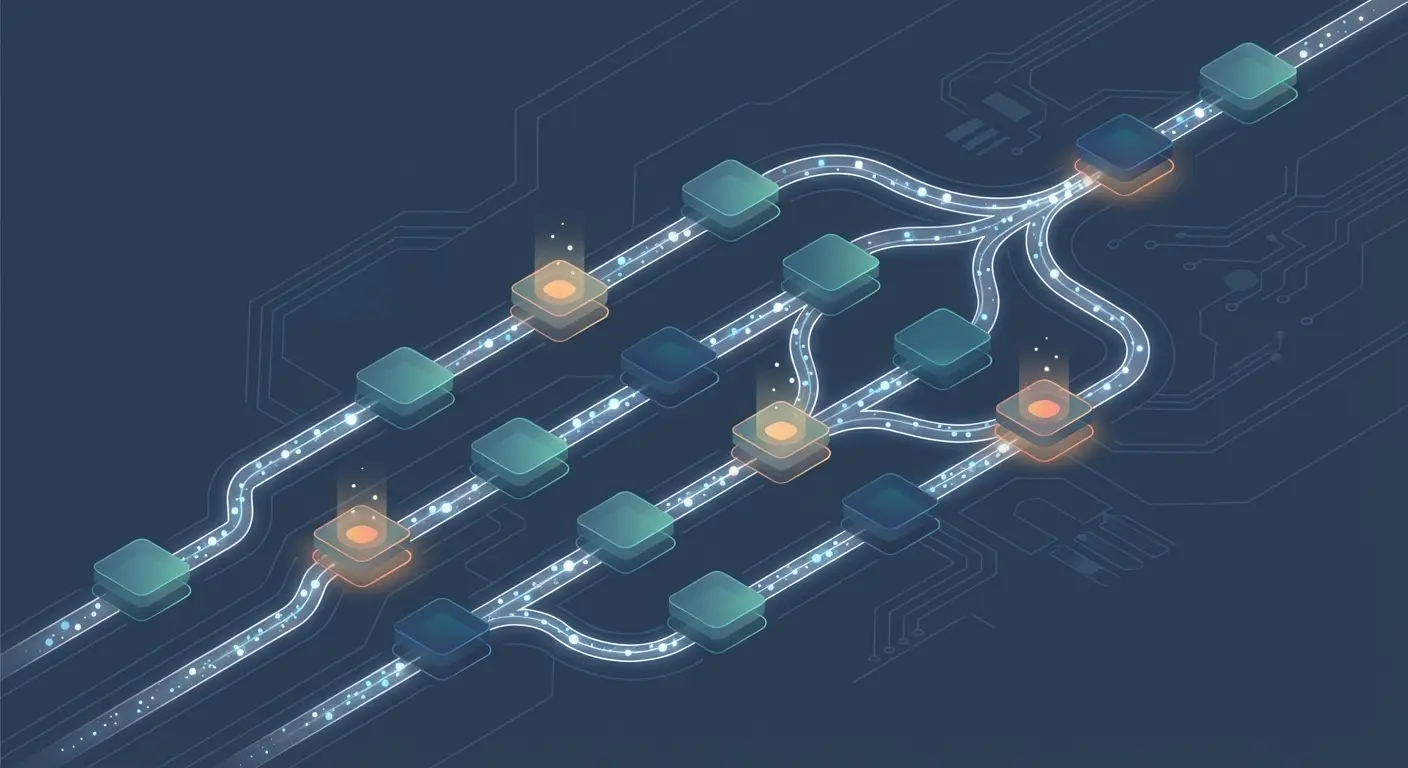
- Each workflow is modular and reusable across others. The CRM feeds meeting prep. The knowledge base feeds the content pipeline. Everything connects.
- Total cost: roughly $150/month across all APIs and subscriptions
- This guide covers what each workflow does, why it matters, and how to implement it yourself
- We are actively building several of these workflows ourselves and will share updates as we ship them
- Credit: These workflows come from Matthew Berman's video walkthrough of his OpenClaw setup
Always review commands your agent suggests before approving them. Don't paste prompts from sources you don't trust.
Fixes when it breaks. Workflows when it doesn't.
OpenClaw guides, configs, and troubleshooting notes. Every two weeks.
Introduction
I came across a video from Matthew Berman walking through 16 OpenClaw workflows running on a dedicated MacBook Air in clamshell mode, connected 24/7. A personal CRM that ingests an entire email history. A vector knowledge base queryable with natural language. An AI council of four specialized agents that debates business strategy every night.
I watched it three times. Then I started building.
Not all 16 are practical for everyone. Some require specific APIs or subscriptions. But the architecture behind them is what matters. Every workflow is modular. Every workflow feeds into others. The CRM feeds meeting prep. The knowledge base feeds the content pipeline. Cost tracking watches everything.
This is how you turn OpenClaw from a chatbot into infrastructure. If you have not read our guide on building a dashboard for your AI agent, start there for the foundation. Then come back here for every workflow, why it works, and how you can implement each one yourself.
OpenClaw Starter Kit: If you are just getting started, the OpenClaw Starter Kit bundles config templates, workspace file examples, and skills we actively use. It covers the setup steps in this guide.
The Foundation: Hardware and Interfaces
The original setup runs on a dedicated MacBook Air that never leaves the desk. Clamshell mode keeps it running 24/7 with TeamViewer for remote control and Tailscale for SSH access, allowing remote coding via Cursor from any other machine.
You do not need a MacBook Air. A $5/month VPS from DigitalOcean or Hetzner works fine. A Raspberry Pi works. Any machine that stays online and connected to the internet works.
The more interesting part is how the interfaces are organized:
Telegram as primary. Separate Telegram groups with individual topics for each workflow. Knowledge base gets its own channel. Food journal gets one. Cron updates, video research, self-improvement, business analysis, meeting prep. All separate.
Slack as secondary. Limited to two channels, restricted access. Used mainly for team collaboration around content ideas.
Session expiry set to one year. This is a key configuration choice. The default OpenClaw behavior starts a new session daily at 4 AM, which wipes the conversation context. Setting the session expiry to one year, combined with narrow topic channels, means the agent never forgets what it was working on in each domain.
To replicate this, set sessionExpireAfterMs in your OpenClaw config to something long. One year in milliseconds is 31536000000. Pair it with Telegram topic groups to keep conversations focused.
1. Personal CRM: Your AI Knows Everyone You Talk To
This one blew my mind. The setup has OpenClaw downloading all emails daily, parsing them, identifying contacts, filtering out newsletters and cold outreach, and building a relationship graph with full conversation timelines.
What it does: A daily cron job downloads Gmail messages and calendar events. It extracts people from senders and participants. It deduplicates contacts, merges records, and uses AI classification (Gemini 2.5 Flash, cheap and fast) to identify each person's role and context. It builds a semantic index you can query with natural language: "Who was the last person I talked to at Grapile and what did we talk about?"
Why it matters: Your email is the most comprehensive record of your professional relationships. But it is scattered, unsearchable in any meaningful way, and siloed. Turning it into a queryable database that cross-references with your calendar means you never walk into a conversation unprepared.
How to implement it:
-
Set up Gmail API access. Create a project in Google Cloud Console. Enable the Gmail API and Google Calendar API. Create OAuth 2.0 credentials. Download the credentials JSON file.
-
Write an ingestion script. Use the Gmail API Node.js quickstart as your starting point. Pull messages from the last 24 hours using the
after:query parameter. -
Parse contacts. Extract the
From,To, andCcheaders from each message. Build a contacts table with name, email, company (extracted from domain), and first/last seen dates. -
Classify with AI. Send each new contact through Gemini Flash or another cheap model to classify their role (vendor, client, recruiter, friend, newsletter) and assign a relevance score. Filter out low-relevance contacts automatically.
-
Store in SQLite. Create a contacts table and an interactions table. Store the relationship as a timeline: each email or meeting is an interaction with a timestamp, summary, and sentiment.
-
Add a cron job. Schedule this to run daily. In OpenClaw, create a cron job with
payload.kind: "agentTurn"that triggers the ingestion. -
Query it. Now you can ask your agent: "When did I last talk to someone at [company]?" or "Who are my most active contacts this month?"
2. Vector Knowledge Base: Drop Anything, Search Everything
This workflow turns Telegram into a knowledge base. Drop any URL or file and it gets chunked, embedded, and stored for natural language search. Every article, every research paper, every interesting thread. All searchable. What it does: You drop a URL or file. OpenClaw detects the source type, extracts text content, normalizes it, chunks it into pieces, generates vector embeddings, and stores everything in a SQLite database with a vector column. You can then search with plain English questions.
Why it matters: Bookmarks rot. Saved articles pile up unread. But a vector knowledge base means everything you ever found interesting is instantly findable by concept, not just by keyword. And because the data lives locally, it is private and fast.
For a simpler second brain approach that requires no vector database setup, see OpenClaw Second Brain: 7 Proven Steps for Faster Recall.
How to implement it:
-
Install sqlite-vec. This is a SQLite extension that adds vector search capabilities. The sqlite-vec GitHub repository has installation instructions. For Node.js, install via
npm install sqlite-vec. -
Design your schema. You need two tables: a
documentstable (id, url, title, content, source_type, created_at) and achunkstable (id, document_id, chunk_text, embedding). The embedding column uses sqlite-vec's vector type. -
Build the ingestion pipeline. When a URL or file arrives:
- Detect type (web page, PDF, markdown, etc.)
- Extract text (use a tool like markitdown for PDFs and documents)
- Split into chunks of 500-1000 tokens with overlap
- Generate embeddings using OpenAI's
text-embedding-3-smallor a local model - Store chunks and embeddings
-
Build the search function. To search, embed the query and use sqlite-vec's vector similarity search to find the top N most relevant chunks. Then use your LLM to synthesize an answer from those chunks with source citations.
-
Create an OpenClaw skill. Package this as a skill so your agent knows how to ingest new content and search existing content. The skill should handle both "save this article" and "find articles about X" commands.
This is the foundation workflow. The video idea pipeline, business analysis, and meeting prep workflows all pull from this knowledge base. Build this first.
3. Content Idea Pipeline: From Link Drop to Full Pitch in 30 Seconds
This workflow takes the knowledge base a step further. When a link gets saved, the system also posts a summary to a team Slack channel. If anyone on the team says "let's make a video about this," the pipeline kicks in. What it does: A trigger comes from Slack or Telegram. The system parses the topic intent, researches it on X/Twitter and the web, queries the knowledge base for related articles, generates video pitches (checking for duplicates against existing pitches), builds hooks and outlines, links all sources, creates a task card in Asana, and sends confirmation back. All in about 30 seconds.
Why it matters: The gap between "that's interesting" and "here's a fully researched pitch with hooks and an outline" usually takes hours. This compresses it to seconds. Adapt this for blog posts instead of videos and you have an automated content research pipeline.
How to implement it:
-
Set up the trigger. In your Telegram topic channel for content ideas, teach your agent to recognize "idea:" or "pitch:" prefixes as content pipeline triggers.
-
Research phase. When triggered, the agent should:
- Search X/Twitter for recent posts about the topic (using the tiered search from Workflow 5)
- Search the web using Brave Search or similar
- Query the local knowledge base for related saved articles
-
Deduplication. Check your existing pitches database. If you already pitched something similar, flag it and ask if you want a fresh angle instead.
-
Generate the pitch. Combine all research into a structured pitch: topic summary, hook options (3 minimum), rough outline, source links, estimated audience interest.
-
Create the task. Push the pitch to your project management tool. If you use Todoist, the Todoist REST API makes task creation simple. If you use Asana, the Asana API works similarly.
-
Confirm. Send a summary back to the channel where the idea was triggered.
4. Meeting Prep: Never Walk In Cold Again
Every morning, the system looks at the day's calendar, filters out internal-only meetings, and generates a briefing for each external meeting.
What it does: A daily cron job at 7 AM pulls today's calendar events via Google Calendar API. It filters out events with no attendees or only internal team members. For each remaining meeting, it cross-references attendees against the CRM (Workflow 1) to find the last conversation, relationship context, and what was discussed. It generates a briefing: who the person is, what you last talked about, what this meeting is about, and any relevant context.
Why it matters: Walking into meetings cold wastes the first 5 minutes on reintroductions and context setting. This solves that.
How to implement it:
-
Pull calendar events. Use the Google Calendar API to get today's events. Filter by timeMin (start of day) and timeMax (end of day).
-
Filter events. Skip events with no attendees. Skip events where all attendees are on your internal team domain.
-
Cross-reference CRM. For each external attendee, query your contacts database from Workflow 1. Pull their latest interactions, role, company, and any notes.
-
Generate briefing. Feed the calendar event description plus CRM context to your LLM. Ask for a concise briefing: who they are, last touchpoint, what they likely want to discuss, and any prep items.
-
Deliver via Telegram. Send the briefing to a dedicated "Meeting Prep" Telegram channel each morning.
This workflow depends on having the CRM (Workflow 1) in place. Without the contact context, the briefings are just calendar summaries.
5. X/Twitter Tiered Search: Cost-Optimized Social Intelligence
If you do a lot of X/Twitter research, a single API for everything gets expensive fast. This workflow uses a four-tier fallback system that optimizes for cost.
What it does: When the agent needs Twitter data, it tries the cheapest option first and falls back through more expensive tiers as needed.
The four tiers:
-
Tier 1: FX Twitter API (free). Single tweet lookup only. No search. If you just need to expand a specific tweet URL, this is free.
-
Tier 2: twitterapi.io ($0.15 per 1,000 tweets). Search, profiles, user tweets, thread context. A good middle ground for most queries.
-
Tier 3: Official X API v2 ($0.005 per tweet, pay per use). Full access to everything. Expensive but complete.
-
Tier 4: XAI API with Grok. Use Grok to search Twitter as a fallback. Not as structured but catches what the APIs miss.
Why it matters: If you do any volume of Twitter research, costs add up fast. Having the system automatically try the cheapest option first means you only pay for expensive API calls when you actually need them.
How to implement it:
-
Sign up for each tier. Get API keys for FX Twitter (free), twitterapi.io, and X API v2. Set up XAI API access for Grok.
-
Build a router skill. Create an OpenClaw skill that accepts a Twitter query and routes it through the tiers. Start with Tier 1. If it cannot fulfill the request (search queries, for example), try Tier 2. If Tier 2 fails or rate-limits, try Tier 3. If all else fails, use Grok.
-
Log costs. Track which tier was used for each request and the associated cost. This feeds into Workflow 13 (Cost Tracking).
6. YouTube Analytics: Track Your Channel and Your Competition
This workflow uses the YouTube Data API to track channel metrics and monitor competitors daily.
What it does: A daily cron job hits the YouTube Data API, pulls stats for all your videos (views, watch time, engagement), takes a snapshot of channel growth, and stores it locally. It also scans competitor channels for new uploads, cadence changes, and performance trends. It generates PNG charts and feeds insights into the business analysis workflow.
Why it matters: YouTube analytics inside YouTube Studio are fine for checking numbers, but they do not compare you against competitors or identify trends across your content library automatically. Persisting daily snapshots lets you see real growth patterns over weeks and months.
How to implement it:
-
Set up YouTube Data API v3. Go to Google Cloud Console, enable the YouTube Data API v3, and create API credentials.
-
Pull your channel stats. Use the
channels.listandvideos.listendpoints to get subscriber counts, view counts, and per-video metrics. -
Pull competitor stats. Use the
search.listendpoint with competitor channel IDs to monitor their upload cadence and latest video performance. -
Store locally. Save each daily snapshot as a row in a SQLite database. Include timestamp, video ID, views, likes, comments, and any computed metrics.
-
Generate charts. Use a charting library (Chart.js rendered to PNG via Puppeteer, or matplotlib via Python) to create visual trend reports.
-
Schedule daily. Set up a cron job that runs once per day, pulls fresh data, stores the snapshot, and generates updated charts.
7. Business Meta Analysis: Your Personal AI Board of Directors
This is the wildest one. The idea comes from Brian Armstrong, CEO of Coinbase, who described how they use AI to review all their business data and find gaps.
What it does: Every night, a multi-agent system ingests all available business signals: YouTube metrics, CRM health, cron job reliability, social growth, Slack messages, emails, Asana tasks, Fathom meeting transcripts, and HubSpot pipeline data. It compacts everything down to the top 200 signals by confidence.
Then four AI agents take over:
- Growth Strategist: Focuses on audience growth, content strategy, and market opportunities
- Revenue Guardian: Watches the money. Sponsorship pipeline, cost trends, revenue per content piece.
- Skeptical Operator: Challenges every recommendation. Asks "what could go wrong?" and "is this actually backed by data?"
- Team Dynamics Architect: Looks at workload distribution, collaboration patterns, and operational bottlenecks
These four agents debate. They go back and forth. A moderator (Opus 4.6) reconciles disagreements, ranks the final recommendations, and produces a morning report.
Why it matters: Running a business alone means you have blind spots. Having four AI perspectives argue about your data surfaces things you would never notice. The Skeptical Operator is particularly valuable because it forces the other agents to justify their recommendations.
How to implement it:
-
Aggregate your signals. Start with whatever data you actually have. YouTube stats, website analytics, email volume, task completion rates. You do not need all of these signals to start.
-
Compact to top signals. Write a prompt that takes raw data and extracts the top 100-200 signals ranked by confidence and relevance.
-
Create agent personas. Define four agent prompts with distinct perspectives. Each should have clear instructions about what to focus on and what to challenge.
-
Run the council. Use OpenClaw's sub-agent spawning to run each agent. Have them review the compacted signals, then feed their individual analyses into a moderator agent for synthesis.
-
Schedule for off-hours. This burns significant tokens (Opus is not cheap). Run it at 3 AM when you are not using your allocation anyway.
-
Deliver the report. Send the final synthesis to your morning briefing channel.
This is an advanced workflow. If your agent is not performing well yet, make sure your agent's basics are working first. Get the foundation workflows (CRM, knowledge base, cost tracking) running first.
8. HubSpot Ops: Natural Language Deal Queries
If you use HubSpot for sales or sponsorship tracking, this workflow lets you query it with plain English.
What it does: You ask a question like "What deals are in my qualification stage?" The system classifies the intent, maps it to the right HubSpot API endpoint, makes the call, and returns a human-readable summary.
Why it matters: This workflow is less about daily use and more about data access. The real value is that HubSpot deal data feeds into the business meta analysis (Workflow 7). Having the data accessible means the AI council can factor in your sales pipeline when making recommendations.
How to implement it:
-
Get a HubSpot API key. Go to Settings > Integrations > API key in HubSpot (or use OAuth for production).
-
Map common intents. Build a routing table: "deals in stage X" maps to the deals endpoint with a stage filter. "Contact info for X" maps to the contacts endpoint. Start with 5-10 common queries.
-
Build the skill. Create an OpenClaw skill that takes natural language input, classifies it against your intent map, calls the appropriate endpoint, and formats the response.
9. Humanizer: Kill the AI Smell in Everything You Write
This workflow applies the humanizer skill to everything the agent produces. Not just blog posts or emails. Everything.
What it does: A ClawHub skill that detects AI writing patterns and rewrites them. No em dashes. No "it is worth noting." No "shall we explore this topic." It runs proactively on all output, not just when you ask for it.
Why it matters: AI-generated text has a distinctive smell. Em dashes everywhere. Copula avoidance (saying "features" instead of "has"). Rule-of-three lists of abstract nouns. People recognize it instantly, even if they cannot articulate why. Applying a humanizer to all output means your agent's communication reads like a person wrote it.
How to implement it:
-
Install from ClawHub. Run
clawhub install humanizerto add the skill to your OpenClaw instance. -
Configure it globally. In your AGENTS.md or system prompt, add an instruction that all text output should be processed through the humanizer before sending. This makes it proactive rather than reactive.
-
Customize the rules. Most humanizer skills ship with a default set of AI patterns to detect. Add your own preferences. Em dashes are a common one to flag, which is a pattern many AI models default to.
-
Test it. Have your agent write something, then check the output against an AI detection tool. Iterate on the rules until the output consistently scores as human-written.
10. Image Generation: Infinite Visual Assets on Demand
This workflow plugs image generation APIs into the OpenClaw setup and uses them through dedicated Telegram channels.
What it does: You send a text prompt or an existing image with edit instructions to a dedicated Telegram topic. The agent interprets the request, generates images using Nano Banana Pro (Gemini 3 Pro Image) or similar APIs, and sends them back. You iterate with feedback ("make it bigger," "make it square") until you are happy.
Why it matters: Every blog post needs a hero image. Every social post benefits from a visual. Having image generation built into your agent means you never leave the conversation to go make something in a separate tool.
How to implement it:
-
Choose your API. Nano Banana Pro (Gemini) is one option. OpenAI's DALL-E 3 is another. Leonardo AI offers more control over style. Pick one and get API credentials.
-
Create a Telegram topic. Dedicate a channel or topic group to image generation. This keeps image conversations out of your other workflows.
-
Build the skill. The skill should accept text prompts, image URLs with edit instructions, and size/format preferences. It should call the API, retrieve the generated image, and send it back through Telegram.
-
Enable iteration. The agent should maintain context within the conversation so you can say "make it more blue" or "crop it tighter" without re-describing the whole image.
11. Video Generation: Text to Video Through Telegram
Similar to image generation, this workflow adds video generation capabilities using Google's Veo (VO) API.
What it does: You describe a video in Telegram. The agent generates it using a text-to-video API and sends the result back. You can iterate just like with images.
Why it matters: Short video clips for social media, product demos, or b-roll no longer require a production pipeline. You describe what you want and get a first draft in minutes.
How to implement it:
-
Get API access. Google's Veo API or Runway ML are options. Check current availability and pricing, as these APIs are still relatively new and access may be limited.
-
Build the skill. Similar structure to the image generation skill. Accept text prompts, call the API, return the video file.
-
Set expectations. Generated videos are useful for rough cuts and concept validation. They are not going to replace your actual video production. Use them as starting points.
12. To-Do List Integration: Meetings Become Action Items Automatically
This workflow combines Fathom (an AI meeting notetaker) with Gemini Flash to automatically extract action items from every meeting.
What it does: After every video conference, Fathom transcribes the meeting. Instead of using Fathom's built-in takeaway generator (which tends to be unreliable), the transcript gets sent to Gemini 2.5 Flash with a prompt: "Extract action items for me and action items for the other attendees. Include deadlines where mentioned."
The extracted actions get cross-referenced with the CRM to add context (who is this person, what company, what is the relationship). After your approval, the tasks get pushed to Todoist with proper owners and deadlines.
Manual task addition works too. "Add a task to follow up with X person by Friday" gets parsed, enriched with CRM context, and pushed to Todoist.
Why it matters: Meeting notes are where action items go to die. Automating the extraction and pushing them directly into your task manager with context means things actually get done.
How to implement it:
-
Get meeting transcripts. Use Fathom, Otter.ai, or any tool that transcribes meetings. The key is getting the raw transcript text.
-
Extract action items. Send the transcript to a cheap, fast model (Gemini Flash, GPT-4o-mini) with a structured prompt asking for: action description, assigned owner, deadline if mentioned, and priority.
-
Cross-reference CRM. Look up each attendee in your CRM (Workflow 1) to add context to the action items.
-
Push to task manager. Use the Todoist REST API to create tasks. Include the context in the task description. Set due dates where extracted.
-
Get approval first. Show the extracted action items to you before pushing them. Auto-creation without review leads to garbage tasks clogging your list.
13. Cost Tracking: Know Exactly What Your AI Costs
Running all of these workflows costs roughly $150 per month total: $100 for the Claude subscription plus API costs for Gemini, X, and other services. Tracking every call is what keeps it under control. What it does: Every API call and every AI model invocation gets logged to a central location. You can ask "how much did I spend this week" or "which workflows are costing the most" or "show me the 30-day trend" and get real answers.
Why it matters: AI costs are sneaky. A poorly optimized cron job can burn through your API budget overnight. A workflow that triggers GPT-4 when GPT-4o-mini would suffice wastes money silently. Visibility into spend per workflow prevents surprises.
How to implement it:
-
Create a usage log. A SQLite table with: timestamp, workflow_name, model_used, input_tokens, output_tokens, cost_usd, api_service.
-
Instrument your skills. After every API call or model invocation in your skills, log the usage. Most API responses include token counts. Calculate cost using the published pricing.
-
Build query functions. Let your agent query the log: total spend by period, spend by workflow, spend by model, trend over time.
-
Set alerts. Create a cron job that checks daily spend. If it exceeds a threshold, send a Telegram alert immediately.
-
Review weekly. Include a cost summary in your weekly report. Look for workflows that cost more than expected and optimize them (cheaper models, fewer tokens, caching).
14. Automated Backup: Never Lose Your Setup
A setup like this takes weeks to build. Losing it would be devastating. Automated backups are non-negotiable.
What it does: Every hour, a cron job checks for changes in the code repo and pushes to GitHub. This catches changes made by OpenClaw itself (it is self-evolving), changes made in your editor, and any other modifications. Databases do not go to GitHub because they are too large. Instead, they get backed up to Google Drive with timestamps. A detailed restore document explains how to bring everything back from scratch.
Why it matters: OpenClaw workspaces accumulate configuration, skills, data, and institutional knowledge over time. Losing it means starting over from scratch, not just reinstalling software.
How to implement it:
-
Initialize a git repo. If your workspace is not already in git, initialize it now.
git init, create a.gitignorethat excludesnode_modules/, database files, and large binaries. -
Hourly git push. Create a cron job that runs
git add -A && git commit -m "auto-sync $(date)" && git pushevery hour. If there are no changes, the commit will be empty and can be skipped with--allow-emptyor by checkinggit statusfirst. -
Database backups. Use rclone to sync your SQLite database files to Google Drive, S3, or any cloud storage. Run this daily. Include a timestamp in the filename so you have point-in-time recovery.
-
Restore document. Write a step-by-step document describing how to restore your entire setup on a fresh machine. Include: OS setup, OpenClaw installation, git clone, database restore, API key configuration, cron job recreation. Store this document in your git repo.
-
Test the restore. At least once, actually try restoring from backup on a fresh machine. Untested backups are not backups.
15. Markdown Health Checks: Self-Healing Configuration
OpenClaw uses several markdown files (AGENTS.md, MEMORY.md, TOOLS.md, IDENTITY.md, SOUL.md, USER.md, HEARTBEAT.md) to define its behavior. These files drift over time as you make changes, add skills, and update instructions.
What it does: OpenClaw downloads the official configuration guidelines from the OpenClaw website and the Anthropic prompting guide for Opus 4.6. These are stored locally as references. Once per day, a cron job reviews all workspace markdown files against these guidelines and recommends changes.
Why it matters: Drift is real. You tell your agent something in conversation. It adds the instruction to MEMORY.md. But it should be in AGENTS.md. Or it puts the same instruction in three different files. Or it uses ALL CAPS and bold when Opus 4.6 does not need emphasis to follow instructions. The health check catches all of this.
How to implement it:
-
Download references. Fetch the OpenClaw documentation configuration guidelines and store them locally. Fetch the Anthropic prompting guide and store it locally.
-
Create the audit prompt. Write a prompt that reviews each markdown file against the reference documents. It should check for: misplaced content (operating rules in SOUL.md instead of AGENTS.md), duplicated rules across files, unnecessary emphasis (ALL CAPS, bold for things that do not need it), stale references, and contradictions.
-
Schedule daily. Create a cron job that runs the audit once per day during off-hours. Have it report findings to a dedicated Telegram channel.
-
Recommend, do not auto-fix. The health check should recommend changes, not make them automatically. Review the recommendations and apply what makes sense.
Opus 4.6 follows clear instructions without shouting. If you find yourself writing "MANDATORY" and "NEVER FORGET" in your workspace files, the health check should flag that.
16. Session Topic Separation: One Brain, Many Contexts
This is less of a workflow and more of an architecture decision, but it is foundational to everything else.
What it does: Instead of one long conversation thread with the agent, you use separate Telegram groups or topics for every domain. Knowledge base, food journal, cron updates, video research, self-improvement, business analysis, meeting prep. Each topic gets its own session.
Combined with a one-year session expiry, each topic channel maintains its full conversation history. The agent never forgets what it was working on in each domain because those conversations never expire.
Why it matters: A single conversation thread with an AI agent eventually becomes a mess. You are asking about dinner recipes between code reviews. The agent cannot maintain context because the context is everything about everything. Narrow topic channels solve this.
How to implement it:
-
Create Telegram groups or topics. One per major workflow or domain. Start with 5-7 and expand as needed.
-
Set session expiry. In your OpenClaw config, set
sessionExpireAfterMsto a long duration. One year (31536000000ms) works well for this purpose. -
Be disciplined. The system only works if you actually keep conversations in their correct channels. Do not ask about your CRM in the knowledge base channel.
-
Use the right model per channel. Some channels need Opus for complex reasoning. Others work fine with Sonnet or even Haiku for quick lookups. Configure per-channel model overrides if your setup supports it.
How It All Connects: The Automation Schedule
The cron jobs follow a clean cadence: Every hour:
- Git repo sync (Workflow 14)
- CRM check for new signals
- Signal scouting across sources
Every day:
- Email ingestion from Gmail (Workflow 1)
- YouTube analytics pull (Workflow 6)
- Markdown health check (Workflow 15)
- Nightly business briefing via AI council (Workflow 7)
- Meeting prep delivered each morning (Workflow 4)
Every week:
- Weekly memory synthesis (built-in OpenClaw feature)
- General housekeeping and cleanup
Everything follows the same pattern: cron triggers a task, the task executes, results and notifications get sent to the appropriate Telegram channel. If something fails, you get notified immediately.
This is what makes the system feel autonomous. It is not waiting for you to tell it what to do. It is running, monitoring, and reporting on a schedule.
What We Are Building Right Now
Full disclosure: we are implementing several of these workflows ourselves right now. We document our builds at midnight-build.com.
Here is our current status:
- Vector Knowledge Base: High priority. We currently use flat markdown files for memory. Migrating to SQLite with sqlite-vec for hybrid search.
- Humanizer: High priority. We have the ClawHub humanizer skill installed and are integrating it across our content pipeline.
- Automated Git Backup: Done. We have an hourly cron job pushing workspace changes to GitLab.
- Markdown Health Checks: Done. A daily cron job audits our workspace files against OpenClaw guidelines and the Anthropic prompting guide.
- Cost Tracking: High priority. We are building usage logging into our dashboard (Lantern) so we can see what our AI actually costs.
- Session Topic Separation: Done. We have separate Telegram groups for each major domain and one-year session expiry.
We will publish follow-up articles as we ship each workflow with implementation details specific to our setup.
FAQ
How much does this all cost per month?
The full 16-workflow setup costs roughly $150/month. That includes $100 for the Claude Max subscription plus API costs for Gemini, X, YouTube, and other services. Your cost depends on which workflows you implement and how heavily you use them. Start with the free and cheap ones (git backup, markdown health checks, session separation) and add paid APIs as you need them.
Do I need a dedicated machine?
No. A $5/month VPS works fine. The original setup uses a MacBook Air as a dedicated always-on machine, but OpenClaw runs on any Linux or macOS machine with an internet connection. A Raspberry Pi 4 or 5 would work for lighter workloads.
Which workflows should I start with?
Start with Session Topic Separation (free, just reorganize your Telegram), then Automated Backup (protect what you build), then the Vector Knowledge Base (foundation for everything else). Once those are solid, add the CRM if you have email API access, or Cost Tracking if you are worried about spend.
Do I need Opus for all of this?
No. The smarter approach is using multiple models strategically. Opus 4.6 for complex reasoning and the business council moderator. Gemini 2.5 Flash for classification tasks (cheap and fast). Sonnet for most routine work. Haiku for quick lookups. Match the model to the task complexity and you will save significant money.
Can I use this with tools other than Telegram?
Yes. OpenClaw supports Telegram, Slack, Discord, Signal, and more. The workflows themselves do not depend on Telegram. Use whatever messaging platform you prefer. Telegram is popular because it supports topic groups, bots, and inline media well.
How long does it take to build all 16 workflows?
The original setup took about two weeks of heavy daily use. That is fast, and assumes comfort with APIs and coding. Budget a month if you are building at a more relaxed pace, and you do not need all 16. Pick the ones that solve your actual problems.
Sources
- Matthew Berman's OpenClaw walkthrough video: https://www.youtube.com/watch?v=Q7r--i9lLck
- OpenClaw documentation
- Anthropic prompting guide
- sqlite-vec GitHub repository
- Gmail API Node.js quickstart
- Google Calendar API quickstart
- YouTube Data API v3
- Todoist REST API
- ClawHub skill marketplace
- Brian Armstrong on AI at Coinbase (inspiration for the AI council workflow)
Conclusion
Look, I know how this sounds. Sixteen workflows, four AI agents debating your business strategy at 3 AM, a personal CRM that knows everyone you have ever emailed. It sounds like a lot. Because it is.
But the important thing is not building all 16. It is understanding the architecture. Every workflow is modular. It does one thing. It stores its data in a consistent format. It exposes itself to other workflows. The CRM feeds meeting prep. The knowledge base feeds the content pipeline. Cost tracking watches everything.
Start with one. Get the vector knowledge base working. Drop a few articles in. Search them with natural language. Feel the difference between "I bookmarked that somewhere" and "here are the three most relevant articles about that topic, with sources."
Then add another. And another. Before long, you have built something that is not a chatbot anymore. It is infrastructure. It is a system that works for you even when you are not paying attention.
Against all odds, including my own expectations, I shipped the first three and I am building the rest. I shipped it anyway.
Changelog
- 2026-02-13: Initial publication
- 2026-02-25: Added changelog, structural improvements
- 2026-03-14: Refocused article on workflows rather than source creator. Revised intro and framing throughout.
- 2026-03-22: Added resource link to OpenClaw Starter Kit
Fixes when it breaks. Workflows when it doesn't.
OpenClaw guides, configs, and troubleshooting notes. Every two weeks.