How to Approve OpenClaw Pairing: Fix Pairing Required Errors
OpenClaw was previously known as Clawdbot and Moltbot. This guide applies to all versions.
How to approve OpenClaw pairing codes and fix 'pairing required' errors. Covers dmPolicy, allowFrom, and groupPolicy for Telegram, Discord, and more.

Key takeaways
- Approve a pending device: run
openclaw pairing approve <channel> <CODE>. If you don't see a code, check pending ones withopenclaw pairing list <channel>. Codes expire after one hour. - Three config keys control all access:
dmPolicy(what happens when someone DMs the bot),allowFrom(the list of approved sender IDs), andgroupPolicy(how channel messages are handled). Most silent bot problems trace back to one of these being wrong. - The maximum is three pending pairing codes per channel at a time. Once that limit is reached, new requests are silently ignored until one expires or gets approved.
- Pairing state files live at
~/.openclaw/credentials/<channel>-pairing.jsonand<channel>-allowFrom.json. Treat them as sensitive, the same as you would an API key.
OpenClaw uses pairing to verify that only approved users can control your agent. If your bot ignores messages, it's almost always a pairing or policy issue. This guide covers how pairing works, the three policy settings that control access, channel-specific behavior, and fixes for every silent bot scenario.
Here's what you'll walk away with:
- How the pairing handshake works (code, approval, allowlist)
- The three config keys that gate every inbound message:
dmPolicy,allowFrom, andgroupPolicy - A channel-by-channel behavior table for Telegram, Discord, WhatsApp, Slack, and Signal
- 10 specific "silent bot" scenarios with exact fixes
- A diagnostic flowchart to trace any pairing problem in under a minute
OpenClaw was previously known as Moltbot (and before that, Clawdbot). The config keys and CLI commands in this article apply to all current versions.
Always review commands your agent suggests before approving them. Don't paste prompts from sources you don't trust.
Fixes when it breaks. Workflows when it doesn't.
OpenClaw guides, configs, and troubleshooting notes. Every two weeks.
What Is OpenClaw Pairing?
Pairing is OpenClaw's way of making sure a random stranger can't start bossing your agent around. It's the front door lock for your AI assistant.
When someone sends a DM to your bot for the first time and your DM policy is set to pairing, the bot does not process the message. Instead, it replies with an 8-character pairing code. The sender can't do anything until you, the owner, approve that code from the command line.
The flow looks like this:
- Unknown user sends a message to your bot
- Bot generates a pairing code (8 uppercase characters, excluding ambiguous chars like
0,O,1, andI) - Bot sends the code back to the user
- You run
openclaw pairing approve <channel> <CODE>on your server - The user is added to the channel's allowlist and can now interact normally
A few important constraints, per the pairing docs:
- Codes expire after 1 hour. If the user doesn't get approved within that window, they need to message again to generate a new code.
- 3 pending requests per channel. Once three codes are waiting for approval on a given channel, additional requests are silently ignored until one expires or gets approved.
- State is stored locally in
~/.openclaw/credentials/<channel>-pairing.json(pending codes) and<channel>-allowFrom.json(approved senders). Treat these files as sensitive.
You can list pending requests and approve or let them expire:
openclaw pairing list telegram
openclaw pairing approve telegram ABCD1234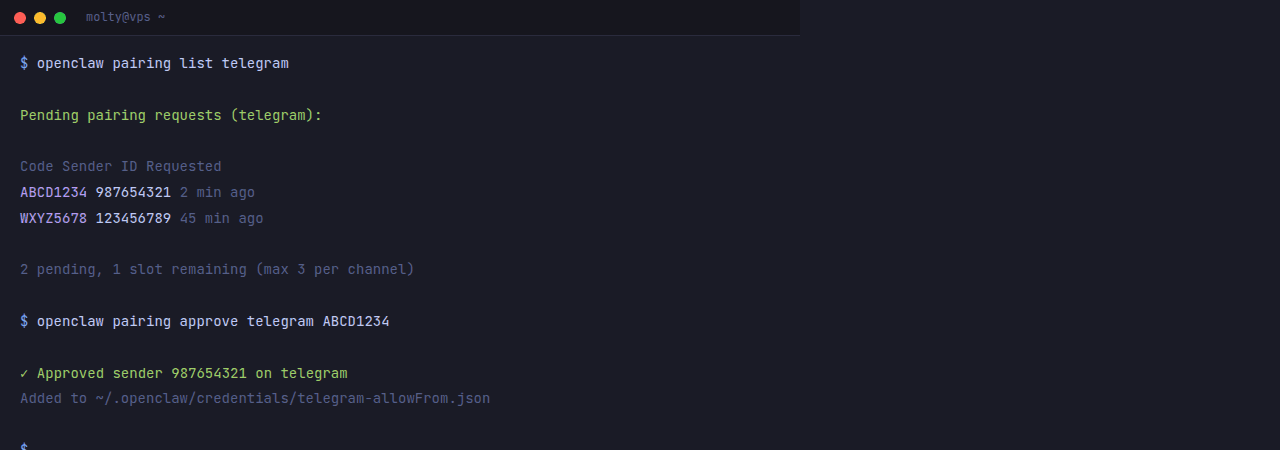
That's the entire mechanism. No OAuth flows, no API keys from the sender's side. Just a code and a CLI command.
The Three Policy Settings That Control Access
Every silent bot problem traces back to one of three config keys in your ~/.openclaw/openclaw.json. Understanding these three settings will save you hours of debugging.
dmPolicy: Who Can DM the Bot
dmPolicy controls what happens when someone sends your bot a direct message. It has four options:
| Policy | Behavior |
|---|---|
pairing (default) | Unknown senders get a pairing code. Messages aren't processed until approved. |
allowlist | Only senders in the allowFrom list can DM. Everyone else is silently ignored. |
open | Anyone can DM the bot. Requires allowFrom: ["*"]. |
disabled | All DMs are ignored. |
Config example for the default pairing mode:
{
  channels: {
    telegram: {
      dmPolicy: 'pairing',
    },
  },
}
If you want a locked-down bot that only responds to specific people with no pairing flow at all, use allowlist:
{
  channels: {
    telegram: {
      dmPolicy: 'allowlist',
      allowFrom: ['123456789'],
    },
  },
}
If you want the bot to respond to everyone (think carefully about this, especially if your agent has tool access):
{
  channels: {
    telegram: {
      dmPolicy: 'open',
      allowFrom: ['*'],
    },
  },
}
The open policy requires allowFrom: ["*"] as an explicit acknowledgment that you know what you're doing.
allowFrom: The Allowlist
allowFrom is the list of sender IDs that are permitted to talk to your bot. The format depends on the channel:
| Channel | ID Format | Example | How to Find It |
|---|---|---|---|
| Telegram | Numeric user ID | "123456789" | DM your bot, run openclaw logs --follow, read from.id |
| Discord | Numeric user ID | "987654321012345678" | Enable Developer Mode, right-click your avatar, Copy User ID |
| E.164 phone number | "+15551234567" | Your phone number with country code | |
| Slack | Slack user ID | "U0123ABCDEF" | Slack profile > three dots > Copy member ID |
| Signal | E.164 or UUID | "+15551234567" or "uuid:abc-123" | Your phone number or Signal UUID |
A common gotcha: Telegram used to accept @username format in older OpenClaw versions. If you upgraded and your config still has @username entries, they won't match. Run openclaw doctor --fix to resolve usernames to numeric IDs.
The tg: and telegram: prefixes are accepted and normalized, so "tg:123456789" and "123456789" are equivalent.
groupPolicy and Group Access
Groups have their own policy layer, separate from DMs. There are three controls:
groupPolicy determines which senders are allowed in groups:
| Policy | Behavior |
|---|---|
open | Any group member can trigger the bot |
allowlist (default) | Only senders in groupAllowFrom (or allowFrom as fallback) |
disabled | Bot ignores all group messages |
groupAllowFrom is the group-specific allowlist. If it's not set, OpenClaw falls back to allowFrom.
groups is the group-level allowlist that controls which groups the bot participates in at all:
{
  channels: {
    telegram: {
      groupPolicy: 'open',
      groups: {
        '-1001234567890': {
          requireMention: true,
        },
      },
    },
  },
}
When groups is configured, it acts as an allowlist. Only groups listed in the config (or "*" for all) will get responses. When groups is not configured, all groups are allowed.
There's also requireMention, which is true by default for groups. When enabled, the bot only responds when mentioned by name or @-tag. This prevents the bot from jumping into every conversation.
How Pairing Works Per Channel
Each channel has its own quirks. Here's the quick reference:
| Channel | Default dmPolicy | ID Format | Login Method | Common Gotcha |
|---|---|---|---|---|
| Telegram | pairing | Numeric user ID | Bot token via BotFather | @username in old configs breaks after upgrade |
| Discord | pairing | Numeric user ID | Bot token from Developer Portal | Must enable "Direct Messages" in server Privacy Settings |
| pairing | E.164 phone number | QR code via openclaw channels login | Using personal number creates self-chat complications | |
| Slack | pairing | Slack user ID | App Token + Bot Token | Needs message.im event subscription for DMs |
| Signal | pairing | E.164 or UUID | signal-cli link or register | Running on personal number ignores your own messages |
All channels support the same dmPolicy options (pairing, allowlist, open, disabled). All channels support the same CLI commands:
openclaw pairing list <channel>
openclaw pairing approve <channel> <CODE>
Where <channel> is one of: telegram, whatsapp, signal, imessage, discord, slack, feishu.
10 Reasons Your Bot Stays Silent
Every one of these has burned at least one afternoon. Here's the fix for each.
1. Pairing Code Expired
The code lasts 1 hour. If you didn't approve in time, the code is dead.
Fix: Have the user send another message. A new code will be generated. Approve it promptly.
2. User Not in allowFrom
If dmPolicy is allowlist (not pairing), only users in allowFrom get responses. Everyone else is silently dropped.
Fix: Add the user's ID to allowFrom in your config, or switch to pairing mode so they can request access.
3. Wrong ID Format
Telegram needs numeric IDs, not @username. WhatsApp needs E.164 format (+15551234567), not 5551234567. Discord needs the full numeric user ID.
Fix: Check the ID format table above. For Telegram, the fastest method is to run openclaw logs --follow while the user messages the bot, then read from.id from the log output.
4. requireMention Is Enabled in a Group
By default, OpenClaw requires a mention to respond in groups. If nobody @-tags the bot, it stays quiet.
Fix: Either mention the bot, or set requireMention: false for that group:
{
  channels: {
    telegram: {
      groups: {
        '*': { requireMention: false },
      },
    },
  },
}
5. dmPolicy Is "pairing" But Nobody Ever Paired
You set up the channel, started the gateway, and waited. But nobody sent the bot a DM, so no pairing code was ever generated.
Fix: Send the bot a DM. Check for the code with openclaw pairing list <channel>. Approve it.
6. WebSocket 1008 / Unauthorized Error
This usually means a gateway auth token mismatch. The gateway restarted with a different token, or the token expired.
Fix: Check openclaw status and openclaw logs --follow. If you see 1008 errors, verify your gateway.auth.token matches what connecting clients expect. Restart the gateway if needed.
7. Bot Responds in DM But Not in Groups
DM policy and group policy are independent. Your DM allowlist doesn't automatically grant group access.
Fix: Check groupPolicy and groupAllowFrom. If groupPolicy is allowlist, make sure the sender is in groupAllowFrom (or allowFrom, which is the fallback).
8. Bot Responds to Owner But Not Other Users
Your own ID is in allowFrom, but you never added the other user.
Fix: Add their ID to allowFrom, or switch to pairing mode and have them message the bot to initiate the pairing flow.
9. Telegram Privacy Mode Blocking Group Messages
Telegram bots default to Privacy Mode, which limits what group messages they receive. The bot only sees commands and messages that mention it.
Fix: Disable Privacy Mode via /setprivacy in BotFather, or make the bot a group admin. After toggling, remove and re-add the bot in each group so Telegram applies the change.
10. Channel Not Enabled or Not Configured
The channel section is missing from your config, or enabled is false.
Fix: Check your ~/.openclaw/openclaw.json for the channel section. Make sure it exists and enabled is not set to false. Run openclaw channels status --probe to verify connectivity.
Diagnostic Flowchart
When your bot won't respond, work through this in order:
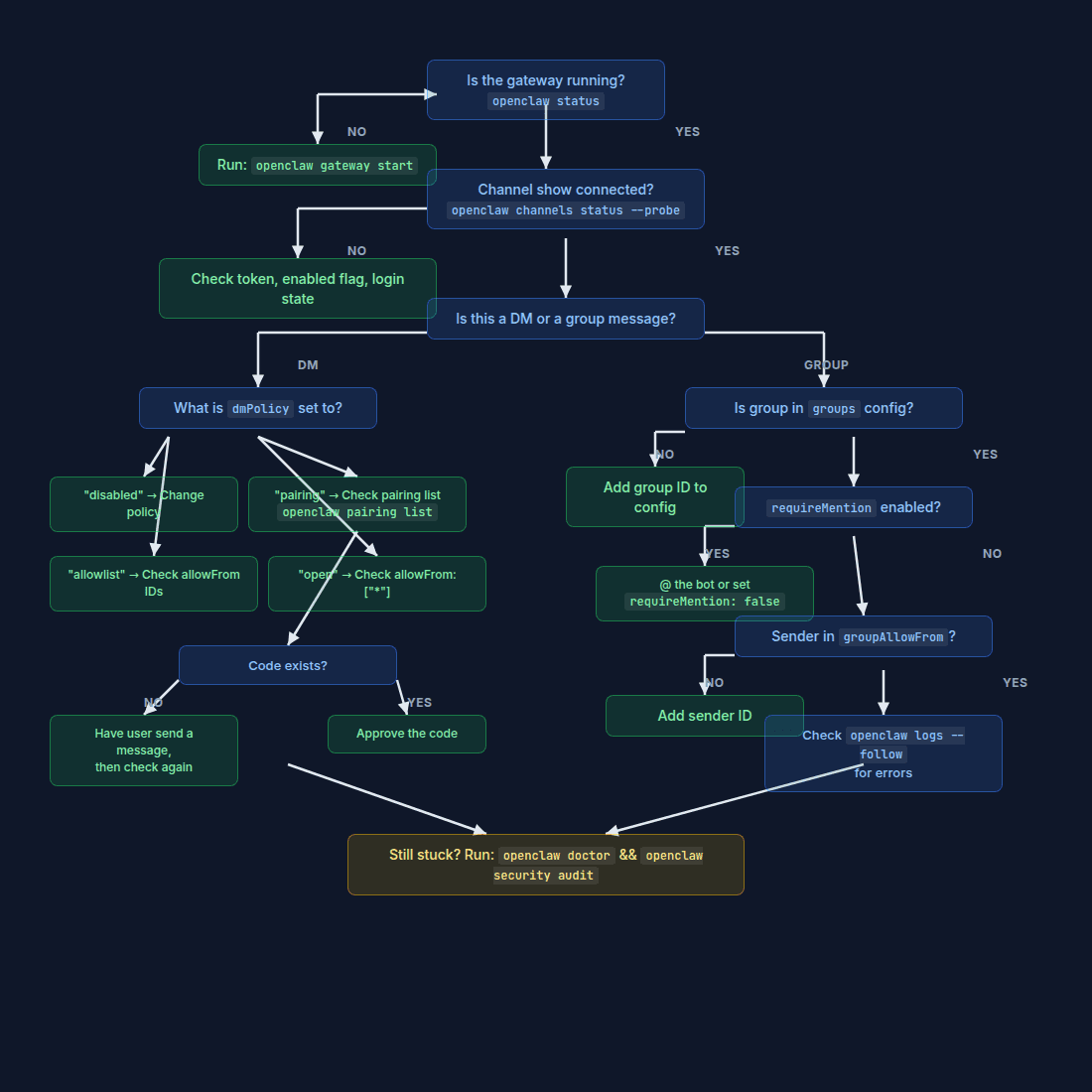
If you get to the bottom and the logs show no errors, run openclaw doctor and openclaw security audit for a deeper check.
FAQ
Can I have different policies per channel?
Yes. Each channel has its own dmPolicy, allowFrom, groupPolicy, and groupAllowFrom under channels.<channel> in your config. You can run Telegram on pairing, WhatsApp on allowlist, and Discord on open at the same time.
For channels with multiple accounts (WhatsApp, Signal, Discord, Slack), you can even set per-account overrides under channels.<channel>.accounts.<id>.
What's the most secure setup?
The hardened baseline from the OpenClaw security docs:
{
  channels: {
    whatsapp: {
      dmPolicy: 'pairing',
      groups: { '*': { requireMention: true } },
    },
  },
  session: {
    dmScope: 'per-channel-peer',
  },
}
Key elements: pairing for DMs (so every new user needs explicit approval), requireMention: true for groups (so the bot doesn't respond to everything), and per-channel-peer for session scoping (so each person gets an isolated session). Apply this pattern to every channel you use.
For a complete security walkthrough, see the OpenClaw Security Hardening Playbook.
How do I add a second user?
Two options:
- Pairing mode: Have them DM the bot. A pairing code appears. Run
openclaw pairing list <channel>andopenclaw pairing approve <channel> <CODE>. - Direct allowlist: Add their ID to
allowFromin your config. The change hot-reloads without a gateway restart.
After adding them, consider whether your session.dmScope setting is appropriate. The security docs recommend per-channel-peer when multiple users can DM the bot, so each person gets their own conversation context.
Key Terms
- Pairing: OpenClaw's explicit owner approval step for granting DM access. An unknown sender gets a code; the owner approves via CLI.
- dmPolicy: The config setting that controls DM access per channel. Options:
pairing,allowlist,open,disabled. - allowFrom: The allowlist of sender IDs permitted to interact with the bot. Format varies by channel.
- groupPolicy: The config setting that controls which senders can trigger the bot in group chats.
- requireMention: A group-level setting that makes the bot only respond when @-mentioned.
Evidence and Methodology
This guide is based entirely on the OpenClaw official documentation, specifically the pairing docs, security docs, configuration docs, and individual channel pages. Config examples were verified against the documented schema. The 10 silent bot scenarios come from common failure patterns documented in the channel troubleshooting page and cross-referenced with channel-specific docs.
Sources
- OpenClaw Pairing Documentation
- OpenClaw Security Documentation
- OpenClaw Configuration Documentation
- OpenClaw Telegram Channel Documentation
- OpenClaw WhatsApp Channel Documentation
- OpenClaw Discord Channel Documentation
- OpenClaw Signal Channel Documentation
- OpenClaw Slack Channel Documentation
- OpenClaw Channel Troubleshooting
Related Resources
- The Proven OpenClaw Security Hardening Playbook - Full security lockdown guide
- How to Use openclaw security audit - Audit your instance
- OpenClaw Gateway Pairing Required? 6 Fixes - Pairing-specific errors
- OpenClaw Troubleshooting: Proven 5-Command Fix - Universal troubleshooting
- OpenClaw Telegram Setup in 5 Minutes - Most common channel
- OpenClaw Discord Setup in 6 Steps - Second most common
- Fix OpenClaw Telegram Errors - Telegram-specific issues
- Docker OpenClaw Done Right - Run OpenClaw in Docker
Changelog
- 2026-02-26: Initial publication.
Fixes when it breaks. Workflows when it doesn't.
OpenClaw guides, configs, and troubleshooting notes. Every two weeks.