Fix OpenClaw Telegram Errors: 401, Silent Bots, and Pairing Failures
OpenClaw was previously known as Clawdbot and Moltbot. This guide applies to all versions.
Fix OpenClaw Telegram errors fast: 401 unauthorized, allowFrom config, group pairing, silent bots, webhook conflicts, and chat ID problems with actual commands.
Jump to your error
Check your OpenClaw logs first. Run openclaw logs --follow, trigger the error, and match what you see:
- "Telegram channel error: 401 Unauthorized" → Fix Telegram 401 Unauthorized or jump to section below
- Bot logs "Telegram channel started" but never replies → Fix Telegram Bot Not Responding
- "drop dm (pairing required)" or "drop group (pairing required)" → Fix Telegram Pairing Failures
- "drop dm (not in allowlist)" → Fix Telegram allowFrom Config
- "409 Conflict" or webhook errors → Fix Telegram Webhook Conflicts
- Need your Telegram group or chat ID → Find Your Telegram Group ID
- Connection drops or repeated reconnects → Fix Telegram Connection Problems
Each error also has a dedicated deep-dive guide linked above. The full troubleshooting reference continues below.
Key takeaways
OpenClaw Telegram agents fail for a few common reasons. 401 errors mean your bot token is wrong or expired. allowFrom issues happen when you mix up usernames and user IDs. Your agent stays silent in groups when pairing is not approved or requireMention is misconfigured.
Always review commands your agent suggests before approving them. Don't paste prompts from sources you don't trust.
Fixes when it breaks. Workflows when it doesn't.
OpenClaw guides, configs, and troubleshooting notes. Every two weeks.
Overview
Your OpenClaw (previously known as Clawdbot and Moltbot) agent should respond the moment you message it on Telegram. When it doesn't, you're usually looking at one of five problems: wrong bot token, allowFrom misconfiguration, unapproved pairing, mention settings, or chat ID format issues.
401 unauthorized: your bot token is wrong
This is the error I see most often. The logs show 401 Unauthorized and the bot never connects. I spent 20 minutes on this once because I'd copied the token with a trailing space from my terminal.
Telegram rejected your authentication. Usually it's one of three things:
- Token typo - Extra space, missing character, pasted into wrong field
- Token revoked - You regenerated it in BotFather but forgot to update your config
- Wrong bot - You have multiple bots and grabbed the wrong token
Fix it:
Stop the gateway first:
openclaw gateway stopGo to @BotFather in Telegram and send /mybots. Select your bot, then click "API Token". Copy the full token shown.
Now update your config. If you use environment variables:
export TELEGRAM_BOT_TOKEN="7234567890:AAHdqTcvCH1vGWJxfSeofSAs0K5PALDsaw"Or edit your config file directly at ~/.openclaw/config/config.json (if you're running in Docker, see the Docker secure setup guide for the container config path):
{
  "channels": {
    "telegram": {
      "enabled": true,
      "accounts": {
        "default": {
          "token": "7234567890:AAHdqTcvCH1vGWJxfSeofSAs0K5PALDsaw"
        }
      }
    }
  }
}
Restart the gateway:
openclaw gateway restartCheck the logs:
openclaw logs --followLook for Telegram channel started or Connected as @YourBotName. If you still see 401, the token is still wrong. Go back to BotFather and verify you copied the entire token.
Token got revoked
If your bot worked before and suddenly shows 401, someone (maybe you) revoked the token in BotFather. This happens when you click "Revoke current token" by accident or when troubleshooting other issues.
Generate a new token in BotFather and update your config again. The old token is permanently dead.
allowFrom numeric sender ID: username vs user ID
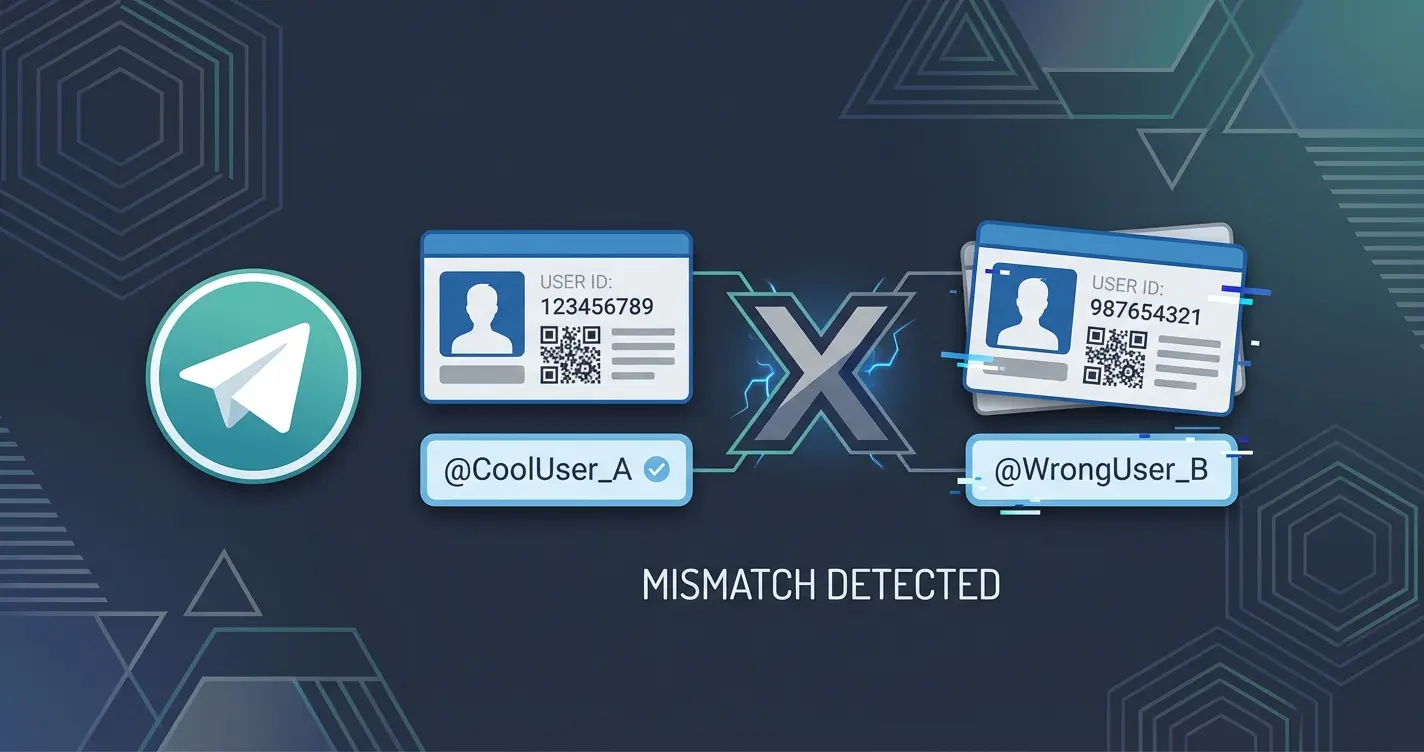
The allowFrom setting controls who can talk to your bot. I wasted an hour on this because I kept using @jerry instead of my numeric user ID. The bot would start fine, see my messages in the logs, but never reply.
Telegram has two ways to identify you:
- Username:
@jerry(optional, you can change it anytime) - User ID:
123456789(permanent, assigned when you created your account)
OpenClaw's allowFrom wants the numeric ID. If you use the @username, your bot ignores you completely.
Get your user ID:
Send /start to @userinfobot on Telegram. It replies with your user ID immediately.
Or check the OpenClaw logs when you send a message. The logs show:
Received message from user 123456789 (@jerry)That number is your user ID.
Fix your config
Edit ~/.openclaw/config/config.json:
{
  "channels": {
    "telegram": {
      "accounts": {
        "default": {
          "token": "your_token_here",
          "allowFrom": ["123456789", "987654321"]
        }
      }
    }
  }
}
Use the numeric IDs, not the @ usernames. Restart the gateway after saving:
openclaw gateway restartAdding new users
When you add someone to allowFrom, use their user ID. Ask them to message @userinfobot and send you the number.
Then add it to the array:
"allowFrom": ["123456789", "987654321", "555666777"]Restart the gateway. The new user can now interact with your bot.
Bot not responding in groups
Your bot joined the group but won't say anything. You're typing messages, maybe even @mentioning it, and nothing happens.
Pairing not approved
First thing to check: did you approve the pairing request? I've added bots to groups and forgotten this step more times than I want to admit. The bot just sits there silently while the pairing request waits in the logs.
OpenClaw requires explicit approval before your agent talks in any Telegram group. This is part of the pairing system, which prevents random people from controlling your agent if someone adds your bot to their group without permission.
When you add the bot to a group, OpenClaw logs a pairing request:
Pairing request from group -1001234567890 (My Group Chat)You need to approve it. Send this command from your terminal:
openclaw pairing approve telegram -1001234567890The negative number is the group's chat ID. Copy it exactly from the logs.
After approving, the bot responds to messages in that group. Check approved pairings anytime:
openclaw pairing listMention required
By default, your agent in groups only responds when mentioned. This prevents it from replying to every message in busy groups.
To trigger the bot, mention it by username:
@YourBotName what is the weather todayOr reply directly to one of its messages.
If you want the bot to respond to all messages (not recommended for busy groups), disable requireMention. The Telegram groups guide covers group configuration in more detail. For now, here's the quick fix:
{
  "channels": {
    "telegram": {
      "accounts": {
        "default": {
          "requireMention": false
        }
      }
    }
  }
}
Restart the gateway after changing this.
Group privacy mode
Telegram bots have a "Privacy Mode" setting in BotFather. When enabled, bots only see messages that mention them or are replies.
To change it:
- Go to @BotFather
- Send
/mybots - Select your bot
- Click "Bot Settings" then "Group Privacy"
- Choose "Turn off" to let the bot see all messages
This does not bypass OpenClaw's requireMention setting. Both must be configured.
Group ID issues: wrong chat ID format
Group chat IDs in Telegram are confusing. They look like negative numbers and change format depending on the group type.
Supergroups vs regular groups
Regular groups have IDs like -123456789. When you upgrade a group to a supergroup, the ID changes to -1001234567890 (adds 100 after the minus sign).
If your bot worked in a group and then stopped after an upgrade, the chat ID changed. Check the logs for the new pairing request and approve the new ID.
Finding the group ID
Send a message in the group and check OpenClaw logs:
openclaw logs --followLook for:
Received message in chat -1001234567890That is your group ID. Use it exactly as shown (including the minus sign) when approving pairing.
Or add the bot to the group and check for the pairing request line. The ID is there.
Common mistakes
Do not remove the minus sign. -1001234567890 is not the same as 1001234567890. Telegram needs the negative number.
Do not use the group username or invite link. OpenClaw needs the numeric chat ID.
Pairing request and pending approval errors
You see "pairing pending" or "not paired" errors when the bot refuses to respond.
What this means
OpenClaw tracks every chat and requires approval before interacting. This applies to:
- Direct messages (DMs)
- Group chats
- Channels (if your bot is an admin)
The first time someone messages the bot or adds it to a group, OpenClaw creates a pending pairing request.
How to approve
List pending requests:
openclaw pairing pendingYou see output like:
Pending pairings:
- telegram:-1001234567890 (Group: Project Team)
- telegram:987654321 (User: @alice)
Approve each one:
openclaw pairing approve telegram -1001234567890
openclaw pairing approve telegram 987654321
After approval, the bot responds immediately.
Auto-approve for trusted users
If you are the only user and want to skip manual approval, add yourself to allowFrom and set autoApprove:
{
  "channels": {
    "telegram": {
      "accounts": {
        "default": {
          "allowFrom": ["123456789"],
          "autoApprove": true
        }
      }
    }
  }
}
Now the bot auto-approves pairing requests from your user ID. Use this carefully. Do not enable it for bots in public groups. The security hardening playbook covers why open pairing is a risk and how to lock it down properly.
Reject unwanted pairings
To reject a pairing request:
openclaw pairing reject telegram -1001234567890The bot ignores all messages from that chat going forward.
OpenClaw Telegram Bot Not Responding
Your bot connects to Telegram successfully (you see Telegram channel started in the logs) but it never replies to messages. No errors, no 401, just silence. This is different from a startup failure. The bot is running, it's just not talking back.
Here's the checklist I run through every time this happens:
1. Check the logs while sending a message:
openclaw logs --followSend a message to the bot while watching. You should see a line like:
Received message from user 123456789 (@yourname)If you see nothing, the bot is not receiving messages at all. Check your bot token and make sure another OpenClaw instance is not using the same token (Telegram only allows one active connection per bot token).
2. Look for "drop" lines in the logs:
drop dm (pairing required)means you haven't approved the pairing yet. Runopenclaw pairing pendingand approve your user.drop dm (not in allowlist)means your user ID is not inallowFrom. Add it (see the allowFrom section above).drop group (not in allowlist)means the group is not configured.
3. Check the gateway is actually processing:
openclaw status
openclaw gateway status
If the gateway shows Runtime: running but RPC probe: failed, the gateway process is stuck. Restart it:
openclaw gateway restart4. Model or API key issues:
The bot receives your message but crashes trying to generate a response. This shows up as API errors in the logs, not Telegram errors. Check for lines mentioning your AI provider (Anthropic, OpenAI, etc.) and verify your API key is valid.
5. Rate limiting:
If you've been sending many messages quickly, Telegram may throttle the bot's ability to send replies. Wait 30 seconds and try again. Check logs for 429 Too Many Requests.
Telegram allowFrom Configuration
The allowFrom field in your Telegram config determines which users can interact with your bot. This is the single most common source of "bot not responding" issues after the initial 401 token problem.
Here's what the config comment in config.json tells you:
// allowFrom: numeric sender ID; @username resolves to ID at startupWhat this means: you should use numeric sender IDs like "123456789". If you put "@username" in the array, OpenClaw attempts to resolve it to a numeric ID when the gateway starts. This resolution can fail if the username is wrong, changed, or the bot has never seen that user before.
Best practice: Always use numeric IDs. Get them from @userinfobot or from the gateway logs.
Common mistakes with allowFrom:
| What you typed | What happens | Fix |
|---|---|---|
"@jerry" | May resolve at startup, may not | Use "123456789" |
"jerry" | Not recognized at all | Use "123456789" with quotes |
123456789 (no quotes) | JSON parse error | Wrap in quotes: "123456789" |
"-1001234567890" | That's a group ID, not a user | Use your personal user ID |
Verifying allowFrom is working:
After updating the config and restarting the gateway, send a message and check logs:
openclaw logs --followIf you see drop dm (not in allowlist) with your user ID, the ID in your config does not match. Copy the exact ID from the log line into your allowFrom array.
Telegram Webhook Setup Errors
OpenClaw uses Telegram's polling mode by default, but if you've configured webhook mode (or a previous installation left webhook settings active), you may see errors like:
sendChatAction failed: 409 Conflict: terminated by other getUpdates requestThis happens when both polling and a webhook are active simultaneously, or when two instances of your bot are running.
Fix the conflict:
First, delete any existing webhook:
curl "https://api.telegram.org/bot<YOUR_TOKEN>/deleteWebhook"Then restart the gateway:
openclaw gateway restartIf you intentionally want to use webhooks (for example, behind a reverse proxy), set the webhook URL in your config:
{
  "channels": {
    "telegram": {
      "accounts": {
        "default": {
          "webhook": {
            "url": "https://your-domain.com/telegram/webhook",
            "port": 8443
          }
        }
      }
    }
  }
}
Make sure only one mode is active. Polling and webhooks cannot run at the same time.
sendChatAction Failed
The sendChatAction failed error specifically means the bot tried to show a "typing..." indicator but Telegram rejected the request. Common causes:
- The bot was removed from the chat but your config still references it
- A webhook conflict (see above)
- The chat ID changed (group upgraded to supergroup)
Check your logs for the chat ID in the error and verify it matches an active, approved pairing.
Telegram Connection Error
If you see connection errors in the logs like:
Telegram channel error: ETIMEOUT
Telegram channel error: ECONNREFUSED
Telegram channel error: getaddrinfo ENOTFOUND api.telegram.org
These are network-level issues between your server and the Telegram API.
ETIMEOUT or ECONNREFUSED:
Your server cannot reach api.telegram.org. Check:
- DNS resolution:
nslookup api.telegram.org - Connectivity:
curl -s https://api.telegram.org - Firewall rules: make sure outbound HTTPS (port 443) is allowed
- If you're behind a proxy, configure the
HTTPS_PROXYenvironment variable
Intermittent connection drops:
Telegram's API servers occasionally have brief outages. OpenClaw reconnects automatically. If you see a single connection error followed by Telegram channel started, the reconnect worked. No action needed.
Persistent connection failures:
If the bot cannot connect for more than a few minutes:
# Check if Telegram API is reachable
curl -s "https://api.telegram.org/bot<YOUR_TOKEN>/getMe"
If this returns your bot's info, the API is reachable and the problem is in your OpenClaw config. If it times out, the issue is network-level on your server.
For VPS deployments, some hosting providers block Telegram API traffic. Check with your provider or try a different VPS. The DigitalOcean VPS guide covers a provider that works reliably with Telegram.
FAQ
Why does my bot work in DMs but not in groups?
Each chat needs its own pairing approval. You approved your DM pairing but the group is still pending. Run openclaw pairing pending to see unapproved requests, then approve the group's chat ID.
Can I use the same bot in multiple OpenClaw instances?
No. Telegram only allows one active connection per bot token. If you start a second gateway with the same token, Telegram disconnects the first one. Create separate bots (with different tokens) for each instance.
The bot replies but says "not authorized" for certain commands. Why?
Your user ID isn't in allowFrom. The bot can see your messages but won't execute restricted commands. Get your user ID from @userinfobot, add it to channels.telegram.allowFrom in your config, and restart the gateway.
I deleted and recreated my bot in BotFather. Now nothing works.
Deleting a bot kills the token permanently. Create a new bot (new username required), copy the new token, and update your OpenClaw config. The old token is gone and can't be recovered. If you're starting fresh, the Telegram setup guide walks through bot creation from scratch.
How do I remove an approved pairing?
OpenClaw doesn't have an unpair command yet. Either edit ~/.openclaw/data/pairings.json directly and delete the entry for that chat ID, or wait for the chat to send another message and reject it with openclaw pairing reject telegram CHAT_ID.
Conclusion
Most Telegram errors in OpenClaw come down to three things: wrong tokens, user IDs vs usernames, and unapproved pairings. When you see 401, regenerate your token in BotFather and update the config. When allowFrom does not work, switch to numeric user IDs. When the bot is silent in groups, approve the pairing request.
If you're still stuck after trying everything here, run openclaw security audit --deep to check for misconfigurations that might not be obvious from the logs alone.
Related Resources
- OpenClaw Telegram Setup Guide: Full setup from BotFather to first message
- Using Telegram Groups with OpenClaw: Group config, topics, and multi-user setups
- OpenClaw Pairing Explained: Deep dive on pairing policies, allowlists, and expiration
- The Proven OpenClaw Security Hardening Playbook: Lock down your instance after setup
- How to Use openclaw security audit: Run the built-in security scanner and fix what it finds
- Docker OpenClaw Done Right: Container setup with persistent volumes and pairing
- Fix OpenClaw Gateway and Pairing Errors: Gateway connection issues beyond Telegram
- OpenClaw DigitalOcean VPS Setup: Remote deployment on a VPS
- Official OpenClaw Telegram Docs: Full config reference
Changelog
- 2026-02-14: Initial publication
- 2026-02-25: Added changelog, structural improvements
- 2026-02-27: Added inline cross-links to pairing guide, security playbook, Docker guide, groups guide, setup guide. Added Related Resources section with 9 links. Updated author attribution.
- 2026-03-01: Added sections: OpenClaw Telegram Bot Not Responding, Telegram allowFrom Configuration, Telegram Webhook Setup Errors, sendChatAction Failed, Telegram Connection Error. Renamed allowFrom heading to include "numeric sender ID" for search matching.
Articles in this guide
Fixes when it breaks. Workflows when it doesn't.
OpenClaw guides, configs, and troubleshooting notes. Every two weeks.