Fix 7 OpenClaw Google Chat Errors (Step by Step)
OpenClaw was previously known as Clawdbot and Moltbot. This guide applies to all versions.
Fix Google Chat errors in OpenClaw: service account 403s, audience mismatches, webhook 405s, quota exhaustion, and silent DM drops. Exact errors, exact fixes.
Key takeaways
- Service account 403 errors usually mean the Chat API is not enabled in the project, or the JSON key is from a different project than the one where the Chat app was registered.
- Webhook 405 errors mean the gateway was not restarted after adding the
channels.googlechatconfig block, or the config is missing entirely. - Audience mismatch errors (
jwt audience invalid) require that theaudiencefield in OpenClaw config exactly matches the HTTP endpoint URL in the Chat app console, without the?password=parameter. - DMs going unanswered means a pairing code is pending. Run
openclaw pairing list googlechatto retrieve it.
Always review commands your agent suggests before approving them. Don't paste prompts from sources you don't trust.
Fixes when it breaks. Workflows when it doesn't.
OpenClaw guides, configs, and troubleshooting notes. Every two weeks.
Introduction
Google Chat has three layers that can break independently: service account auth, webhook delivery, and DM/group policy. When something fails, the error message usually points at the wrong layer. A 403 that looks like a permissions problem is actually a wrong project ID. A silent DM drop that looks like a bug is actually an unapproved pairing code.
This guide is organized by the exact error you see, not the layer it came from. If you haven't set up Google Chat yet, start with the setup guide first. This one assumes setup is done and something broke.
Quick Diagnostic
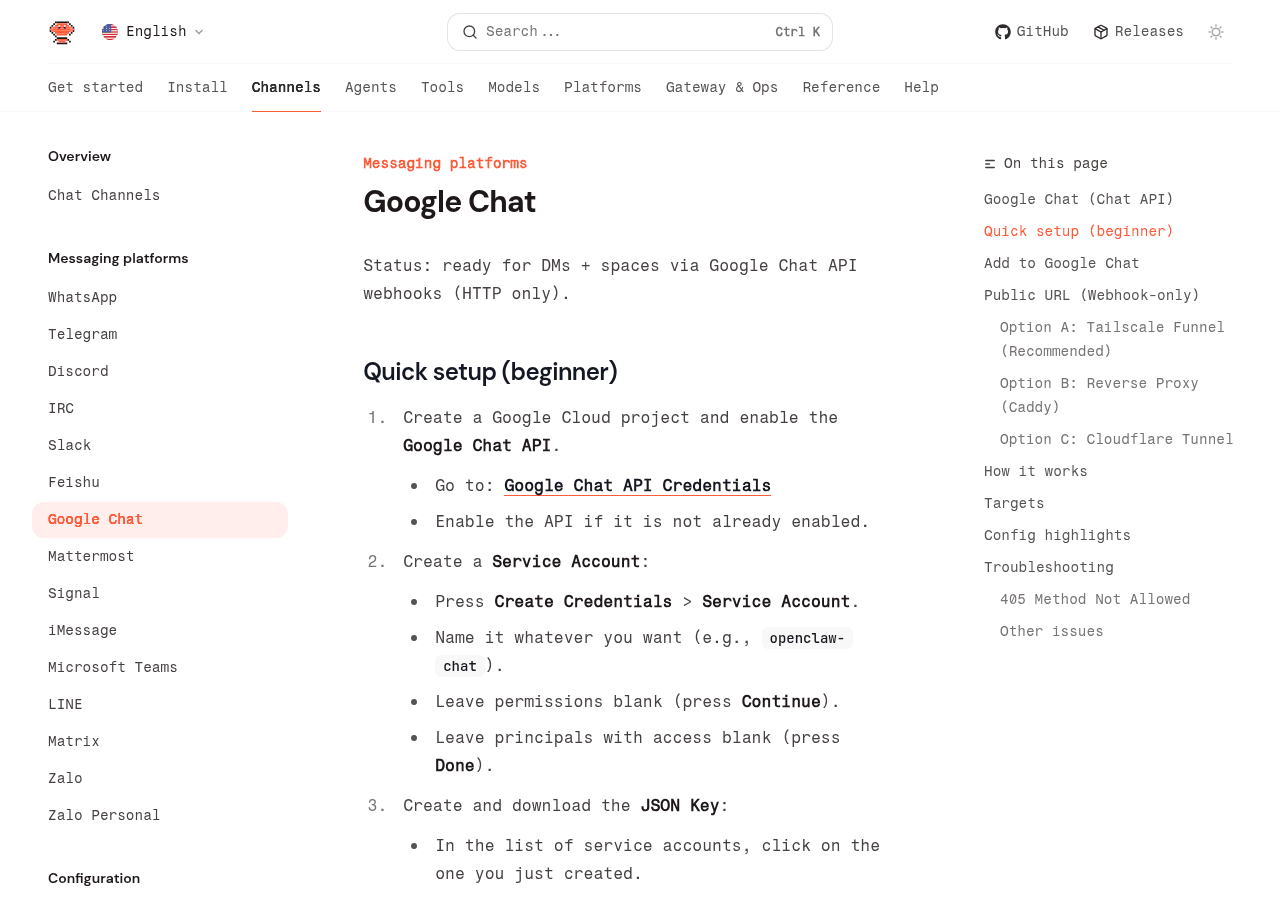
Run these commands first before reading further. They cover the frequent causes of Google Chat failures in OpenClaw.
- Check gateway is running and the channel is active:
openclaw channels status- Probe the Google Chat channel specifically:
openclaw channels status --probe- Stream live logs while sending a test message in Google Chat:
openclaw logs --follow- Confirm the service account file is readable:
ls -la $(openclaw config get channels.googlechat.serviceAccountFile)- Check pairing status for pending DM approvals:
openclaw pairing list googlechatIf channels status shows googlechat: disabled or probe: FAIL, the fixes in this guide apply. If the channel shows ok but messages still fail, jump to the Webhook Failures section.
Error 1: Service Account Permission Denied
What You See
In openclaw logs --follow, you will see something like:
[googlechat] auth error: GoogleAuth failed
  status: 403
  body: {
    "error": {
      "code": 403,
      "message": "The caller does not have permission",
      "status": "PERMISSION_DENIED",
      "details": [
        {
          "@type": "type.googleapis.com/google.rpc.ErrorInfo",
          "reason": "IAM_PERMISSION_DENIED",
          "domain": "googleapis.com"
        }
      ]
    }
  }
Or a shorter variant:
[googlechat] token fetch failed: 403 PERMISSION_DENIED: Request had invalid authentication credentials.Why It Happens
The misleading part of this error: it says "permission denied," which makes you think the service account needs more IAM roles. It doesn't. Google Chat doesn't use IAM roles for Chat API access. The real cause is one of three things:
- The Chat API is not enabled for this Google Cloud project. Check this first.
- The service account key is from a different project than the one where the Chat app was registered. Easy to do if you have multiple GCP projects.
- The service account was deleted and re-created, invalidating the JSON key.
The Fix
Step 1: Verify the Chat API is enabled.
Navigate to https://console.cloud.google.com/apis/api/chat.googleapis.com/overview and confirm the status shows "Enabled." If not, click Enable and wait 2-3 minutes before retrying.
Step 2: Confirm the project ID matches.
Open your service account JSON and check the project_id field:
cat ~/.openclaw/googlechat-service-account.json | python3 -c "import json,sys; d=json.load(sys.stdin); print(d['project_id'])"That project ID must match the Google Cloud project where you registered the Chat app. If they differ, you need either a new service account key from the correct project or to re-register the Chat app under the project matching your key.
Step 3: Rotate the key if the account was recently re-created.
In Google Cloud Console, go to IAM > Service Accounts, find your account, click Keys, add a new JSON key, download it, and update channels.googlechat.serviceAccountFile in your OpenClaw config. Restart the gateway afterward.
openclaw gateway restartError 2: Google Workspace Domain Verification Failure
What You See
[googlechat] space join rejected: 403
  body: {
    "error": {
      "code": 403,
      "message": "The Google Workspace domain has not been verified for this Chat app. Contact your Google Workspace administrator.",
      "status": "PERMISSION_DENIED",
      "details": [
        {
          "@type": "type.googleapis.com/google.rpc.ErrorInfo",
          "reason": "WORKSPACE_DOMAIN_NOT_VERIFIED",
          "domain": "chat.googleapis.com"
        }
      ]
    }
  }
Why It Happens
Google Chat apps operating inside a Google Workspace org must be explicitly approved by the Workspace admin. If you are using a personal Gmail account, your app must be published to Google (or allowlisted). The verification step is separate from creating the app and is easy to miss because the Chat app console does not block submission without it.
The Fix
There are two paths depending on your situation.
Personal Gmail account (no Workspace):
In the Chat API configuration page (https://console.cloud.google.com/apis/api/chat.googleapis.com/hangouts-chat), under Visibility, add your specific Gmail address. Set the app status to "Live - available to users." You do not need full Google verification for personal use; you only need your own email in the allowlist.
Google Workspace account:
Your Workspace admin must go to Google Admin Console (admin.google.com), navigate to Apps > Google Workspace Marketplace Apps > Apps from internal domain, and approve your Chat app for the domain. If you are the admin, this is a 30-second step. If you are not, you will need to request it.
Once approved, restart the gateway and attempt pairing again:
openclaw pairing list googlechat
openclaw pairing approve googlechat <CODE>
Error 3: Webhook Returns 405 Method Not Allowed
What You See
Google Chat shows the app as unresponsive, and in your reverse proxy or gateway logs you see:
[googlechat] incoming request rejected: 405 Method Not AllowedOr, when testing the webhook URL manually:
This returns 405 Method Not Allowed:
curl -X POST https://your-gateway.example.com/googlechatWhy It Happens
This error means the /googlechat endpoint is not being handled by OpenClaw (previously known as Clawdbot and Moltbot) at all. One of these is true:
- The
channels.googlechatblock is missing from your config. - The gateway has not been restarted since you added the config.
- The reverse proxy is stripping the
/googlechatpath before it reaches the gateway.
The Fix
Step 1: Confirm the channel is in your config.
This should return true:
openclaw config get channels.googlechat.enabledIf it returns nothing or false, add or fix the block in your openclaw.json.
Step 2: Restart the gateway.
openclaw gateway restart
openclaw channels status
Step 3: Test the endpoint directly (bypassing the proxy).
curl -X POST http://127.0.0.1:18789/googlechat \
  -H "Content-Type: application/json" \
  -d '{"test": true}'
If this returns something other than 405, the gateway is handling it. The 405 is coming from your reverse proxy or CDN. Check your proxy config to ensure /googlechat is forwarded as a POST, not restricted to GET.
Tailscale Funnel example (correct setup):
tailscale funnel --bg --set-path /googlechat http://127.0.0.1:18789/googlechat
tailscale funnel status
Error 4: Token Audience Mismatch
What You See
[googlechat] token verification failed: jwt audience invalid
  expected: https://gateway.example.com/googlechat
  got: https://chat.googleapis.com/
Or:
[googlechat] auth: audience claim mismatch. audienceType=app-url, configured=https://gateway.example.com/googlechatWhy It Happens
OpenClaw verifies the JWT token that Google Chat sends with each webhook request. The audience field in your config must match the webhook URL you registered in the Google Chat app console. If you changed the domain, switched from HTTP to HTTPS, or updated a port, the audience config and the Chat app registration can drift out of sync.
The Fix
Check your current audience config:
openclaw config get channels.googlechat.audience
openclaw config get channels.googlechat.audienceType
Then go to the Chat app configuration in Google Cloud Console and compare the HTTP endpoint URL shown there. They must be identical, including the protocol, domain, path, and any query string parameters.
If you added a webhook password, the password parameter goes in the Google Chat app URL but your audience config should be set to just the base URL without the password parameter. The webhookPassword config field handles verification separately.
Update your config to match and restart:
For example, to fix the audience:
openclaw config set channels.googlechat.audience "https://gateway.example.com/googlechat"
openclaw config set channels.googlechat.audienceType "app-url"
openclaw gateway restart
Error 5: API Quota Exhausted
What You See
[googlechat] send failed: 429 RESOURCE_EXHAUSTED
  body: {
    "error": {
      "code": 429,
      "message": "Quota exceeded for quota metric 'chat.googleapis.com/messages_sent' and limit 'MESSAGES_PER_SECOND_PER_ACCOUNT' of service 'chat.googleapis.com'.",
      "status": "RESOURCE_EXHAUSTED",
      "details": [
        {
          "@type": "type.googleapis.com/google.rpc.QuotaFailure",
          "violations": [
            {
              "subject": "project:your-project-id",
              "description": "Limit MESSAGES_PER_SECOND_PER_ACCOUNT exceeded"
            }
          ]
        }
      ]
    }
  }
Why It Happens
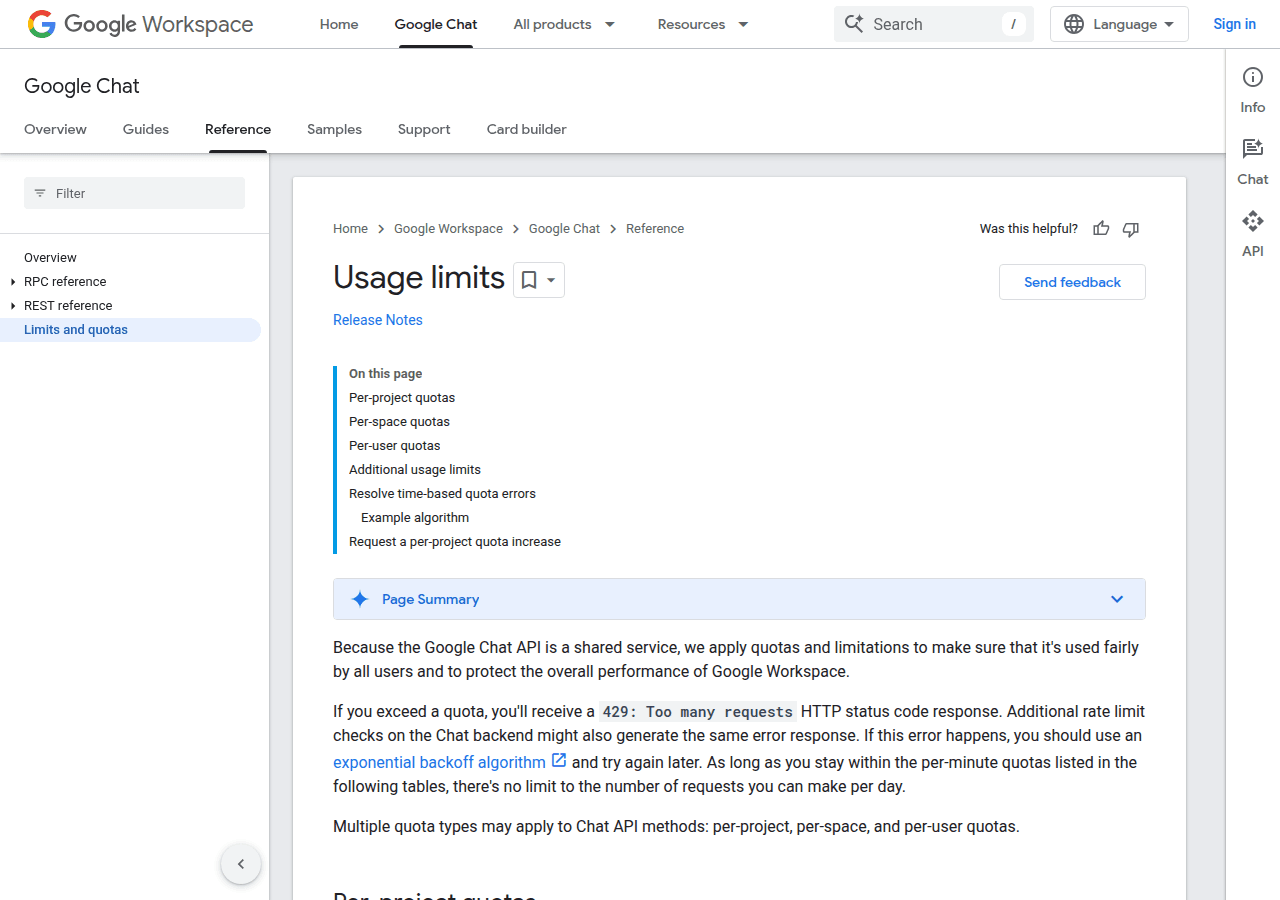
Google Chat API enforces per-project quotas on message sending. The default limits are documented by Google in their API quotas page and are generous for normal use, but a misconfigured agent that triggers in a loop, or an automation that fires on every message in a busy space, can exhaust them quickly.
The Fix
Immediate: OpenClaw's gateway has exponential backoff built in, so transient bursts recover on their own within 60 seconds. You do not need to restart.
If the problem is recurring: Check openclaw logs --follow for loops. An agent triggering itself (replying to its own messages, then replying to those replies) is the frequent cause.
Make sure your spaces config includes requireMention: true for any busy group space:
{
  "channels": {
    "googlechat": {
      "groups": {
        "spaces/AAAA": {
          "requireMention": true
        }
      }
    }
  }
}
This ensures the bot only responds when directly addressed, not on every message in the space.
If you have a legitimate high-volume use case, request a quota increase via Google Cloud Console at https://console.cloud.google.com/iam-admin/quotas.
Error 6: DM Messages Ignored, No Pairing Code
What You See
You message the bot in Google Chat, it shows as delivered, but nothing happens. No pairing code arrives. openclaw logs --follow shows nothing or shows:
[googlechat] dm: drop sender users/1234567890 (policy=pairing, status=unpaired)Why It Happens
The dmPolicy is set to pairing (the default), which requires you to explicitly approve DM senders. The bot received the message but is waiting for approval before responding.
The Fix
List pending senders:
openclaw pairing list googlechatApprove a sender:
openclaw pairing approve googlechat <CODE>If no pending senders appear in the list, check that the bot received the message at all by watching openclaw logs --follow while sending another message. If nothing appears in logs, the webhook is not reaching the gateway. Go back to the Webhook Returns 405 section.
To skip pairing for a known set of users, you can use allowFrom instead:
{
  "channels": {
    "googlechat": {
      "dmPolicy": "allowlist",
      "dm": {
        "allowFrom": ["users/1234567890"]
      }
    }
  }
}
Use the users/ format, not email addresses, for reliability.
Webhook Security: Do Not Skip This
If you skipped the webhook password during setup, go set one right now. Your webhook URL is a public endpoint. Anyone who discovers it can send arbitrary requests to your bot, and your bot will process them as if they came from Google Chat.
{
  "channels": {
    "googlechat": {
      "webhookPassword": "generate-something-strong-here"
    }
  }
}
Then update the webhook URL in your Google Chat app configuration to include the password as a query parameter:
https://gateway.example.com/googlechat?password=your-secure-password-hereThis is one of the recommendations covered in the broader OpenClaw Security Guide. Google Chat is a high-trust channel since it sits inside your org's workspace, and a spoofed request could trigger agent actions you did not intend.
When Nothing Above Fixes It
If you have worked through the errors above and the channel still does not work, the Universal Troubleshooting Guide covers cross-channel diagnostics that apply here, including gateway health checks, DNS resolution failures, and config validation.
For installation-level problems where the gateway itself will not start, see Fix OpenClaw Installation Errors.
The most reliable next step when Google Chat is still silent is:
Full channel probe with verbose output:
openclaw channels status --probe --verboseCheck for config validation errors:
openclaw config validateFull log dump from last gateway restart:
openclaw logs --since-restartPost the output from these three commands in the OpenClaw community forums or GitHub Discussions. The logs from --probe in particular contain the exact auth flow steps and where they fail.
Summary
| Error | Key Symptom | Fix |
|---|---|---|
| Service account 403 | PERMISSION_DENIED in logs | Enable Chat API, match project IDs |
| Domain verification | WORKSPACE_DOMAIN_NOT_VERIFIED | Admin approval or Gmail allowlist |
| 405 on webhook | No messages arrive, curl returns 405 | Restart gateway, fix reverse proxy |
| Audience mismatch | jwt audience invalid | Sync audience config with Chat app URL |
| Quota 429 | RESOURCE_EXHAUSTED | Add requireMention: true, check for loops |
| DMs ignored | drop sender (status=unpaired) | Run pairing approve command |
Google Chat front-loads all its pain into the setup. Once the service account, webhook, and audience are wired correctly, the channel runs without maintenance. No session tokens to rotate, no QR codes to re-scan. The six errors above cover what actually breaks, and they all trace back to those same three pieces being out of sync.
FAQ
How do I know if it's a Google Chat problem vs an OpenClaw gateway problem?
Run openclaw channels status --probe. If the probe returns ok for the Google Chat channel, the gateway and authentication are working. If messages still fail after a passing probe, the issue is in DM policy, group allowlist, or mention gating rather than connectivity.
Can I test the webhook without a real Google Chat message?
Yes. Use curl -X POST http://127.0.0.1:18789/googlechat -H "Content-Type: application/json" -d '{}' to send a test request directly to the gateway, bypassing the reverse proxy. The gateway will reject it with 400 or 401 (not 405), confirming the endpoint is registered and active.
Why does the service account keep failing after a few days?
Service account keys do not expire by default. Recurring auth failures after initial success usually indicate an organizational policy requiring key rotation or expiry. Google Workspace admins can enforce key constraints that individual users cannot override. Check the key's status in Google Cloud Console under IAM > Service Accounts.
The app shows as active in Google Cloud Console but users cannot find it in Chat.
Check the Visibility setting in the Chat app config. If it is set to "Specific people and groups," you must add each user's email address individually. If visibility is set to "Everyone in your domain," confirm that domain verification is complete with your Workspace admin.
For more on AI agent workflows, see EmergentWeirdness.com.
Sources
- OpenClaw Google Chat docs
- Google Chat API reference (credentials setup):
https://console.cloud.google.com/apis/api/chat.googleapis.com/credentials - Google Chat API quota docs
- Google Workspace admin console (for domain approval):
https://admin.google.com - Google Cloud IAM documentation:
https://cloud.google.com/iam/docs/service-account-overview
Conclusion
The Google Chat errors covered in this guide all trace back to the same three-layer architecture: service account auth, webhook delivery, and DM or group policy. Working through the Quick Diagnostic commands at the top of this guide resolves the majority of issues. For errors that persist, the exact error message in openclaw logs --follow pinpoints which layer is failing and which fix applies.
For a complete setup walkthrough from scratch, see the OpenClaw Google Chat Setup Guide. For cross-channel gateway diagnostics, the universal troubleshooting guide covers the commands and patterns that apply across every channel OpenClaw supports.
Changelog
- 2026-02-17: Initial publication
- 2026-02-25: Added changelog, structural improvements
Fixes when it breaks. Workflows when it doesn't.
OpenClaw guides, configs, and troubleshooting notes. Every two weeks.