Connect OpenClaw to IRC in 4 Steps (Easiest Channel Setup)
OpenClaw was previously known as Clawdbot and Moltbot. This guide applies to all versions.
Set up OpenClaw on IRC in minutes: TLS config, NickServ registration, channel access control, and tool restrictions for public bots on Libera.Chat and OFTC.
Key takeaways
- OpenClaw (previously known as Clawdbot and Moltbot)'s IRC support ships as a bundled extension plugin, configured directly in your main config file. No separate install, no API keys, no OAuth flows. Provide a hostname, nick, channel list, and optionally a NickServ password.
- Set
groupPolicy: "allowlist"and configure each channel undergroupswith its ownallowFrom. Top-levelallowFromcontrols DMs only and does not affect channel messages. - Register your bot's nick with NickServ before deploying to any established network to prevent nick hijacking when the bot is offline.
- Use
toolsBySenderwith hostmask matching to restrict what public channel users can trigger through the bot, keeping filesystem and runtime tools off limits.
Always review commands your agent suggests before approving them. Don't paste prompts from sources you don't trust.
Fixes when it breaks. Workflows when it doesn't.
OpenClaw guides, configs, and troubleshooting notes. Every two weeks.
Introduction
OpenClaw's IRC support ships as a bundled extension plugin that you configure directly in your main config file. No separate install step, no OAuth flows, no API keys. You give it a hostname, a nick, a channel list, and optionally a NickServ password, and it connects. The complexity is in access control and channel mode, not the initial connection. This guide walks through both.
Why IRC?
IRC has no gatekeepers. No developer portal. No bot approval queue. No terms-of-service review where a human at a platform company decides whether your bot is allowed to exist. You point it at a server, give it a nick, and it connects. If you already have a VPS running for other reasons, adding an OpenClaw bot to your regular channels takes about five minutes.
The tradeoff: IRC gives you none of the modern niceties. No read receipts, no media embeds, no rich formatting, no reactions. If that matters, the Discord setup guide is a better fit. But for text-only command dispatch, quick Q&A in community channels, or an always-on assistant that doesn't depend on any corporation's API approval process, IRC is hard to beat.
OpenClaw's IRC channel connects to any server that speaks the standard IRC protocol over plain TCP or TLS. Libera.Chat and OFTC are the two networks covered in this guide because they are the most active homes for open-source project channels, but the config structure is identical for any server.
Prerequisites
Before you start, you need:
- OpenClaw installed and
openclaw gateway runworking at least once - A server or VPS with outbound TCP on port 6697 (TLS) or 6667 (plain, not recommended). If you are starting from scratch on a DigitalOcean droplet, the VPS setup guide covers the baseline configuration.
- A nick you want to use. Choose something that does not collide with registered nicks on your target network.
- Optionally, an email address for NickServ registration.
Step 1: Basic Connection Config
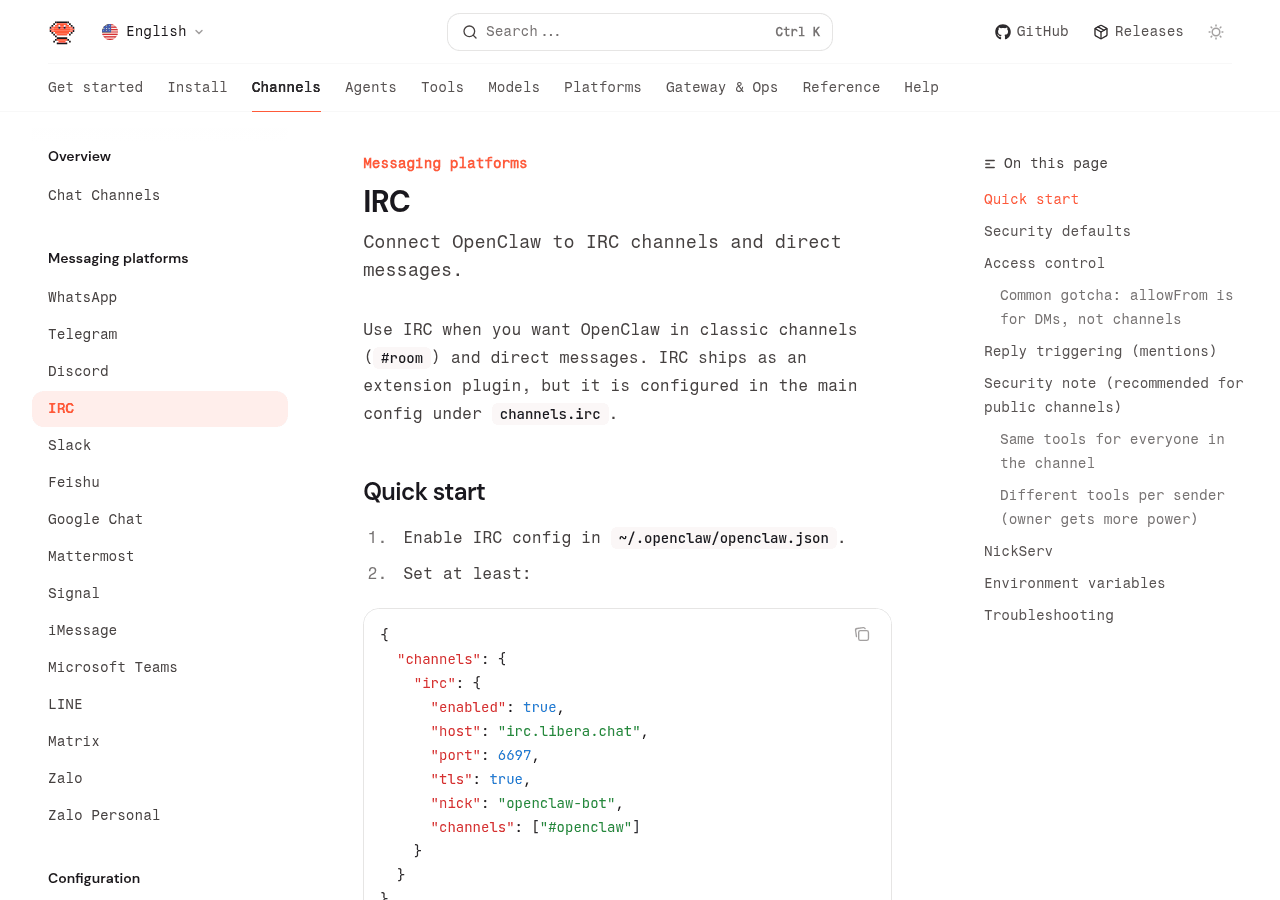
IRC configuration lives under channels.irc in your openclaw.json. The minimum viable config for Libera.Chat looks like this:
{
  "channels": {
    "irc": {
      "enabled": true,
      "host": "irc.libera.chat",
      "port": 6697,
      "tls": true,
      "nick": "your-bot-nick",
      "username": "your-bot-nick",
      "realname": "OpenClaw Bot",
      "channels": ["#your-channel"],
      "dmPolicy": "pairing",
      "groupPolicy": "allowlist"
    }
  }
}
For OFTC, swap the host and nothing else changes structurally:
{
  "channels": {
    "irc": {
      "enabled": true,
      "host": "irc.oftc.net",
      "port": 6697,
      "tls": true,
      "nick": "your-bot-nick",
      "username": "your-bot-nick",
      "realname": "OpenClaw Bot",
      "channels": ["#your-channel"],
      "dmPolicy": "pairing",
      "groupPolicy": "allowlist"
    }
  }
}
Libera.Chat uses port 6697 for TLS. OFTC also uses 6697 for TLS. Both networks' SSL certificates chain to a well-known CA, so you do not need any custom certificate configuration for either.
If you are connecting to a self-hosted or corporate IRC server that uses a self-signed certificate, you will need to configure certificate verification separately depending on your Node.js version. For now, stick to TLS on known networks and do not disable TLS to work around cert issues on production setups.
Environment variables instead of inline config:
If you prefer not to embed credentials in the config file, all core IRC options have corresponding environment variables:
export IRC_HOST="irc.libera.chat"
export IRC_PORT="6697"
export IRC_TLS="true"
export IRC_NICK="your-bot-nick"
export IRC_USERNAME="your-bot-nick"
export IRC_REALNAME="OpenClaw Bot"
export IRC_CHANNELS="#your-channel,#other-channel"
export IRC_NICKSERV_PASSWORD="your-nickserv-password"
The IRC_CHANNELS variable takes a comma-separated list. Everything else maps one-to-one to the config keys. Environment variables are useful when you are running OpenClaw in a containerized environment or storing config in a secrets manager.
Step 2: Register Your Nick with NickServ
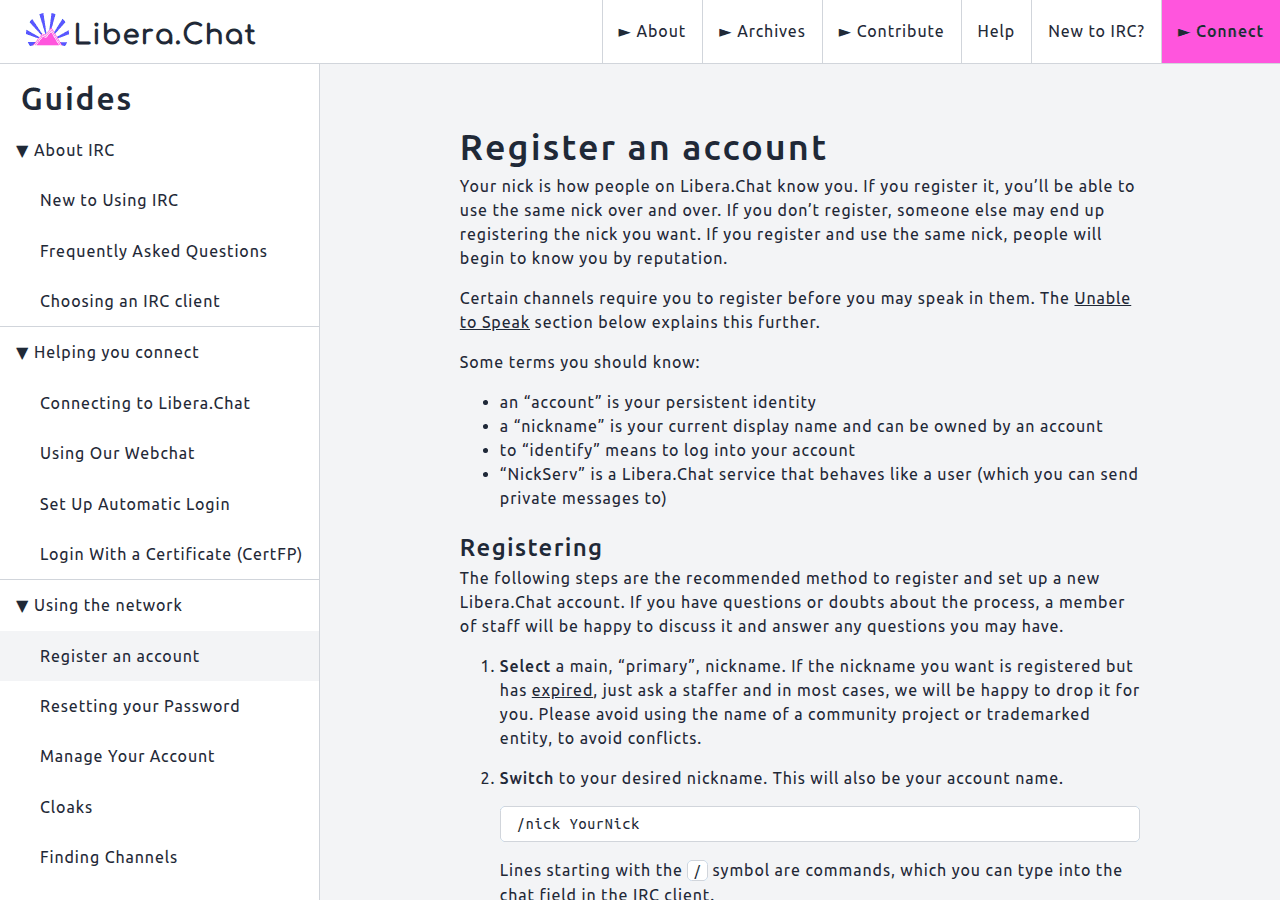
Most established IRC networks enforce nick registration via NickServ. Without registration, anyone can claim your bot's nick when it is offline, which creates obvious problems for a bot that people interact with. Registration also unlocks the ability to set channel modes that restrict posting to registered users.
On Libera.Chat
Connect to the network first (you can do this via any IRC client, not necessarily through OpenClaw). Then in a query to NickServ:
/msg NickServ REGISTER <password> <email>Libera.Chat sends a verification code to your email. Complete verification with:
/msg NickServ VERIFY REGISTER <nick> <code>After that, your nick is registered and you can group any alternate nicks to it:
/msg NickServ GROUPOn OFTC
The process is similar but uses a slightly different command structure:
/msg NickServ REGISTER <password> <email>OFTC also sends a verification email. Follow the instructions in that email to complete registration.
Automated NickServ Authentication in OpenClaw
Once you have registered the nick manually, configure OpenClaw to authenticate on connect:
{
  "channels": {
    "irc": {
      "nickserv": {
        "enabled": true,
        "service": "NickServ",
        "password": "your-nickserv-password"
      }
    }
  }
}
OpenClaw sends the IDENTIFY command to NickServ automatically when it connects. On most networks, this happens before the bot joins channels, so channel modes that require identification (+r, +R, or +q $~a depending on the network's configuration) are satisfied before the bot attempts to speak.
The service field defaults to NickServ, which is correct for both Libera.Chat and OFTC. Some networks use a different name for the nick registration service; adjust accordingly.
One-time registration via OpenClaw (optional):
OpenClaw can also trigger registration on first connect if you have not pre-registered the nick:
{
  "channels": {
    "irc": {
      "nickserv": {
        "enabled": true,
        "service": "NickServ",
        "password": "your-nickserv-password",
        "register": true,
        "registerEmail": "bot@example.com"
      }
    }
  }
}
Set register: false after the first successful registration. Leaving it as true is harmless but noisy.
Step 3: Channel Joining and Group Access Control
Listing channels under channels in the root config joins the bot to those channels on connect:
{
  "channels": {
    "irc": {
      "channels": ["#openclaw", "#my-project", "#help"]
    }
  }
}
Joining channels is not the same as allowing those channels to interact with the bot. That is controlled separately under groups.
The Access Control Gotcha
This is the thing that confuses everyone. Read this twice if you need to.
The top-level allowFrom field under channels.irc controls who can send the bot private messages (DMs). It does not control who can trigger the bot in channels. Those are separate config paths with separate allowlists.
For channel access, you configure per-channel sender rules under groups:
{
  "channels": {
    "irc": {
      "groupPolicy": "allowlist",
      "groups": {
        "#openclaw": {
          "allowFrom": ["*"],
          "requireMention": false
        },
        "#my-project": {
          "allowFrom": ["trusteduser!*@*", "anotheruser!*@*"],
          "requireMention": true
        }
      }
    }
  }
}
The allowFrom values inside groups use hostmask matching in nick!user@host format. The wildcard * allows any sender. More specific patterns like trusteduser!*@* match any user with that nick regardless of ident and host, while trusteduser!ident@realhost.example.com matches on all three fields.
If you see this in your logs:
irc: drop group sender alice!ident@host (policy=allowlist)It means the channel's allowFrom list did not match that sender. Either add the hostmask to the list or set allowFrom: ["*"] for open access.
requireMention controls whether the bot responds to every message or only messages that begin with the bot's nick followed by a colon or comma:
your-bot-nick: what is the capital of France?For a busy channel, requireMention: true is the safer default. For a dedicated bot channel where every message is intended for the bot, requireMention: false is cleaner.
Step 4: Channel Mode Considerations
IRC channel modes affect how and whether your bot can participate. The modes most relevant to a bot are:
+v (voice): On channels with +m (moderated) set, only users with +v or +o can send messages. If the channel is +m and your bot does not have +v, it cannot respond at all. Ask a channel op to run:
/mode #channel +v your-bot-nickOn most networks, if your bot is identified with NickServ, a channel op can also set an access entry so +v is granted automatically on join:
/msg ChanServ ACCESS #channel ADD your-bot-nick +v+o (operator): Giving a bot +o is rarely necessary for a conversational assistant and expands its ability to kick, ban, and set modes. Grant +o only if the bot actually needs those capabilities. If you do need it:
/msg ChanServ ACCESS #channel ADD your-bot-nick +o+r or +R (registered users only): Libera.Chat's +R channel mode restricts posting to users who are identified with NickServ. If the channel has +R set, your bot must be identified before it can speak. The NickServ configuration above handles this automatically.
+q $~a (quieting unregistered): Some channels use an extban to quiet unregistered users rather than setting full +R. The effect is the same: identify first, then post. OpenClaw's NickServ identification on connect handles this case.
Persistent channel modes via ChanServ:
If you are running your own channel, lock in the bot's voice so it survives kicks and rejoins:
/msg ChanServ FLAGS #your-channel your-bot-nick +VvThe exact flags syntax varies by network (Libera.Chat uses Atheme; OFTC uses a different services package). Check your network's ChanServ help output.
Per-Sender Tool Restrictions
For bots in public channels, you probably do not want every IRC user to be able to invoke filesystem tools, runtime controls, or browser automation through the bot. OpenClaw supports per-sender tool policies using hostmask matching:
{
  "channels": {
    "irc": {
      "groups": {
        "#public-channel": {
          "allowFrom": ["*"],
          "requireMention": true,
          "toolsBySender": {
            "*": {
              "deny": ["group:runtime", "group:fs", "gateway", "nodes", "cron", "browser"]
            },
            "owner!~user@trusted.host": {
              "deny": ["gateway", "nodes", "cron"]
            }
          }
        }
      }
    }
  }
}
The * entry in toolsBySender sets the baseline for all senders. Named hostmask entries override that baseline for specific users. This pattern lets you have a public-facing bot that answers questions without giving channel regulars access to your server's filesystem.
For a broader discussion of securing your OpenClaw installation, the security hardening guide covers threat models and configuration patterns beyond channel-level access control.
Full Config Reference: Libera.Chat and OFTC
Libera.Chat (complete example):
{
  "channels": {
    "irc": {
      "enabled": true,
      "host": "irc.libera.chat",
      "port": 6697,
      "tls": true,
      "nick": "clawbot",
      "username": "clawbot",
      "realname": "OpenClaw Assistant",
      "channels": ["#my-project", "#my-project-bot"],
      "dmPolicy": "pairing",
      "groupPolicy": "allowlist",
      "groupAllowFrom": [],
      "groups": {
        "#my-project": {
          "allowFrom": ["*"],
          "requireMention": true,
          "toolsBySender": {
            "*": {
              "deny": ["group:runtime", "group:fs", "gateway", "nodes", "cron", "browser"]
            }
          }
        },
        "#my-project-bot": {
          "allowFrom": ["*"],
          "requireMention": false
        }
      },
      "nickserv": {
        "enabled": true,
        "service": "NickServ",
        "password": "your-nickserv-password"
      }
    }
  }
}
OFTC (complete example):
{
  "channels": {
    "irc": {
      "enabled": true,
      "host": "irc.oftc.net",
      "port": 6697,
      "tls": true,
      "nick": "clawbot",
      "username": "clawbot",
      "realname": "OpenClaw Assistant",
      "channels": ["#debian-bots", "#my-project"],
      "dmPolicy": "allowlist",
      "allowFrom": ["trusteduser!*@*"],
      "groupPolicy": "allowlist",
      "groups": {
        "#debian-bots": {
          "allowFrom": ["*"],
          "requireMention": true,
          "toolsBySender": {
            "*": {
              "deny": ["group:runtime", "group:fs", "gateway", "nodes"]
            }
          }
        },
        "#my-project": {
          "allowFrom": ["teamuser!*@*"],
          "requireMention": false
        }
      },
      "nickserv": {
        "enabled": true,
        "service": "NickServ",
        "password": "your-nickserv-password"
      }
    }
  }
}
Start the gateway after saving your config:
openclaw gateway runWatch the logs to confirm connection and channel joins:
openclaw logs --followYou should see the bot connect, identify with NickServ, and join its configured channels within a few seconds.
Common Issues
Bot connects but never responds in channels
Check two things in order:
- The channel is listed under
groups. If a channel is not ingroups, the bot joins it but does not respond to anything there. - The sender is covered by the channel's
allowFrom. IfgroupPolicyisallowlistand the channel hasallowFrom: ["*"]not set, senders are dropped.
Run openclaw logs --follow and watch for drop group sender lines. They tell you exactly which hostmask was dropped and against which policy.
Bot responds in DM but not channels
This is the classic allowFrom-vs-groups.allowFrom confusion. Top-level allowFrom controls DMs. Channel messages require a groups entry with its own allowFrom. Adding the user's hostmask to the top-level allowFrom does not affect channel access.
Nick in use on connect
IRC networks handle nick collisions differently. If your nick is already taken when the bot connects, OpenClaw may fail to claim it. Options:
- Register the nick with NickServ (see Step 2). On Libera.Chat, a registered nick can be reclaimed with a
GHOSTcommand via NickServ if another connection is using it. - Configure a fallback nick. OpenClaw appends an underscore by default if the nick is taken:
clawbot_. If you see this, your primary nick was unavailable.
TLS connection fails
Check that your target port is actually the TLS port. Libera.Chat and OFTC both use 6697. Attempting TLS on port 6667 (the plain-text port) will fail. If you are connecting to a custom server and TLS is failing:
openssl s_client -connect irc.yourserver.net:6697This tells you whether the server presents a valid certificate and what chain it uses. Fix the server-side TLS before debugging OpenClaw.
Messages not going through on +m channels
Your bot needs +v (voice) or +o (op) to speak in a moderated channel. See the channel mode section above. Check with /mode #channel to see what modes are set.
NickServ identification not completing before channel join
On some networks, the NickServ identification handshake takes longer than the server's channel join timing. If you see the bot get kicked or silenced because it posted before identifying, check whether the server supports SASL authentication. OpenClaw's SASL support may vary by version. As a workaround, configure the bot to join a delay channel or confirm in the docs whether your version supports SASL PLAIN.
Bot floods out
IRC servers enforce flood limits. If OpenClaw is sending responses that span many lines quickly, the server may disconnect it for excess flood. Use textChunkLimit to cap individual message lengths and add newline chunking if the bot sends multi-paragraph responses:
{
  "channels": {
    "irc": {
      "textChunkLimit": 400,
      "chunkMode": "newline"
    }
  }
}
For general connection and startup issues not specific to IRC, the universal troubleshooting guide has diagnostic command sequences that work across all channels.
FAQ
Does OpenClaw support SASL authentication?
Check your OpenClaw version's changelog or the docs. SASL is the preferred authentication method on networks like Libera.Chat because it authenticates before the connection is fully established, solving the identify-before-join timing issue. NickServ IDENTIFY (what the current nickserv config block uses) works but has a small window where the bot is connected but unidentified.
Can OpenClaw connect to multiple IRC networks simultaneously?
Not directly with a single channels.irc block, which connects to one server. If you need presence on multiple networks, you would need to run separate gateway instances with different configs, or check whether your OpenClaw version supports multiple IRC account configurations.
Can OpenClaw run as a bot on a channel it does not own?
Yes, subject to that channel's rules. Automated bots are not welcome on all channels. Check the channel's topic and ask an op before deploying. Many networks have a designated bots channel (often #bots or #bottest) where you can test behavior without bothering anyone.
How does IRC compare to Discord for OpenClaw?
The core session and skill system is identical across both channels. The differences are protocol-level. Discord gives you rich message formatting, embedded content, role-based access control, slash commands, and interactive components. IRC gives you none of that but also requires no developer account, no permission scopes, and no bot verification process. If your users are on IRC, deploy there. If they are on Discord, the Discord setup guide covers what you need. There is no reason to pick one if you have users on both.
Is the bot's traffic encrypted?
With tls: true and port 6697, yes. The connection from your server to the IRC network is TLS-encrypted. IRC has no end-to-end encryption for channel messages at the protocol level; channel operators and the server itself can read plaintext. For private conversations with sensitive content, IRC is not the right channel regardless of TLS. Use Signal or a self-hosted option instead.
Changelog
- 2026-02-17: Initial publication
- 2026-02-25: Added changelog, structural improvements
Sources
- OpenClaw IRC Channel Documentation
- Libera.Chat NickServ Registration Guide
- OFTC NickServ Documentation
- Libera.Chat Guides
Conclusion
IRC is the fastest OpenClaw channel to get running, but the DM-vs-channel access control split catches everyone at least once. The fix is always the same: remember that allowFrom controls DMs and groups.allowFrom controls channels. Those are separate configs. Once that clicks, everything else is just a hostname, a nick, a NickServ password, and a groups block per channel.
For general OpenClaw channel troubleshooting that applies across all platforms including IRC, the universal troubleshooting guide covers gateway diagnostics, log reading, and config validation with openclaw doctor. For security configuration including per-sender tool restrictions in more detail, the security hardening guide is the next stop. For a deeper look at how AI agents handle multi-channel communication patterns, see this breakdown on EmergentWeirdness.com.
Fixes when it breaks. Workflows when it doesn't.
OpenClaw guides, configs, and troubleshooting notes. Every two weeks.