Solo Developer App Release Checklist: Step-by-Step
Solo developer release checklist covering testing, store submission for Google Play and Microsoft Store, launch prep, and post-launch monitoring.
Key takeaways
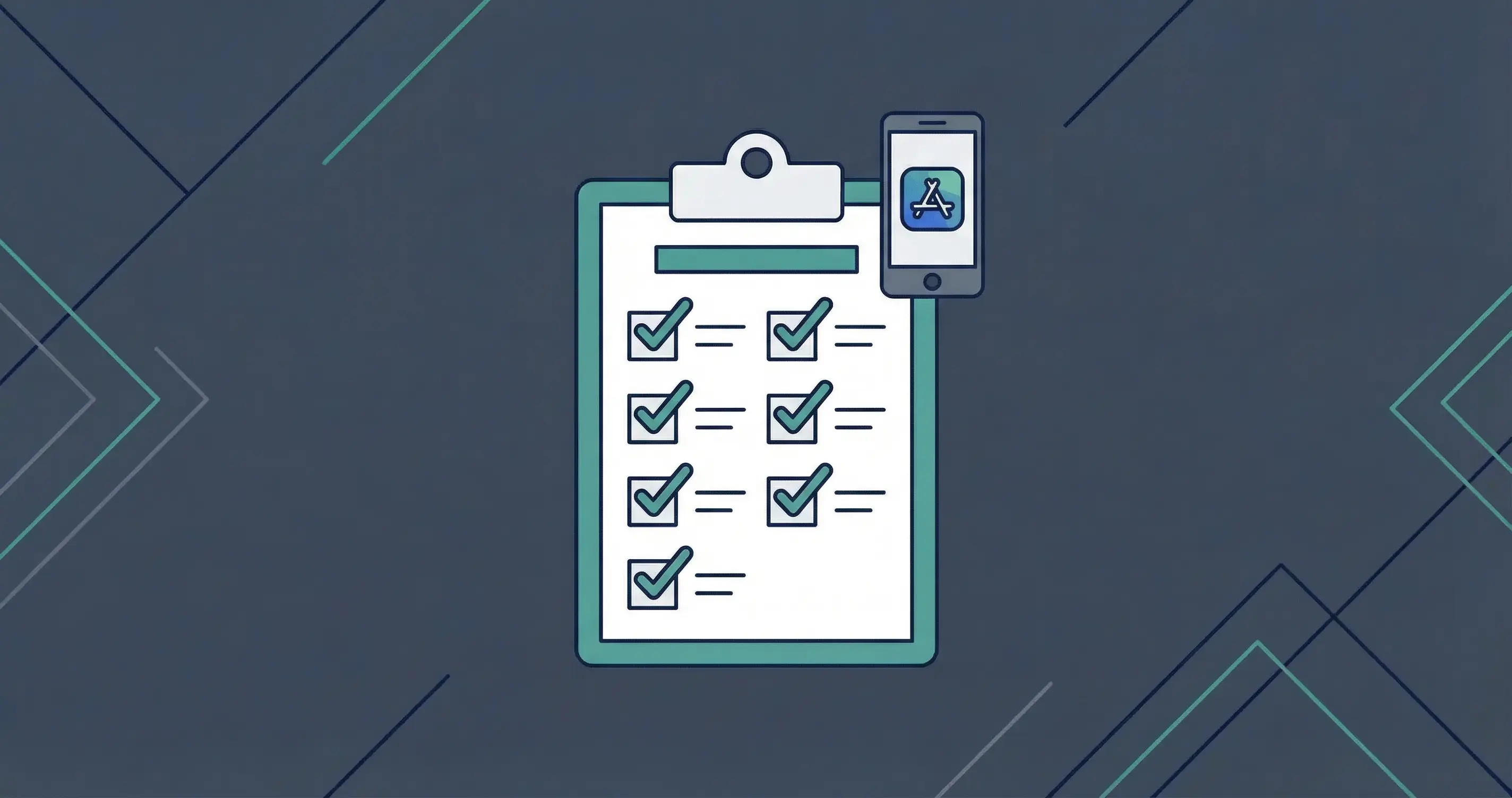
- Start testing before you think you're ready. Google Play's internal testing track gives you access to up to 100 testers before your app touches the production store.
- Back up your signing keystore before submitting anywhere. Losing it means you can't update your own app.
- The Google Play Data Safety section is mandatory for every app, even ones that collect no data at all.
- Microsoft Store submissions need an app name reservation in Partner Center before you can upload anything.
- Use a staged rollout for your first production release. Starting at 10 to 20% of users gives you a recovery window if something breaks.
Fixes when it breaks. Workflows when it doesn't.
OpenClaw guides, configs, and troubleshooting notes. Every two weeks.
What this checklist covers (and what it doesn't)
This guide picks up where two other pieces on this site leave off. If you haven't worked through a PRD for your app yet, the AI-ready PRD workflow covers that process in detail. Once your PRD is solid, the MVP definition guide helps you scope what actually ships first.
This checklist assumes you've built something. Your MVP is done, or close enough. Now you need to ship it.
Four phases:
- Pre-release testing
- Store submission (Google Play and Microsoft Store, with Apple notes)
- Launch day
- Post-launch monitoring
This isn't theory. These are the steps that come up in real submissions, with the blockers that slow solo devs down most.
Pre-release testing checklist
Run these steps before you touch any store submission form.
Internal testing on Google Play lets you share a build with up to 100 testers without publishing to production. Set this up in Google Play Console under Testing > Internal testing. Testers get the app through a private link, not the public store listing.
Once internal testing passes, move to closed testing for a broader group, then open testing if you want public beta feedback on the Play Store. Google recommends running at least one internal testing phase before production for any new app, per Google Play's testing track documentation.
Check these before moving on:
- App installs and launches cleanly on a fresh device (not just your dev machine)
- Tested on at least two different Android versions if targeting Android
- Tested on at least two screen sizes (phone + tablet if your layout supports both)
- No crash on launch from a cold start
- All in-app purchases or subscriptions complete the full flow end to end
- Permissions prompt at the right time (not all at launch)
- Any third-party SDKs initialized correctly in release mode, not just debug
Pre-launch report: Play Console's pre-launch report runs your app on real devices through Firebase Test Lab automatically when you upload to the internal testing track. Check it before moving to production. It catches crashes on devices you don't own.
How to prepare your build for store submission
Your release build needs a few things your debug build doesn't.
Version code: Increment it. Every upload to any store requires a version code higher than the previous upload. If you forget and try to upload the same version code, the upload rejects with no useful error message.
Android App Bundle format: Google Play requires Android App Bundle (AAB) format for all new apps since August 2021. APK is no longer accepted for new app submissions. Build your AAB from Android Studio via Build > Generate Signed Bundle/APK > Android App Bundle.
Signing keystore: Sign your AAB with your release keystore. This is the part most first-timers rush. Your keystore is the cryptographic proof that you're the developer. If you lose it, you cannot ship updates to your own app on Google Play. Back it up to two separate locations before you upload anything. A password manager plus a cloud backup folder works.
Microsoft Store MSIX: Windows apps go through the Partner Center as an .msixupload or .appxupload file for Windows 10/11. Microsoft recommends the .msixupload format over individual .msix files for store submissions, per Microsoft's upload docs.
Strip debug artifacts: Remove any test accounts, hardcoded API keys for dev environments, debug endpoints, or placeholder content before building the release version. App reviewers at both Google and Microsoft check for placeholder content and will reject submissions that contain it.
Google Play submission checklist: store listing and review
Google Play submissions run through Play Console. Here's what you need before you can hit submit.
Data Safety section (mandatory for all apps): You must declare what data your app collects, how it's used, whether it's shared with third parties, and what security practices you follow. This applies even if your app collects no data. In that case, you declare no data collection explicitly. Inaccurate information here can trigger a policy violation after the app ships, per Google's Data Safety guidance.
Store listing requirements:
| Item | Required | Notes |
|---|---|---|
| App name | Yes | Max 30 characters |
| Short description | Yes | Max 80 characters |
| Full description | Yes | Max 4000 characters |
| Screenshots | Yes | At least 2 phone screenshots |
| App icon | Yes | 512x512 PNG |
| Content rating | Yes | Complete the questionnaire |
| Privacy policy URL | Yes (if collecting data) | Must be publicly accessible |
| Data Safety section | Yes | All apps, no exceptions |
Content rating questionnaire: Google uses your answers to assign ratings (Everyone, Teen, Mature, etc.) for each market. Rushing through it and selecting inaccurate answers is one of the most common causes of post-submission rejection.
Staged rollout: When you publish to production, set a rollout percentage. Google lets you start at any percentage from 1% to 100%. Starting at 10 to 20% gives you visibility into crash rates and reviews before the full audience hits the app. You can expand or halt the rollout from Play Console at any time.
Review timeline: New apps typically take 1 to 3 days for review, per Google Play review guidance. Apps in certain categories (VPN, financial services, health) can take longer. Plan this into your launch date. Don't schedule a launch announcement for the same day you submit.
Microsoft Store submission checklist: Partner Center steps
Microsoft Store submissions go through Partner Center. The workflow is sequential and requires completing each section before submission.
Step 1: Reserve your app name. You must reserve the name before creating a submission. Go to Apps and Games > New product > MSIX or PWA app. Name reservation is free, and it holds the name even if you don't submit immediately, per Microsoft's submission docs.
Step 2: Pricing and availability. Set your price (free or paid), which markets to distribute to, and your release schedule. Markets default to all available markets.
Step 3: Properties. Set the category for your app. This field is required. Also set your privacy policy URL here if your app collects or transmits any personal data.
Step 4: Age ratings. Complete the content questionnaire. Microsoft generates regional age ratings based on your answers. This step is required for all submissions.
Step 5: Upload your package. Upload your .msixupload file. Package validation happens automatically after upload. The section shows "Incomplete" until all mandatory configs are set, even if the package itself validates successfully.
Step 6: Store listing. Required fields: description and at least one screenshot. Microsoft recommends four or more screenshots. Also include your app logo (required for some OS versions). Keywords are optional but help with discoverability.
Review timeline: Microsoft's review process typically takes 1 to 3 business days for new apps, per Microsoft's app certification documentation. You can set a "publish on certification" option to release immediately after approval, or hold for manual release on a specific date.
Apple App Store: what's different for solo devs
If you're targeting iOS or macOS, Apple's process differs enough to call out separately.
Apple Developer Program: Costs $99/year. You must enroll before you can submit anything. Sign up at developer.apple.com/programs.
TestFlight: Apple's beta testing platform. You can distribute to up to 10,000 external testers before submission. Run at least one TestFlight build before submitting for review. It catches App Store-specific issues that don't show up on simulator or side-loaded builds.
App Review: Apple's review team manually reviews every app against five categories: Safety, Performance, Business, Design, and Legal, per the App Review Guidelines. Review typically takes 24 to 48 hours for new apps, per Apple's App Review page, though complex apps or edge cases can take longer.
Privacy manifest: Apps using certain APIs (location, contacts, camera, microphone) require a privacy manifest file that declares how those APIs are used. Missing privacy manifests are a common rejection reason. Apple's documentation on privacy manifests covers the format.
Common rejection reasons for solo devs:
- App crashes during review (test on a real device, not simulator)
- Placeholder or demo content left in the build
- Missing usage description strings for any permission the app requests
- In-app purchases not configured correctly in App Store Connect before review
Launch day checklist: what to do before you flip the switch
You've got approval. Don't just hit publish and walk away.
Confirm your rollout settings. On Google Play, verify your staged rollout percentage before expanding. On Microsoft Store, confirm whether you set "manual publish" or "publish on certification" and which one you actually want.
Set up crash monitoring before users arrive. Firebase Crashlytics is free and integrates with both Android and (via the Apple SDK) iOS. You want crashes showing up in your dashboard within minutes of launch, not discovered from 1-star reviews. Connect it at firebase.google.com/docs/crashlytics.
Prepare your support channel. Solo devs often set this up after launch. Do it before. This means a support email address listed in the store, and ideally a way to track what users are reporting. Even a simple spreadsheet beats nothing.
Verify your store listing one more time. Screenshots still match the current UI? Privacy policy URL loads? Support email address is correct? These seem obvious until you realize you're looking at a cached version of an old screenshot.
Draft your announcement. A post to relevant communities (Reddit, Hacker News Show HN, your newsletter) works best when it's ready to go, not written after you've been monitoring the dashboard for three hours.
Post-launch monitoring checklist
The first 48 to 72 hours reveal problems you couldn't find in testing.
Android Vitals targets: Play Console surfaces crash rate and ANR (Application Not Responding) rate for your app. Google's bad behavior thresholds are a crash rate above 1.09% of daily active users and an ANR rate above 0.47%, per Android Vitals documentation. Crossing these thresholds can affect your store ranking. Check Android Vitals daily for the first two weeks.
Monitor reviews, especially 1-star. New apps that hit a real bug often get a cluster of low-rating reviews within 24-48 hours. Read each one. They tell you what your crash logs don't (what users were trying to do when things broke).
Expand your staged rollout only when metrics are stable. Wait until your crash rate is below 1% for at least 24 hours before expanding from 10% to 50% to 100%. Rushing this is how a bug reaches your entire user base.
Track your install funnel. Play Console and Partner Center both show store listing impressions, page views, and install conversion rates. If 1000 people view your listing and 20 install, your screenshots or description might be the problem, not the app.
Plan your first update within 2-4 weeks. Stores surface apps that receive updates. An app that hasn't been updated in 6 months starts to look abandoned. Your first update doesn't need new features. Bug fixes and a version bump signal active maintenance.
Common submission blockers and how to avoid them
| Blocker | Store | Prevention |
|---|---|---|
| Missing privacy policy URL | All stores | Host a privacy policy page before you submit. Use Google's Privacy Policy template guidance or write your own. |
| Data Safety section incomplete | Google Play | Fill this out last, after you've finalized all SDKs. Third-party SDKs change what data you collect. |
| Version code not incremented | Google Play, Microsoft | Keep a release notes file and increment the version code as part of your build process. |
| Signing keystore lost | Google Play | Back up immediately. Store the keystore file and its password in a password manager. |
| Screenshots don't match current UI | All stores | Take screenshots from the actual release build, not a dev build, after all UI is final. |
| Age rating questionnaire inaccurate | All stores | Answer based on what the app can do, not just what you intend users to do. |
| Placeholder content in production build | All stores | Add a pre-release checklist step: search your codebase for "TODO", "test", and "placeholder" strings. |
| App name already taken | Microsoft Store | Reserve your name in Partner Center before you do anything else, even before you finish building. |
Key terms
AAB (Android App Bundle) is the required package format for new Android apps on Google Play. Google uses it to generate optimized APKs for each device configuration, reducing download size for users compared to universal APKs.
MSIX is the Windows app package format used for Microsoft Store submissions. It replaces older formats like .appx and packages your app with its dependencies for clean installation and removal.
Staged rollout is a release strategy that distributes your update to a percentage of users instead of all users at once. You set the percentage in Play Console, monitor metrics, and expand when stable.
ANR (Application Not Responding) is an Android error that occurs when your app's main thread is blocked for more than 5 seconds. High ANR rates trigger warnings in Android Vitals and can affect your Play Store ranking.
Data Safety section is a mandatory disclosure in Google Play Console where you declare what data your app collects, how it's used, and whether it's shared with third parties. Required for every app, including apps that collect no data.
Content rating is the age-appropriateness classification assigned to your app by each store based on a questionnaire. Different markets have different rating systems. Inaccurate ratings can cause rejection or removal.
FAQ
How long does Google Play review take for a new app?
New app submissions to Google Play typically take 1 to 3 days for review, per Google's review time guidance. Apps in sensitive categories like VPN, financial services, or children's apps can take longer. Build at least a week of review time into your launch plan for first-time submissions, especially if your app uses restricted permissions or sensitive data.
Do I need a privacy policy to submit to Google Play or Microsoft Store?
You need a privacy policy URL in your submission if your app collects or transmits any personal data. For Google Play, this applies to the Data Safety section and the store listing. Microsoft Partner Center requires a privacy policy URL if your app collects or transmits personal information. Even if your app collects nothing, you still need to complete the Data Safety section on Google Play and declare that explicitly.
What is the difference between internal testing and production on Google Play?
Internal testing on Google Play lets you share your app with up to 100 pre-approved testers through a private link, without making the app publicly visible on the Play Store. Production is the public release, visible to anyone who searches for your app. Internal testing builds don't go through the full review process that production submissions do. Use internal testing to validate your build before committing to a full store review cycle.
Can I update my app after it's live on the Microsoft Store?
Yes. Updating a live Microsoft Store app follows the same submission process as the original release. You upload a new MSIX package with an incremented version number, complete the submission steps, and submit for review. Updates typically review faster than new app submissions. Microsoft allows you to set a manual release date or publish immediately on certification completion.
What happens if my app gets rejected by the App Store or Google Play?
Rejection comes with a reason. Read the rejection notice carefully. Both Apple and Google specify which guideline was violated. For Google Play, you can appeal decisions through the Play Console. For Apple, you can use the Resolution Center in App Store Connect to communicate with the review team. Most first-time rejections are fixable within a day: missing privacy policy, placeholder content, or a permission that needs a usage description string. Fix the specific issue, don't change other things, and resubmit.
Evidence & Methodology
This checklist is based on the following primary sources:
- Google Play Console documentation: Prepare and Roll Out a Release
- Google Play Console: Release with Confidence guide
- Google Play Data Safety section documentation
- Android App Bundle documentation
- Microsoft Learn: Create App Submission for MSIX App (updated March 2026)
- Microsoft Learn: Upload MSIX App Packages
- Apple Developer: App Review Guidelines
- Firebase Crashlytics documentation
- Android Vitals: Bad Behavior Thresholds
Submission requirements verified as of March 2026.
Related resources
- AI-Ready PRD Workflow Template: Build the spec before you build the app
- Define Your Software MVP from a PRD: Scope what you actually ship
Changelog
| Date | Change |
|---|---|
| 2026-03-24 | Initial publication |
Fixes when it breaks. Workflows when it doesn't.
OpenClaw guides, configs, and troubleshooting notes. Every two weeks.